When a payment is attached to the incorrect Proforma or Invoice, or when the payment is not attached to any document, you can manually correct this by following the steps below. This is especially useful if a payment was recorded too quickly on the wrong folio, if a guest changes from a Proforma to a final Invoice, or if you need your financial reports to show the correct allocation of payments for accounting and auditing purposes.
By moving the payment to the appropriate document, you ensure that the guest balance, billing overview, and revenue reports remain accurate, and that your team always sees a clear and consistent picture of what has been paid and what is still outstanding.
Follow below steps to take in order to move a payment to a specific document:
- Payments which are not attached to a document will appear in the billing section like a free-standing payment:

- If a payment is attached to Proforma or Invoice you will see a small arrow under the document, indicating there is a payment attached:

- Clicking on the arrow will open up the payment:

- In both cases the steps are identical to attach the payment to the correct document.
Click on the More Action Button behind the Payment and choose Switch Proforma/Invoice :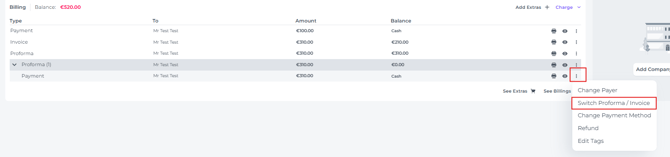
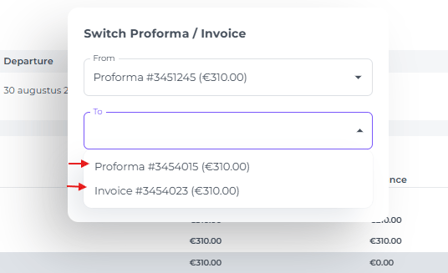
- In the pop up screen that appears you choose the correct document the payment should be attached to:
- Hit Save:
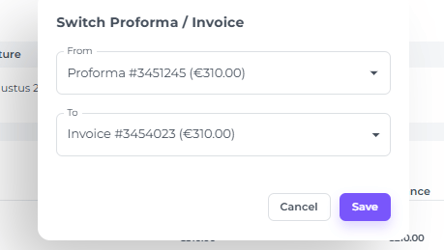
- The payment has now been moved from the Proforma and attached to the Invoice:
