With the MobileKeys integration, there are multiple ways to send a 'mobile key'/ digital key to your guest. You can send it manually during check-in or directly from the booking options, or you can fully automate the process with pre-arrival email rules.
This gives you flexibility to match your operational style:
-
Front desk teams can issue keys on the spot when the guest arrives, ensuring access details are correct and up to date.
-
Reservations or back-office staff can send keys in advance from the booking screen, for example when confirming a room change or early arrival.
-
For a fully contactless experience, you can configure rules so that keys are sent automatically only when certain conditions are met (such as the reservation being fully paid and within a specific time window before arrival).
By combining these options, you maintain full control over room access while streamlining check-in, reducing queues at reception, and offering guests a smoother, more modern arrival experience.
1. Sending the Mobile Key upon Check-In
-
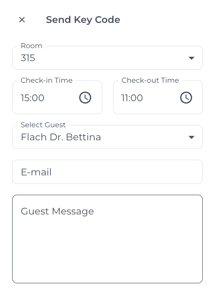
When you click the Check-in button, a pop-up will appear asking if you want to send the mobile key:
-
In the pop-up, enter the following:
- Room number: Select the room number you want to send the key to.
- Availability window: Set the time range during which the key will be valid.
- Guest: Select the name of the guest you want to be sent to.
- Recipient email: Specify the email address where the key will be sent.
- Guest message: Add a custom message to include in the email sent to the guest
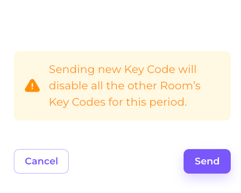
- Once all details are set, click to issue the key and send it to the guest.
2. Sending the Mobile Key from the Booking
-
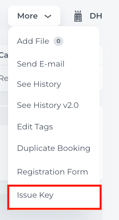
Open the booking and click the More section in the top right corner.
-
Select Issue key (the last option from the dropdown menu).
-
The same pop-up as previously will appear, allowing you to set the availability window, recipient email, and optional message.
3. Automated Mobile Key Delivery
You can automate mobile key delivery using pre-arrival email rules:
-
Go to Email Settings and create a new rule for sending the mobile key automatically.
-
Define the conditions, for example:
-
Only send if the balance is 0 (fully paid).
-
Send a specific number of days before arrival (e.g., 5 days).
-
-
The system will automatically send the key according to the rules you’ve set.
❗Attention❗
Sending a new Key Code will overwrite and therefore disable all the other Room’s Key Codes for that period.