Do Not Move - DND
There are times when you need to ensure a guest remains in a specific room and the reservation cannot be moved elsewhere. This may be the case if a guest has special accessibility requirements, or if you have coordinated housekeeping and maintenance tasks around that exact room. In these situations, it is important that the reservation stays fixed, even when other rooms are shuffled to optimize occupancy or handle last‑minute changes.
To support this, Noovy allows you to lock a reservation to a designated room by setting it to Do Not Move. Once this status is enabled, the reservation can no longer be reassigned via drag and drop or through standard room change actions, which helps prevent accidental changes by your team and safeguards the guest experience.
To set the reservation to Do Not Move follow the below steps:
To set the reservation to Do Not Move follow the below steps:
- From the menu on the left of your screen, go to Rooms and find the concerning reservation:
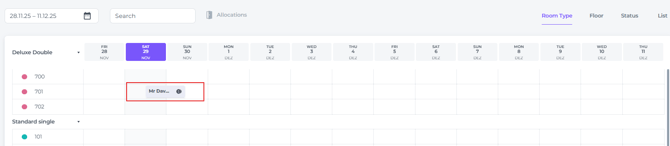
- Click once on the concerning reservation, a pop up screen will appear:
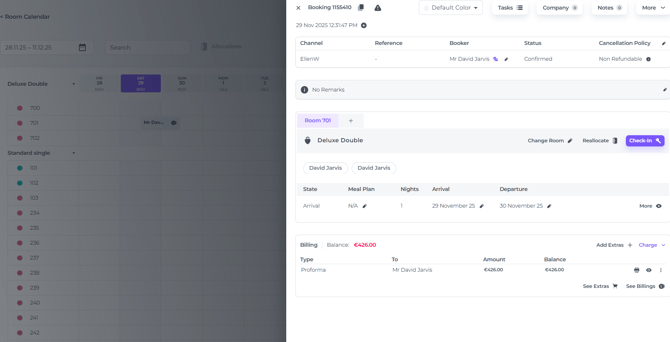
- In the pop up go to the rooms section and find the lock symbol:
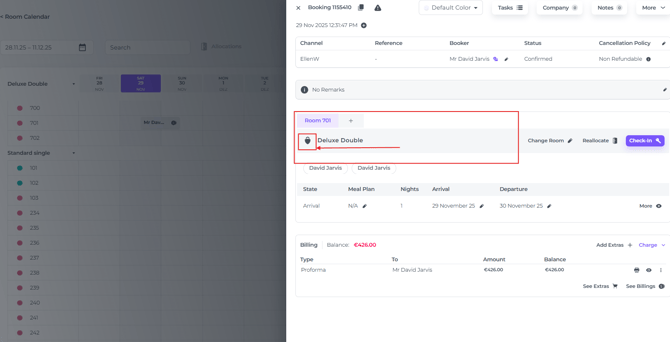
- Click on the lock, this will immediately lock it and set the Do Not Move status, a temporary message will tell you if you have succeeded:
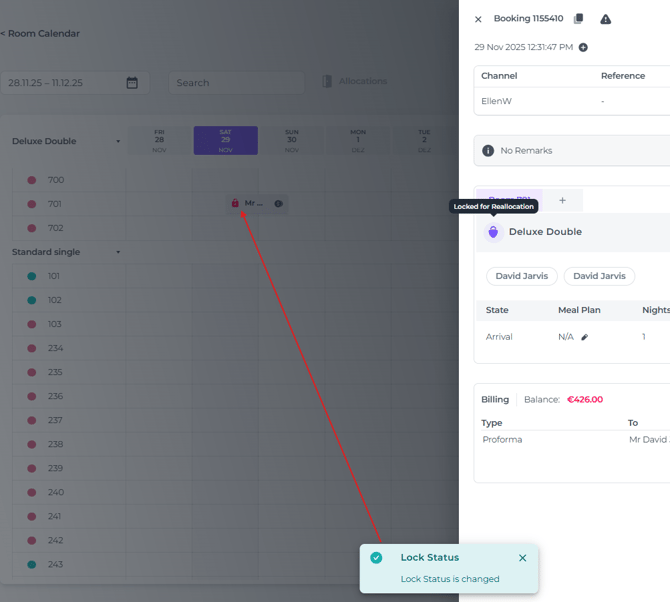
Results:
-
The lock symbol will turn purple, indicating it has been activated to lock:
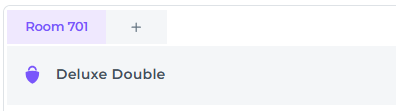
-
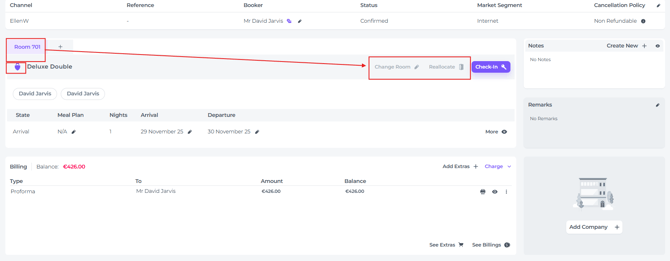
On the reservation page, the Change Room and Allocation buttons are deactivated:
This also applies to the ‘Booking Pop Up view’ of the reservation, which appears when you click once on the reservation in the Room Calendar:
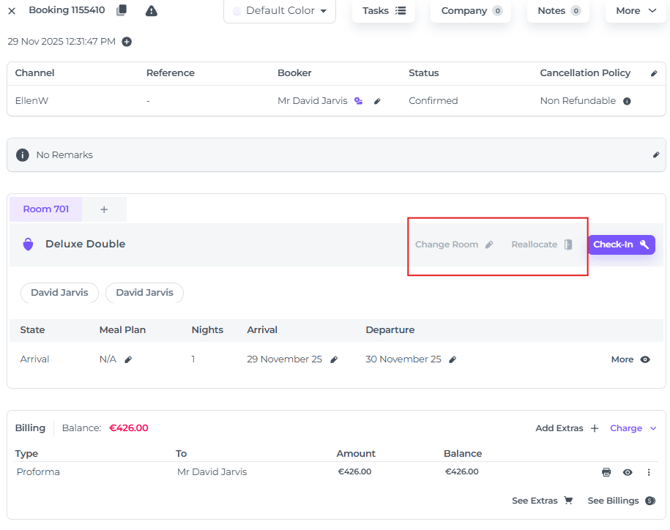
-
The drag and drop method in the Room Calendar will no longer function in the Do Not Move status.
-
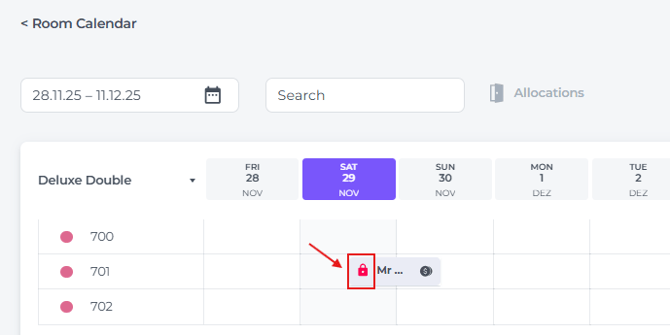
In the Room Calendar the reservation has been marked with a red lock, showing you clearly that this room is not allowed to be moved: