What is the Product Report for?
Tracking which items have been sold, how many, and over which period helps you manage stock levels more accurately and avoid both overstocking and stock-outs.
It also shows you which products are consistently popular (sales trends), which items only sell in specific seasons or packages, and which products generate little interest and may need to be repriced, repositioned, or removed from your offering altogether.
Over time, this insight supports better purchasing decisions, more targeted promotions, and a more profitable, streamlined product mix that matches guest preferences.
-
The Products report can be found from the main menu > Reports:
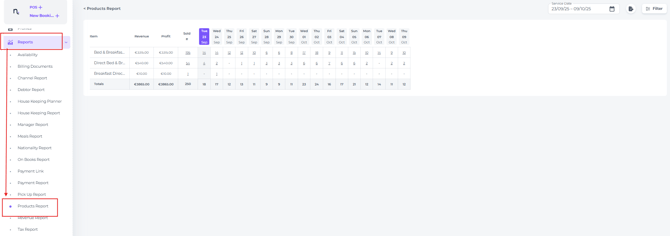
Fields Explained:
- Date Range - the period for which you want to view sold items:

-
Item - The product
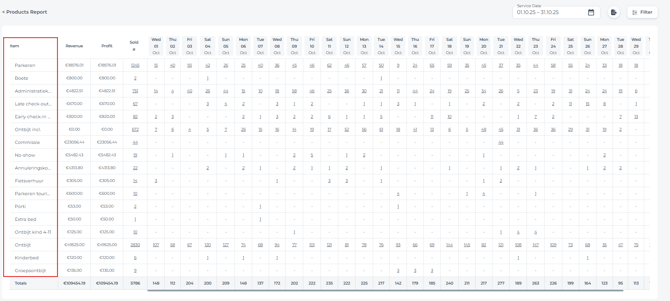
-
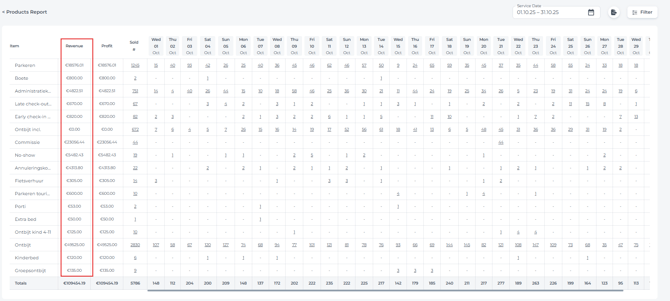
Revenue - The total revenue generated by each item within the selected date range:
-
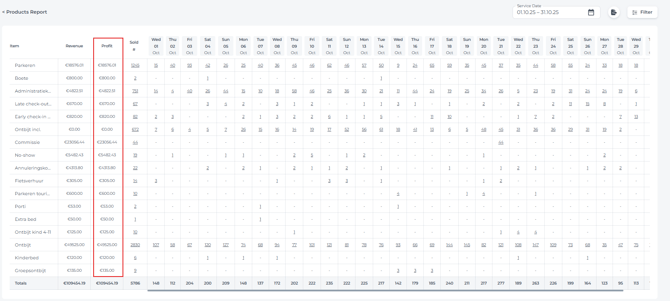
Profit - The total profit generated by each item within the selected date range:
-
Sold # - The total quantity sold within the selected date range
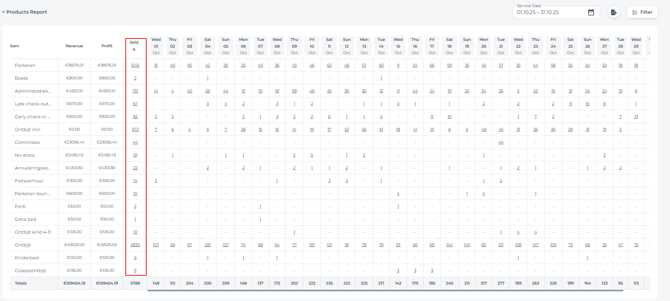
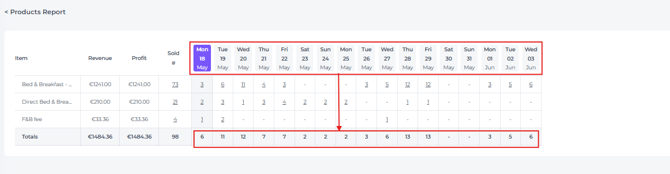
- Amount of sold items per day - The total number of all items sold per day:
- Clicking the number shown for a specific day opens a pop-up with a detailed breakdown:
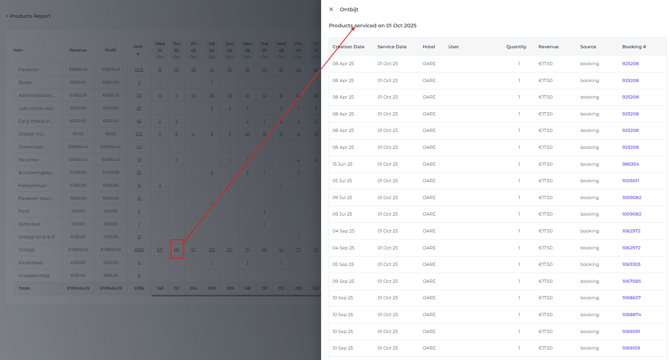
(This feature makes it easy to open the related booking, see who purchased each item, review any price changes, and verify whether a specific user added the product.)
- Clicking the number shown for a specific day opens a pop-up with a detailed breakdown:
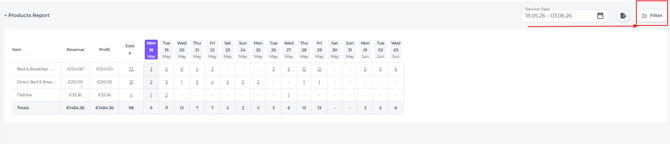
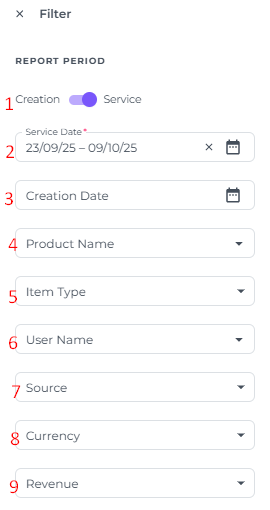
- Filter - allows you to refine your search in detail. Quickly focus on exactly the products and transactions you need to analyse.
-
-
-
- Creation/Service Toggle - Allows you to select a date range based on view either:
- Creation date - when the item was added to the reservation or bill. The moment the item is added, the user is asked to set a service date
- Service date - when the item was or is going to be actually used - Service Date - Select a date range to view the items sold based on service date
- Creation Date - Select the Creation date range with in the Service date range set previously
- Product Name - Select the item sold
- Item Type - Select the category or type for the product you wish to filter
- User Name - Filter on which user has posted items
- Source - Was the product added to a Booking, or sold via the POS (Cash Register) for passer by guest with no booking?
- Currency - It multiple currencies are available choose the applicable one
- Revenue - Select "<" or ">" to filter for less or greater than the specified amount, or use "Between" to filter for revenue within a specific range
- Creation/Service Toggle - Allows you to select a date range based on view either:
-
-
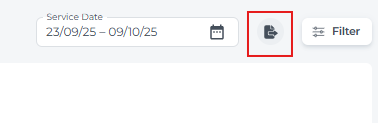
- Export - Clicking on the export icon will create an Exel sheet:

💡Tip:
Check out our related articles:
👉 'How to create new products'
👉 'The product feature explained'