How to Set Up the Lighthouse Connection
Lighthouse is a rate-shopping and market intelligence service that can be connected to your HotelConnect account through the Marketplace. This article walks you through the entire process, from requesting API access from Lighthouse to enabling and configuring the integration inside HotelConnect.
Before You Begin: Request API Access from Lighthouse
Before configuring anything in HotelConnect, you need to request the connection details from Lighthouse. To do so, send an email to support@mylighthouse.com asking them to set up API access for your hotel.
Email Template
Use the template below when contacting Lighthouse support. Attach a sheet that lists the hotel(s) and their competitors, along with the corresponding Booking.com links for each property.
Subject: API Access Setup Request
Dear Support,
Would you please set up API access for the hotel listed in the attached document?
Once that's complete, could you also provide us with the Hotel ID and the Subscription ID for the Hotel, and also the Competitor's IDs? We'll need that ID to complete the mapping process on our end.
All the information you need, as well as the links to Booking.com pages for all of the venues, is in the sheet.
Subscription type: Standard
Thank you for your assistance.
Name of the hotel you are requesting for, together with the Boooking.com link of the hotel
Hotel ID:
Subscription ID:
The Hotel IDs for the requested competitors:
(list each competitor here with their Booking.com link)
What You Will Receive from Lighthouse
Once Lighthouse processes the request, they will reply with:
- The Hotel ID for your property
- The Subscription ID for your account
- The Competitor IDs (also called Compset IDs) for the competing hotels you listed
Keep this information handy — you will need the Subscription ID to complete the setup in HotelConnect.
Step-by-Step: Enable Lighthouse in HotelConnect
Step 1 — Open the Marketplace
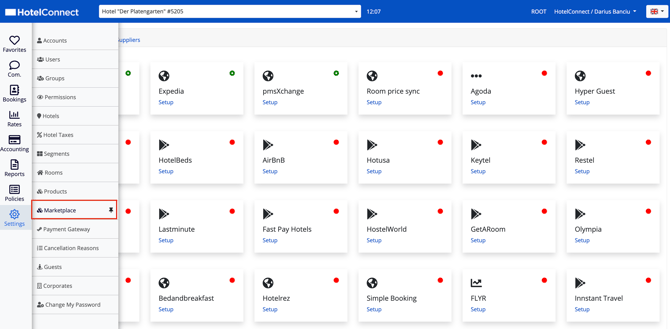
From the left-hand navigation menu, click Settings, then select Marketplace from the expanded menu.
Step 2 — Go to the Services Tab
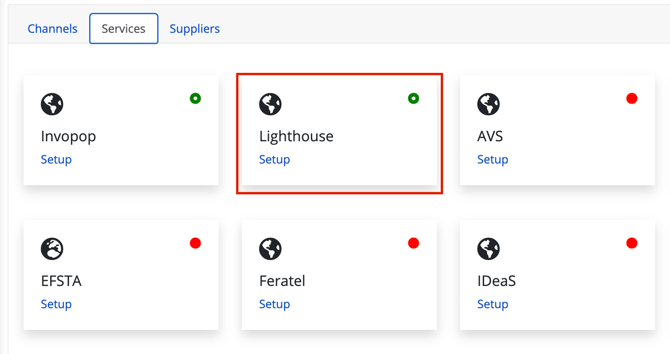
Inside the Marketplace, switch to the Services tab at the top of the page. You should see a grid of available services including Invopop, Lighthouse, AVS, EFSTA, Feratel, and IDeaS.
Step 3 — Open the Lighthouse Setup
Locate the Lighthouse card and click the Setup link beneath the name. This opens the Lighthouse configuration panel.
Step 4 — Enable the Connection
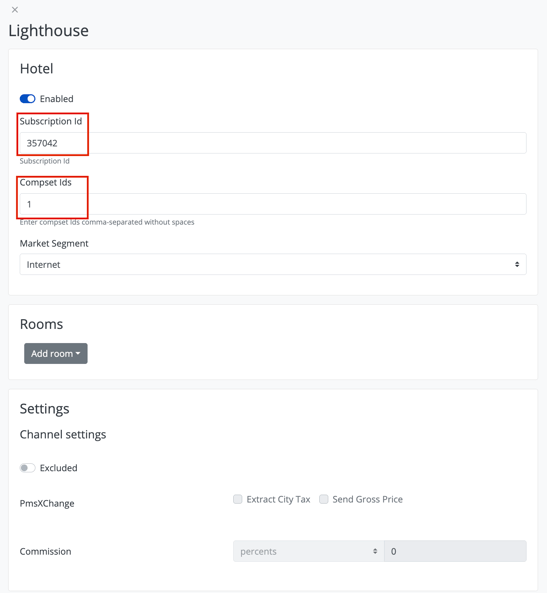
At the top of the configuration panel, toggle the Enabled switch on. The switch will turn blue once activated.
Step 5 — Enter the Subscription ID
In the Subscription Id field, paste the Subscription ID that Lighthouse provided in their reply email.
Step 6 — Set the Compset IDs
In the Compset Ids field, enter 1.
Important: The Compset Ids value is always
1, regardless of how many competitor hotels you submitted to Lighthouse. Lighthouse groups all of your competitors under a single compset on their side, so you do not need to enter the individual competitor IDs here.If you ever need to enter multiple compset IDs in the future, separate them with commas and do not include any spaces.
Step 7 — Confirm the Market Segment
The Market Segment dropdown should be set to Internet by default. Leave it as is unless instructed otherwise.
Step 8 — Save Your Changes
Save the configuration. Once saved, the Lighthouse card in the Services grid will show a green status indicator, confirming the connection is active.
Verifying the Connection
After saving, return to Settings → Marketplace → Services and look at the Lighthouse card. A green dot in the top-right corner of the card means the integration is enabled and active. A red dot means the connection is either disabled or misconfigured — in that case, reopen the setup panel and confirm the Subscription ID was entered correctly.
Troubleshooting
If the connection does not activate correctly, check the following:
- The Subscription ID was copied exactly as provided by Lighthouse, with no extra spaces.
- The Enabled toggle is switched on (blue).
- The Compset Ids field contains the value
1. - Lighthouse support has confirmed that API access has been provisioned on their end.
If everything appears correct but the connection still fails, contact your HotelConnect account manager or reach back out to Lighthouse support to verify the credentials.