On the move or away from a computer? No problem!
With the Noovy app, your phone keeps you connected to your hotel’s daily operations in real time—whether you are on property, between sites, or off duty.
We are continuously improving the app to support your team and streamline your workflows. Our latest addition, the Rooms Calendar, gives you a clear overview of all rooms and stays on a single screen. You can see which rooms are occupied, arriving, departing, or available, helping you coordinate housekeeping, update the room status and create reservations.
Wherever you are, the Noovy app and Rooms Calendar help you stay in control, make faster decisions, and keep daily operations running smoothly.
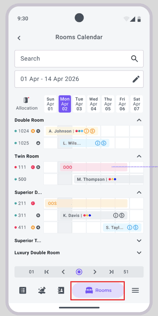
When you open the Rooms Calendar from the bottom of your mobile screen (bed icon), you will see all physical rooms and the bookings currently allocated to them.
Below you will find an overview of all available functions and how to use them:
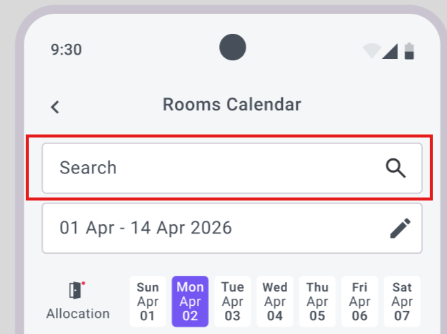
Search field
-
Allows you to find a specific room by entering its Metaobject (This is how a room is defined in the Rooms settings in Noovy) number (or name if your hotel uses room names)
Date Selector
- Select the date range you want the Rooms Calendar to display:
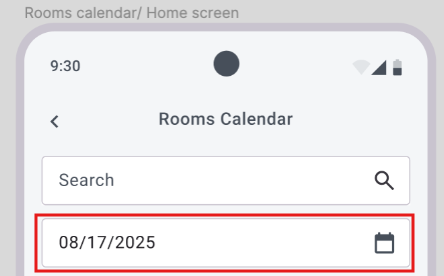
- By default, the calendar displays a one-week range starting from yesterday.
- Navigation row:

- Pressing > and < Skip 7 days forward or backward.
- Pressing
>|skips forward to the last week of the current year. - Pressing
|<skips backward to the last week of the current year. - Using the navigation buttons automatically updates the Date Selector to match the date range currently shown in the Rooms Calendar.
Tabs
- Switch between Room Type, Floor, Status and the List:
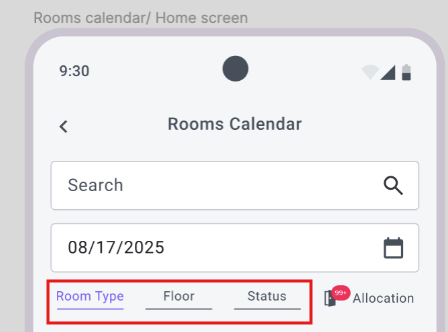
- Tab Room Type
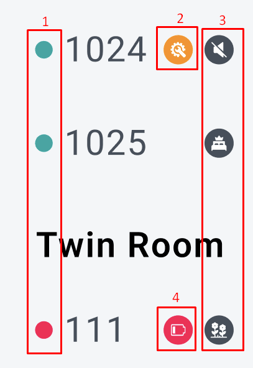
1. Housekeeping status - Click on the green (clean) or red (dirty) dot to change the status:
2. Task Indicator - Shows you one or multiple unfinished tasks for this room
3. Metaobject Facility - Indicates the features which are configured in your Metaobject settings
4. Low Battery - If your hotel is using the Noovy Lock integration - Tab Floor - Displays all rooms grouped by floor, regardless of room type.
- Tab Status - Shows rooms grouped by reservation status (In house-arrival-departure) or when empty
- Tab Room Type
Booking Range
- The calendar displays the allocated (not cancelled) bookings
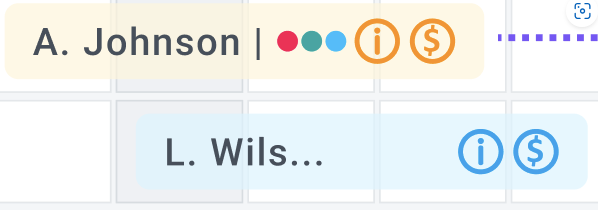
- A booking colour shows the booking status / booking colour rules used in the system (Arrival/ In-house/Quote).
- Shows quick indicators such as:
- Unpaid Balance
- Incomplete Guest Data
- Lock
- Split Allocation
- Bookings Tags
Booking Details
- Tapping an allocated booking opens a booking summary in a bottom sheet:
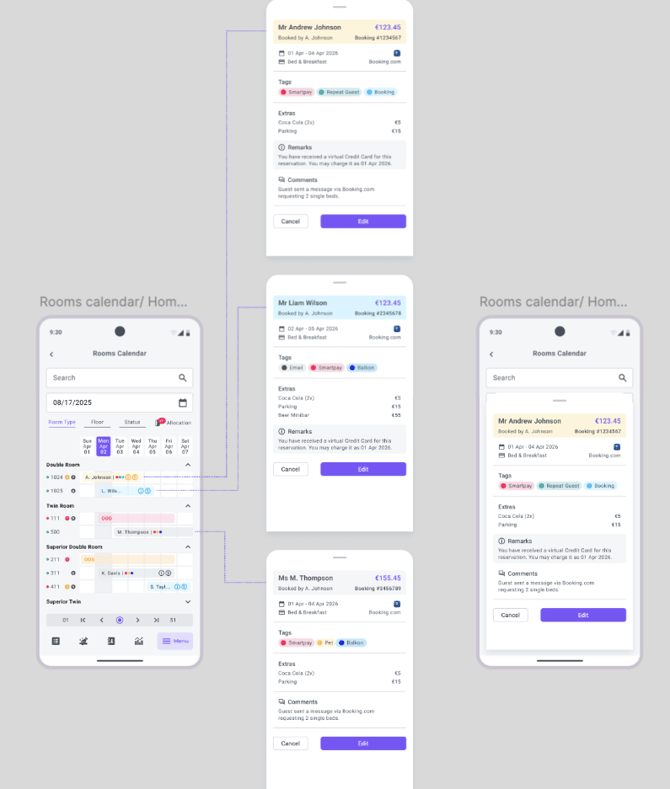
- Showing the following information - Guest Name - Stay Dates - Booking ID - Rate Plan - Tags - Extras - Remarks - Notes - Balance
- Re-allocation - Click on the booking and select a different room within the same room type category
Allocation Button
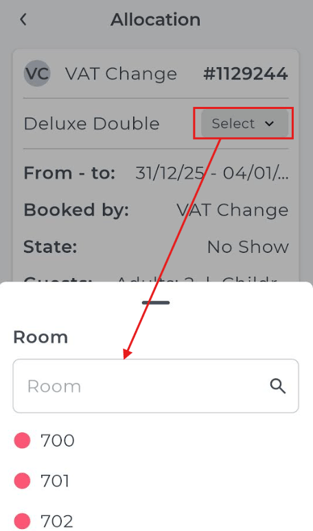
- The Allocation Button/Indicator will show you when there are unallocated bookings within the selected date range:
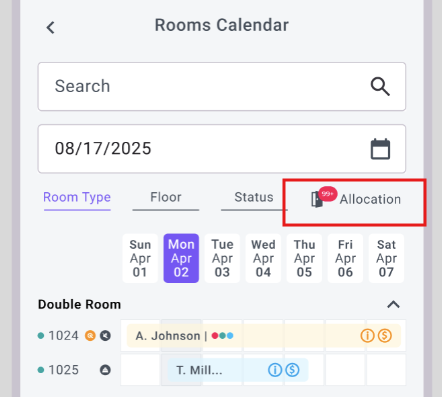
- Tapping on the button will open the Allocations screen where you can allocate the booking(s) involved by choosing either a clean or dirty room in the same room category:
Create a new Booking
-
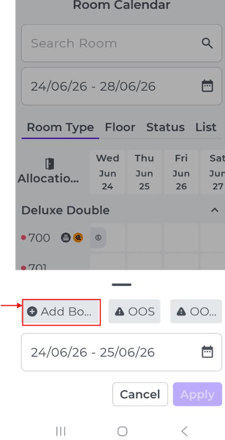
Click on a the desired booking (free) date to open a pop up, click on +Add Booking
-
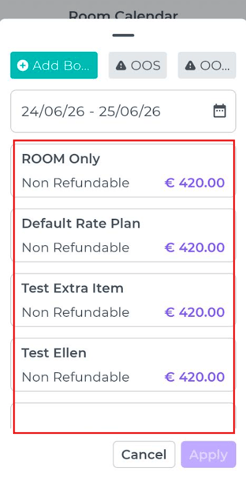
Select the desired Rate Plan
- Scroll down to enter Guest Gender and Name
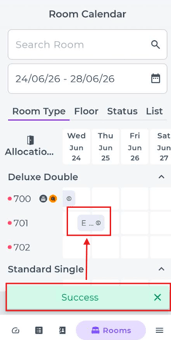
- Click Apply and the booking will be created & allocated therefore shown on the Room Calendar
Create Out Of Order (OOO) / Out Of Service (OOS)
- Select a free date an select OOO or OOS:
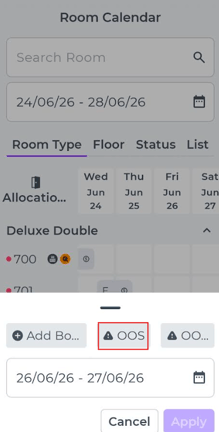
- Select the period you expect the room to be OOO or OOS followed by Apply:
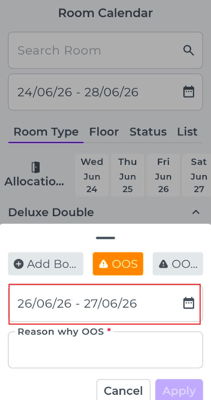
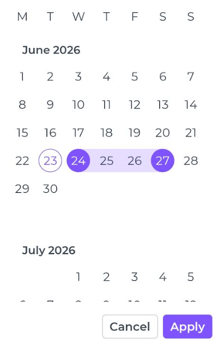
- Type the reason for the OOO or OOS and click Apply:
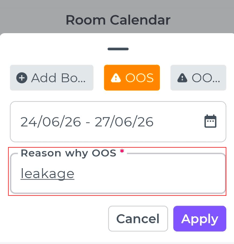
- **If a booking exists on one of the selected dates, you will see a notification:
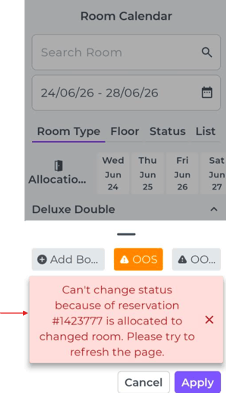
Reallocate the booking that is preventing you from setting the room to OOO or OOS, or take another appropriate action if it is creating an overbooking.
- **If a booking exists on one of the selected dates, you will see a notification:
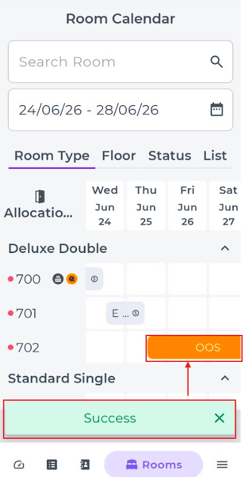
- After Apply the OOO or OOS status will be set:
Lock/ Do Not Move
- When a reservation is locked/ has been set to Do Not Move, a lock icon will indicate it:
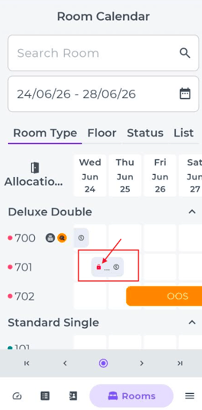
- Only a user with the permission to unlock can change this and be able to change room or re-allocate