The channel report
The Channel report provides booking and revenue data for every channel guests use to reserve at your property, giving you a clear picture of which channels deliver the most bookings. This article explains how to work with and configure the report.
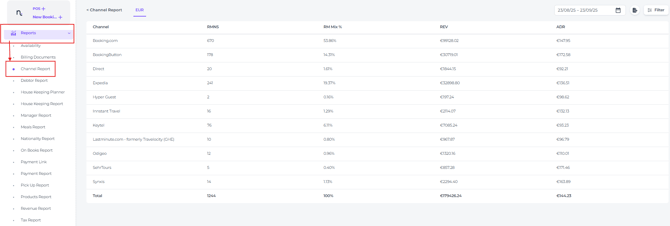
The Channel report can be found from the main menu under Reports:
Running the Report
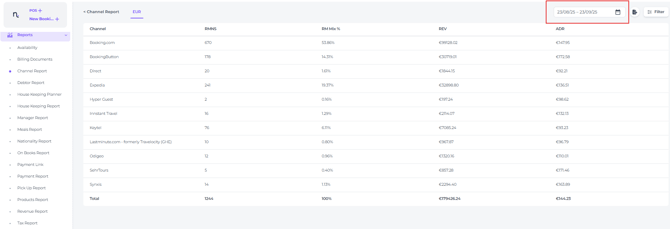
- Choose the date range for the period you want to analyse.
The columns explained:
-
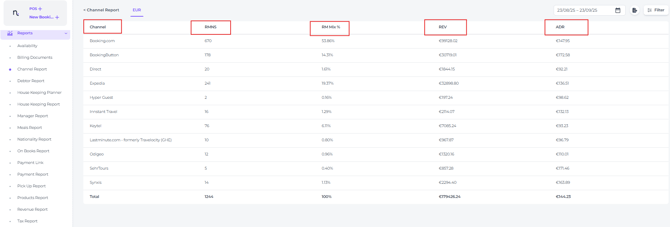
- Channel – The booking channel shown for this row
-
-
RMNS - Room Nights. Total room nights booked at your property through this channel.
-
RM MIX% - Percentage of total room nights. Shows the share of bookings each channel represents.
-
REV - Room Revenue. Revenue generated per room for this specific channel.
-
ADR - Average Daily Rate for each channel. The room revenue divided by room nights.
-
- Filter
Apply filters to narrow down the report data in the Filter feature: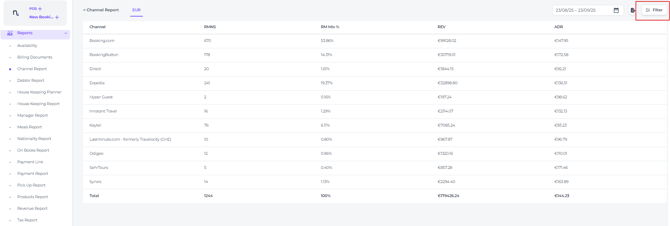
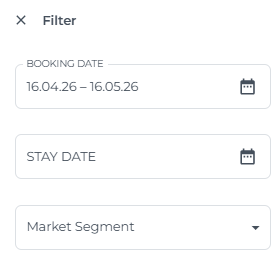
- Booking Date - View booking data based on the date the reservation was made.
- Stay Date - View booking data based on the dates guests stayed at your property.
- Market segment - View booking data by specific market segments (when configured in your PMS)
💡Tip:
Each hotel has its own market segments configured. To learn more on Market Segments we invite you to read the article
'How to create and manage Market Segments'
-
Export:
Export an Exel report by clicking on the Export icon:
