Your new Booking Engine will be ready to go live in no time!
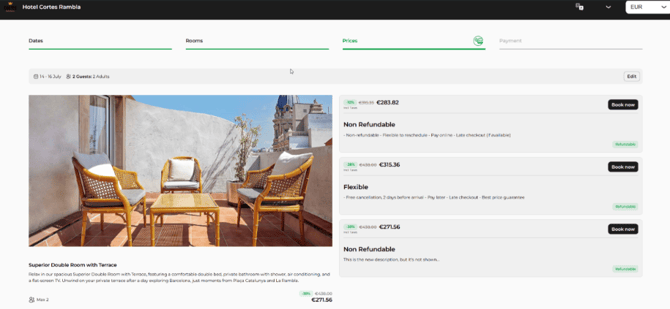
A booking engine fully integrated with your PMS. No more relying on third-party websites with high commission rates. Give your guests the confidence to book directly through your website with an experience that is just as easy and fast as online platforms, including on mobile. And as an added bonus, you’ll continue to have direct access to your Noovy support team, always available in the way you are used to.
There are 3 things you need to do in order to set up your Noovy Booking Engine
-
Rate Plans - Determine and set up your rates you wish to show availability for on your Booking Engine
-
Rooms - Edit the Rooms in Noovy by adding photos, facilities and descriptions
-
Market Place - Set up the new Çhannel "Noovy Booking Engine" and create your URL redirect for your website
1. Setting Up the Booking Engine Rates
Editing your rate plans
-
Go to your main menu > Settings > Rate Plans:
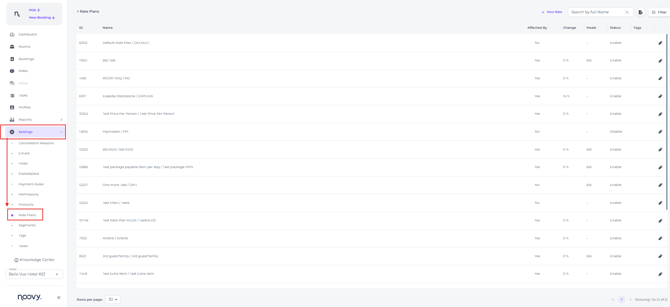
- Click the edit button (pen icon) on the rate plan you want to enable for the Booking Engine:

-
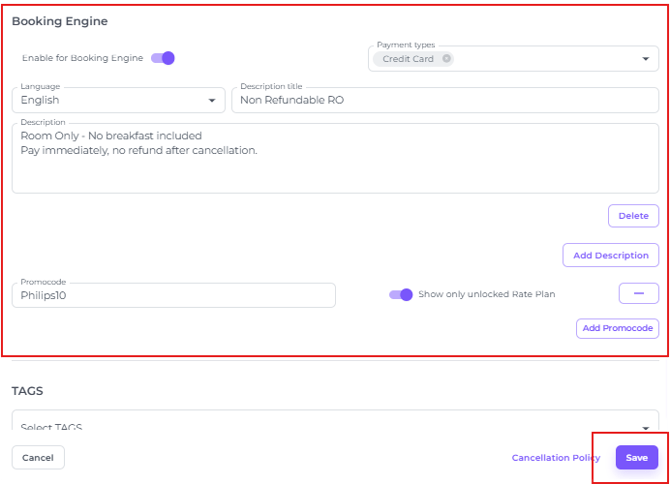
Rate Plans now include a new section for Booking Engine setup:
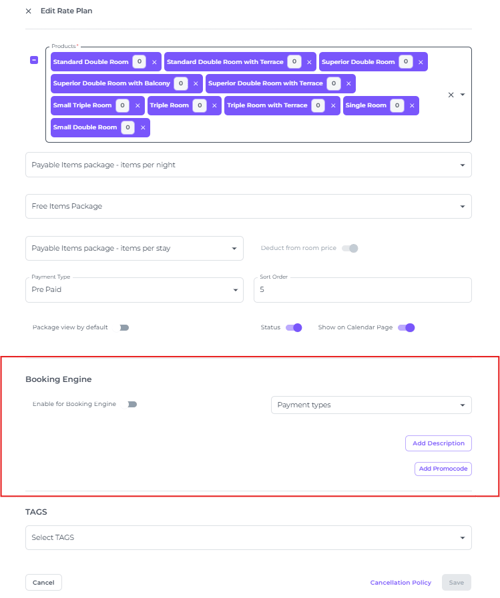
- Enable for Booking engine
The rate plan will be shown on your Booking Engine by switching on the Booking Engine toggle: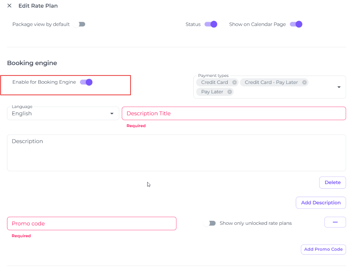
- Payment type
Determines how (or if) the booking will be guaranteed: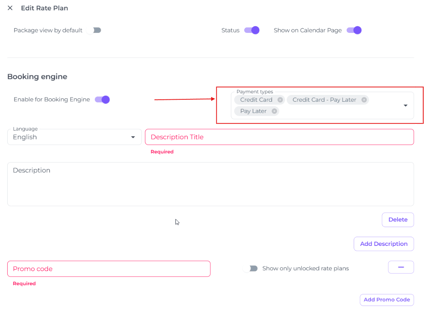
-
- Credit Card
Guests will need to enter their credit card details and pay immediately in order to complete the booking. Mostly used for Non Refundable rates. - Credit Card - Pay Later
Guests will need to enter their credit card details to guarantee the booking in case of a late cancellation or no-show, usually paying later at arrival to the hotel. To complete the booking, they will need to complete the credit card 3-D Secure authentication process. - Pay Later
No credit card is required to complete the booking, so there is no guarantee in case of a late cancellation or no-show.
Example usage: This option can be used for a 6 PM booking, or another specified time, where the guest agrees to arrive before that time or the booking will be cancelled. By adding a '6 PM' tag to this rate plan, you can easily identify bookings that have not arrived by 6 PM and should be cancelled so the room becomes available for new bookings. Read this article to learn more about tags: How to create and use tags
- Credit Card
-
- Language:
Select a language in which the booker will see the rate plan title and description for this rate plan. Choose from 16 languages. You can add a separate description for each language: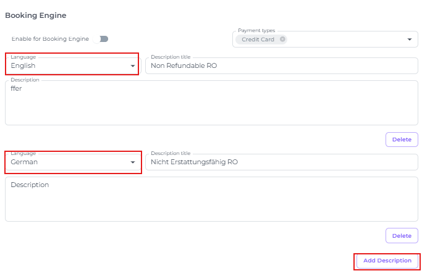
- Add Discription Title
Give the rate a clear, concise name so guests can instantly distinguish between the different options when they visit your website's booking engine: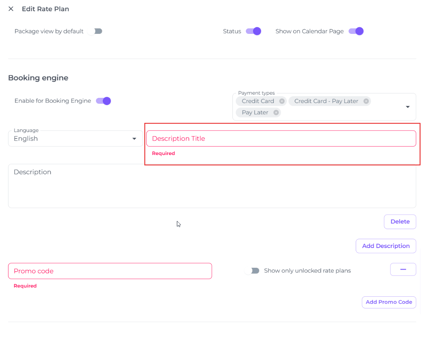
- Description
Describe the rate plan clearly and concise so guests understand exactly what is included, such as whether breakfast is included, if the rate is refundable or non-refundable, any payment or cancellation conditions, and any other important details that may affect their booking choice.
- Add Discription
This button allows you to add another language to the same rate plan. Enter the title and description in the selected language to create the best experience for your guests. You can add multiple languages by creating multiple descriptions.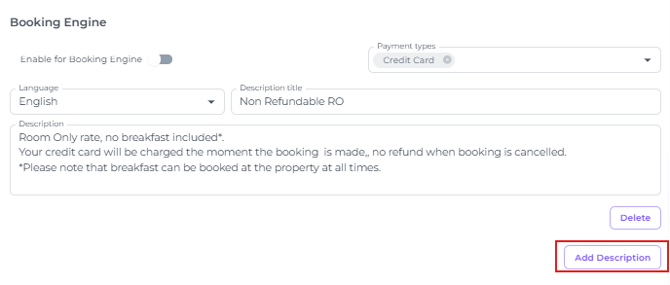
- Add Promocode - Optional
You can make the rate plan eligible for promo codes that hotels can share with specific guests, companies and/or for selected periods. This will allow the bookers to receive the discount linked to the Promocode.
- Filling out the code field on the Rate Plan:
For the code use English letters (A–Z) and digits (0–9) only.
You can add multiple values, and the same promo code can be applied to multiple rate plans.
- Show Unlocked Rate Plan toggle

When a guest enters a promo code with this toggle enabled, only this rate plan will be shown, along with the rooms linked (mapped) to it.
When the toggle is disabled, all other rate plans that are not eligible for the promotion will also be shown, giving guests more freedom to choose from the other available booking options. - Add Promocode button
You can add multiple promocodes to one rate plan.
- Filling out the code field on the Rate Plan:
- To save the Booking Engine configuration for your Rate Plans, click Save at the bottom of the rate plan page:
- Order
The rate plans will appear on your Booking Engine in descending order based on the order set in the rate plan settings. You can find this setting right above the Booking Engine section in the rate plan: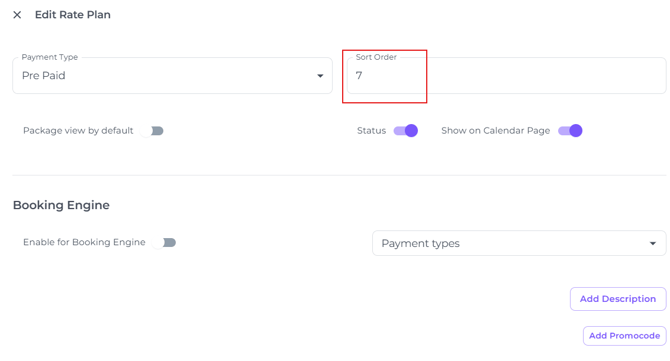
2. Rooms
Edit your rooms by adding photos, facilities and descriptions
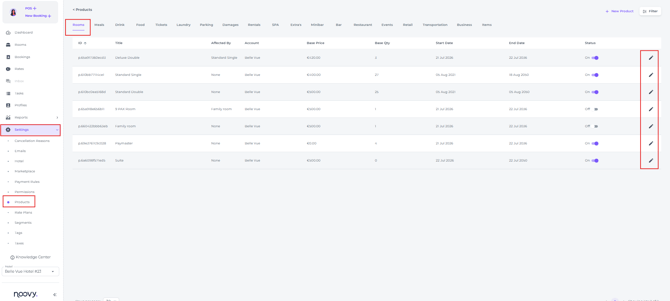
- On the Main Menu go to Settings > Products, stay on the first Rooms column, and click the pen icon for the room whose availability you want to show on your Booking Engine:
- Description:
- Per language enter the Room Description Title and Room Description to create the best experience for your guests. Keep the text clear and concise so guests can understand the room at a glance.
You can add multiple languages for the room by using Add Description where you will type in the Title and Description in the selected language: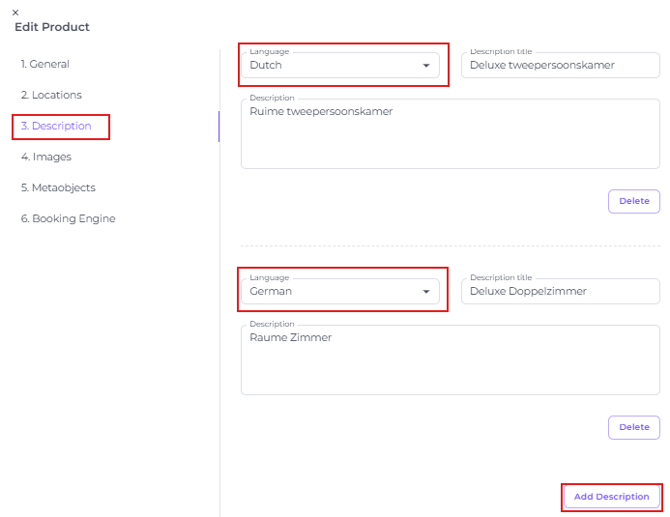
- Per language enter the Room Description Title and Room Description to create the best experience for your guests. Keep the text clear and concise so guests can understand the room at a glance.
- Images:
Upload the photos that best represent your Rooms. Remember, high-quality photos can make a big difference in encouraging guests to book!- If you add multiple photos for a room type, the first photo you upload will be the last one guests sees.
-
- The Photos will not be visible in Noovy yet, this will be resolved soon and the thumbnails will be visible.
- Guests can swipe to see up to 10 photos max.
- Use the formats: JPEG, JPG, PNG.
-
- Max size 5mb.
- Booking Engine Room Facilities
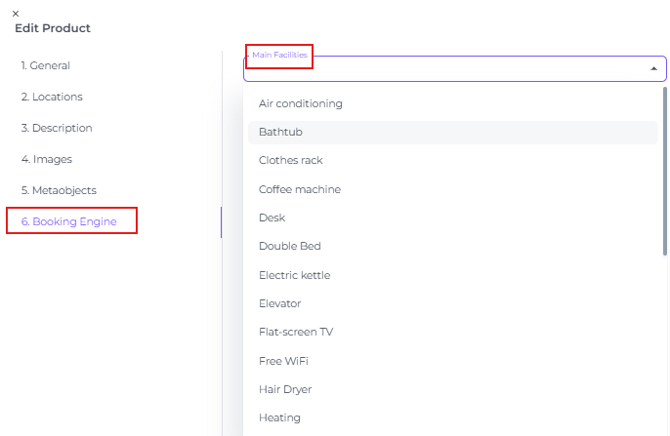
- Add the facilities that apply to the room type. These facilities will be shown on the Booking Engine as icons for your guests to see when they select a room.
-
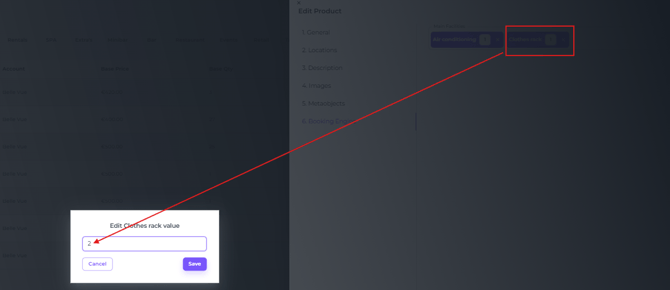
- You can edit each amenity to show how many of that specific amenity are available in the room:
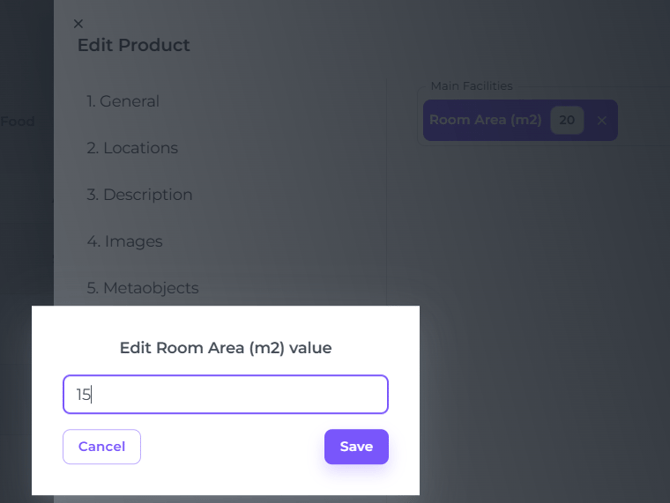
- In case of selecting the Room Area, the default square meters is 20. You can change tis by clicking on it:
- You can edit each amenity to show how many of that specific amenity are available in the room:
- Click Save at the bottom of the Edit Product pop-up once you have finished adding the room’s additional Booking Engine information.
Marketplace
Channel Settings
Because the Noovy Booking Engine is treated as a channel, it has been added in the Marketplace section of your Noovy Settings page:
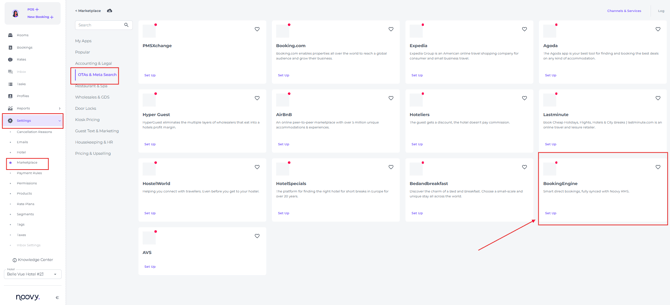
In the Noovy Booking Engine Set up there are a few things needing to be configured:
- Enable Switch
When toggled On - It will prompt you to create a URL redirect for your Hotel's website: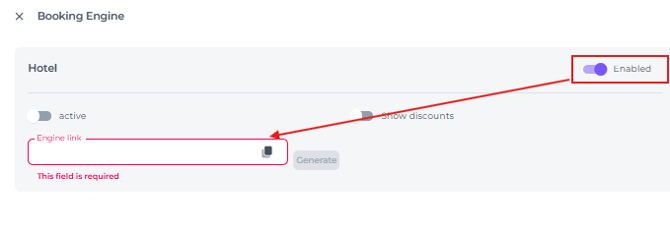
- Booking Engine Link
Type for example your hotel name (or any other name as long as it only contains English letters (A–Z), numbers, dots and dashes) followed by .book.noovy.com:
⟨anyname-preferably.your.hotel.name⟩.book.noovy.com
- Generate Button
Click to create the URL redirect :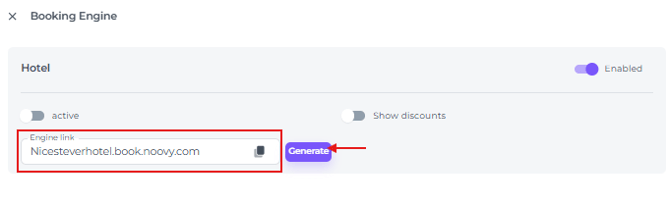
- Copy Link for your Website configuration:
The link has now been created and can be copied for installation on your website behind a (for example) 'Book Now' or 'Book Here' button :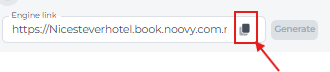
*Adding the URL redirect to your website is the hotel’s responsibility. - Show Discounts switch
If toggled on it shows guests the original room price for the selected rate plan crossed out next to the discounted price: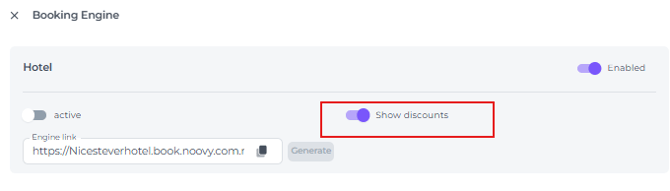
- Finalise the Booking Engine Set Up:
By clicking on Save this last step of the Booking Engine configuration will be finalised: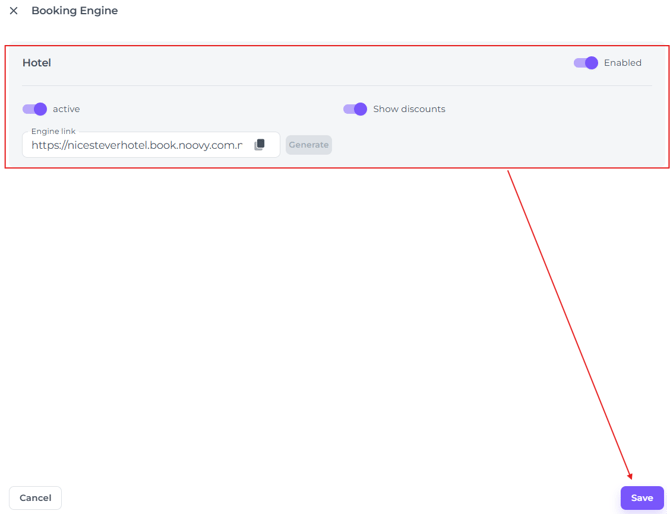
- Active Switch
Will be removed soon as it is redundant
Mapping
After the set up in Noovy is finalised, the mapping for the rate plans will be done by our team. When the mapping is done your Booking Engine is ready to go!
☝️Do Not Forget
Please do not forget to install the URL direct to your website before switching from Booking Engine!
This will affect your sales as guests will not be able to book and potentially move to an OTA or not book at your hotel at all.
What the Booker will Experience:
When guests visits your website, the 'Book Here' or 'Book Now' button should be visible right away and, ideally, remain easy to find throughout the website. Behind this button the URL redirect will be installed by the hotel:
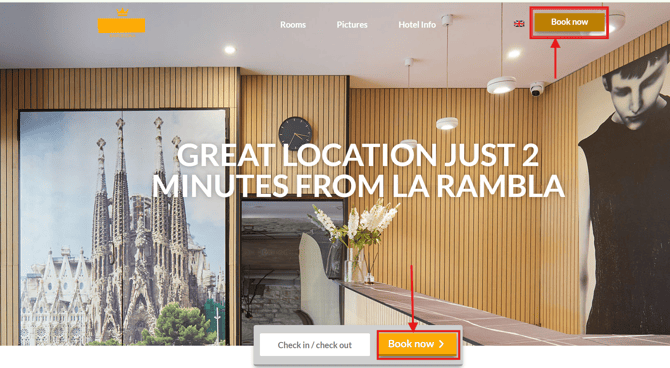
And therefore the guest will be redirected to the Booking Engine where the availability for the desired stay period will be shown and where they can book.
Desired available language: 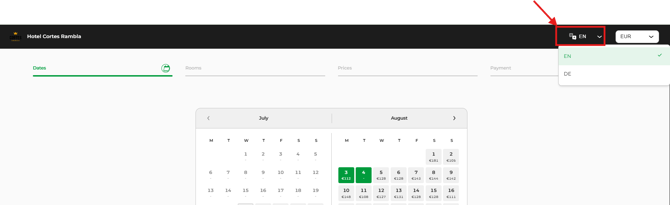
Stay Date and Pax (Adults and Children):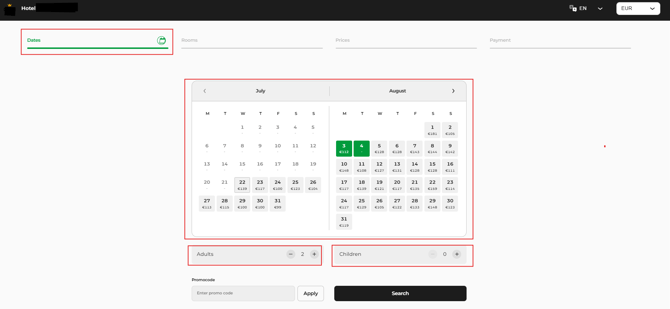
Promocode if issued to the booker: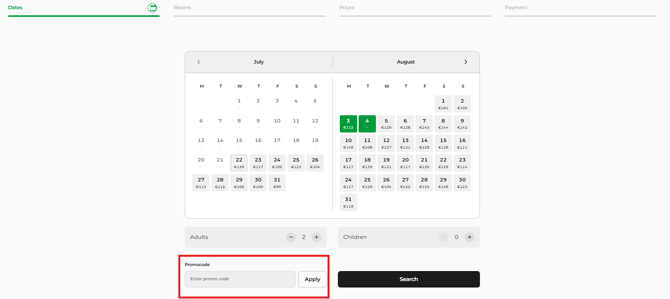
Search for available roooms and rates: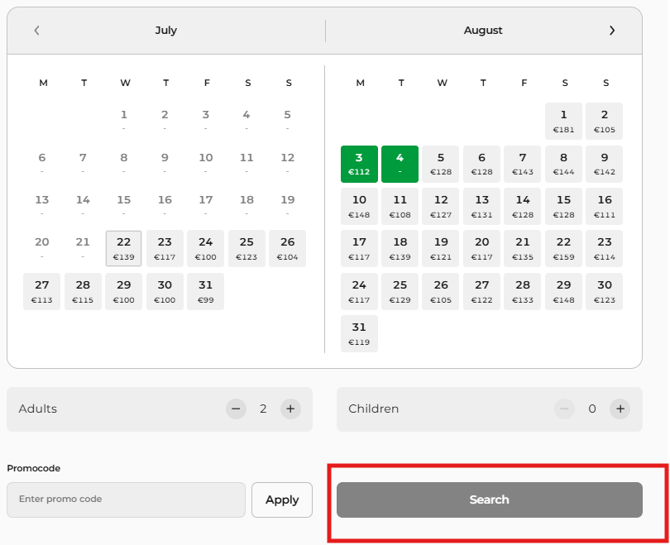
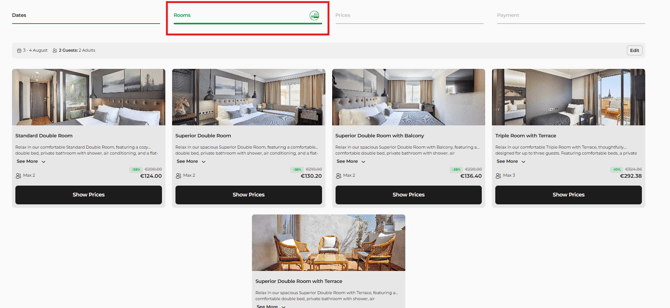
When the desired Room is selected guests will see the following (All facets explained below)
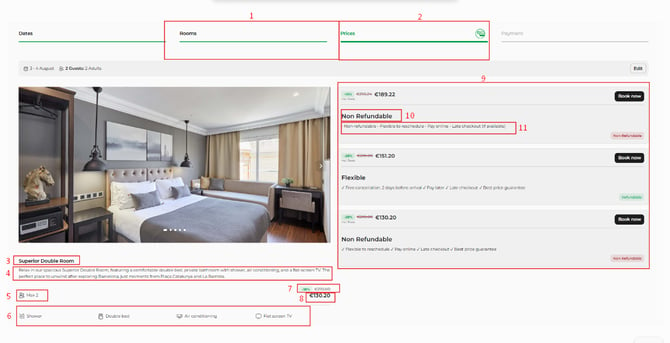
Click the blue highlighted items to jump directly to the relevant section of this article, where the configuration is explained.
- The Rooms tab will remain open so guests can go back to view or select other rooms
- The Rates section will be displayed for guests to select the desired rate
- Room Description Title
- Room Description
- Base Occupancy as set up on the Product (room type):
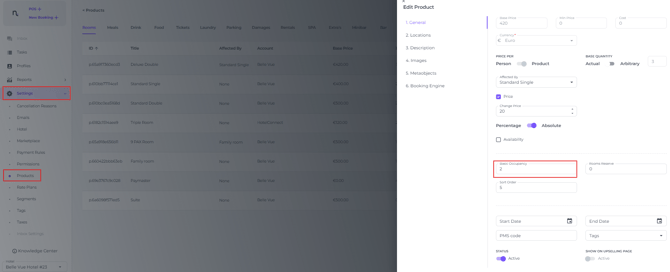
- Facility icons as set up on the Product - Room - Booking Engine
- Discounted Rate as set up on Marketplace "Show discounts"
- The BAR (Best Available Rate) at that moment as determined on the system's Rate Calendar
- Rate Selection section
- Rate Description Title as set up on the Rate Plan
- Rate Description as set up on the Rate Plan
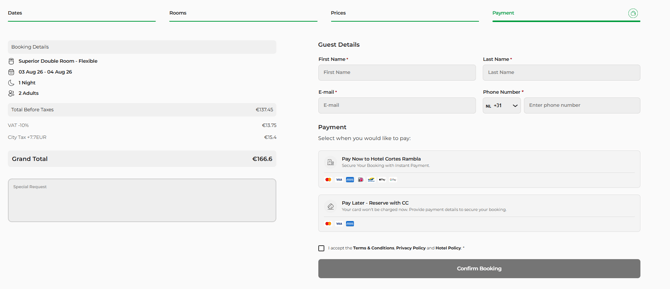
Final step Booker details and Payment
In the last step of the Booking Process the guests will be able to finalise the booking and pay when mandatory (depending on the chosen rate and its policy) :
-
Currency
The booker can choose the currency in which they would like to see the total amount.
-
All displayed prices are recalculated in the selected currency using Stripe exchange rates. The final booking currency remains the hotel's base currency and is not changed by the selection:

-
- Breakdown
All reservation details and amounts in one overview: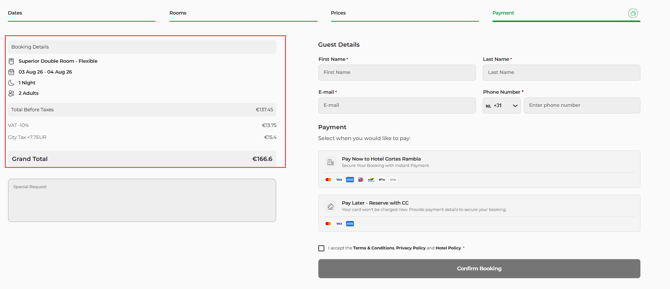
- Requests
Bookers can add a request in the final step. This request will be shown in Noovy in the Remarks section of the booking page.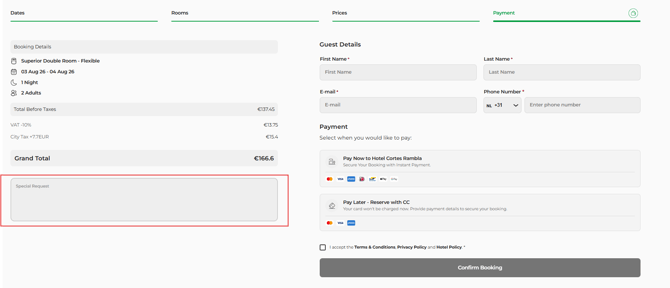
- Booker Details
The booker will fill out their e-mail, name, address details and phone number: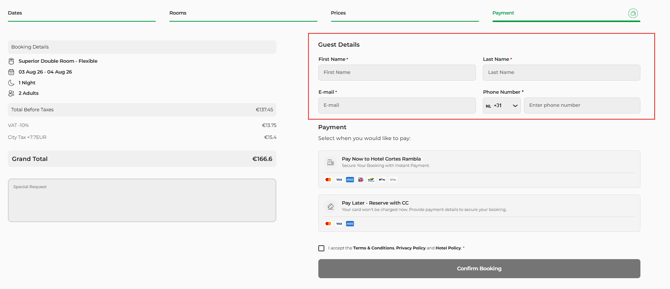
- Payment
The Payment section will display the options determined in the Rate Plan set up Payment Type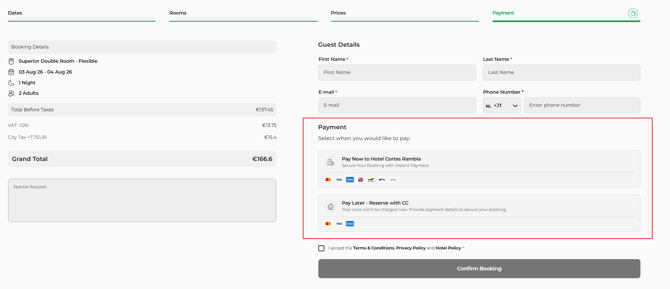
In this example there are two payment types the booker can choose from:
Credit Card and Credit Card - Pay Later -
Terms & Conditions
The booker must tick this box to finalise the booking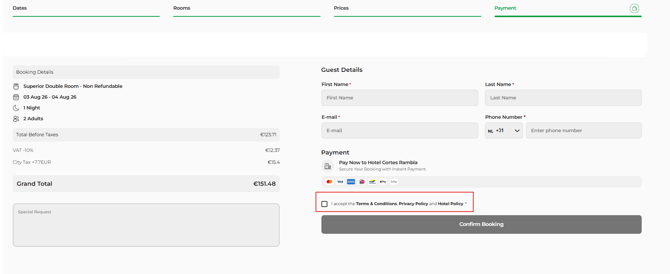
-
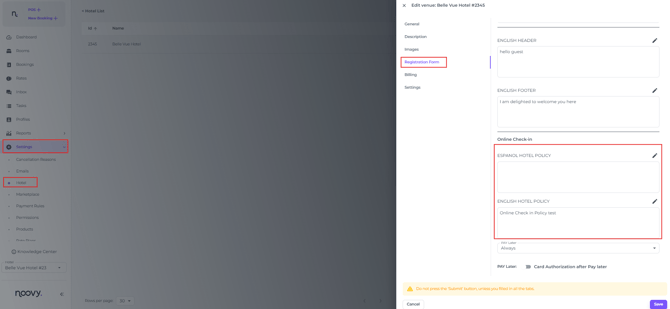
Where in Noovy are the term and Conditions configured?
The hotel’s policy must be entered in the system under Settings > Hotel > Edit > Registration Form. At the bottom of the form, you will find the fields for your Online Check-In and Booking Engine hotel policy:
-
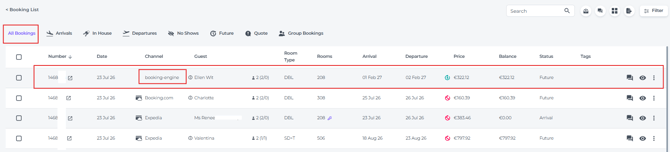
- When the booker hits Confirm after all the above is successfully done, the booking will be created and entered in Noovy with Channel Booking Engine :
Cancelling the booking
If the booker needs to cancel the booking, they will have to contact the hotel directly and the booking will be manually cancelled by yourself.