Get acquainted with the product feature so you can confidently manage everything you sell in one place > rooms, packages, add-ons, and services.
By understanding how products are structured, priced, filtered, and activated, you enable your team to:
-
Build a clear, organised product catalogue
-
Set smart base prices and price relationships between products
-
Control when products are available for sale
-
Quickly adjust or deactivate items when your offer changes
This foundation helps you use Noovy not just for operations, but as a powerful tool to drive extra revenue and create more tailored guest experiences.
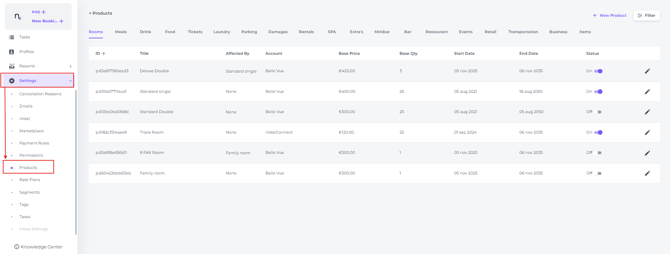
From the main menu navigate to Settings > Products:
💡Tip:
Check out our article : 'How to create New Products?'
All Fields Explained:
-
Product Types:
Product Types are default categories that group your products (also known as items). Use the arrow to scroll through the available product types:
-
Filter Products (items) :
Click the Filter button to narrow down the product list: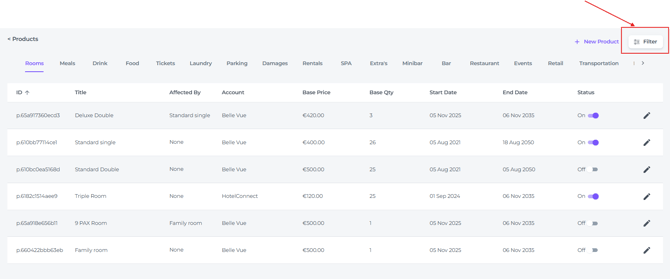
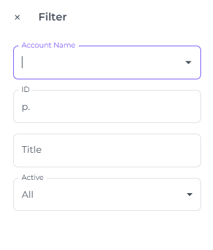
- Account Name - Your products are stored at account level, even when multiple venues are linked to the same account.
- ID – The unique identifier for each product or item

-
- Title – The display name of the product

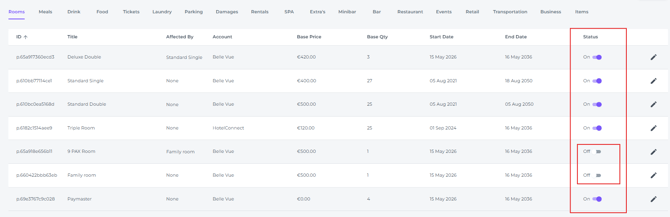
- Active – Filter by whether products are active or inactive (status), and choose which ones to display:
- Title – The display name of the product
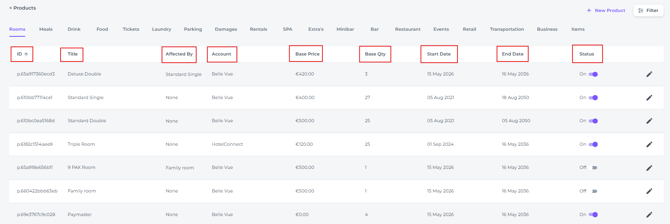
Columns explained:
-
- ID
The unique identifier for each product or item - Title
The display name of the product - Affected By
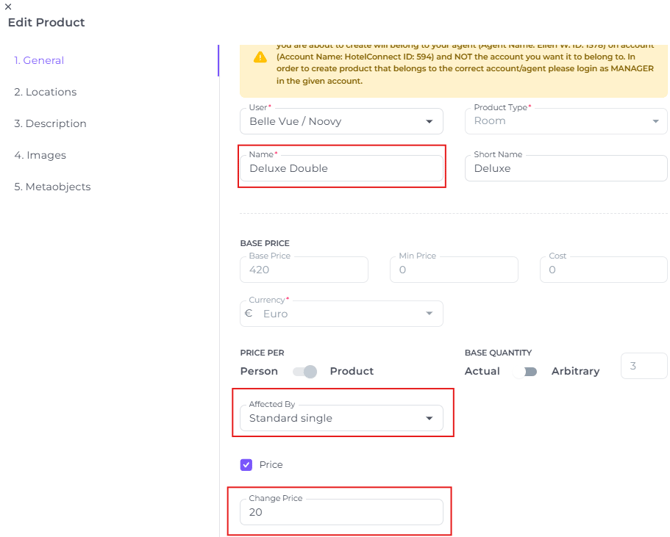
This lets you link one product’s price to another.
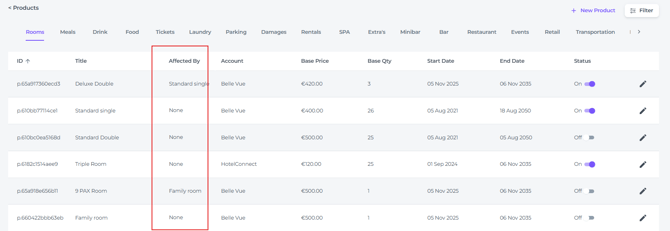
For example:
If the Deluxe Double is set to be €20 higher than the Standard Single, and the Standard Single is €400, the Deluxe Double will automatically be €420.
You can apply this logic to any product.
- ID
-
- Account Name
If your account manages multiple properties, you can select a specific property to search for the product within its inventory: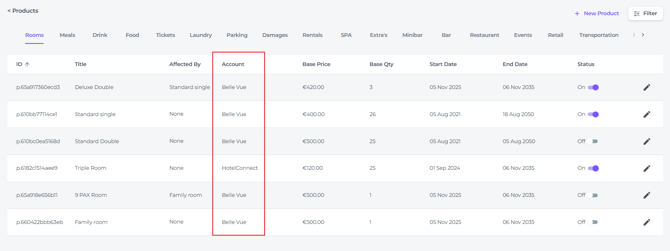
- Account Name
-
- Base Price
The base price is the minimum amount set for a product and is used by default when posting to a guest’s bill.
⚠️ For rooms, set this high as a safeguard, since actual nightly rates are managed separately in the rate calendar. If nightly rates are not updated correctly or on time, new bookings may be created at a rate that is too low(!).
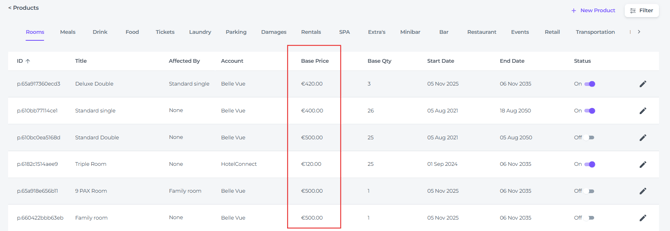
- Base Price
-
- Base Qty
Base quantity indicates how many units of a product you have available.
📝Note: the system does not track product stock. Room availability is handled separately via reservations and the Rate Calendar.
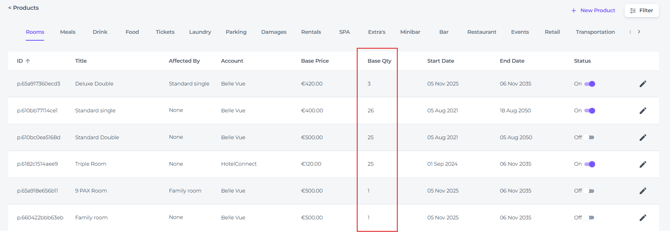
- Base Qty
-
- Start Date
The first date from which the product can be sold: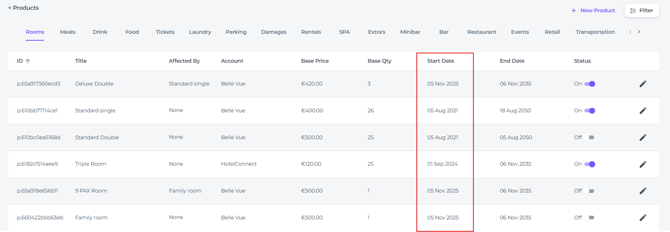
- Start Date
-
- End Date
The last date on which the product can be sold: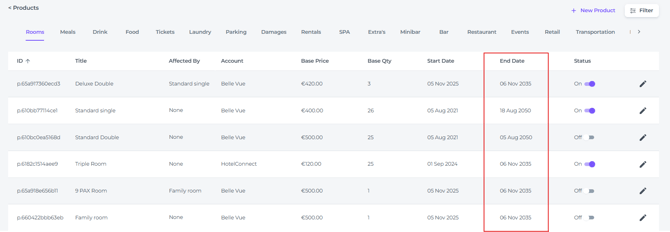
- End Date
-
- Status
Whether the product is currently active or inactive:
- Status
-
- Edit
Update the product details by clicking the pen icon: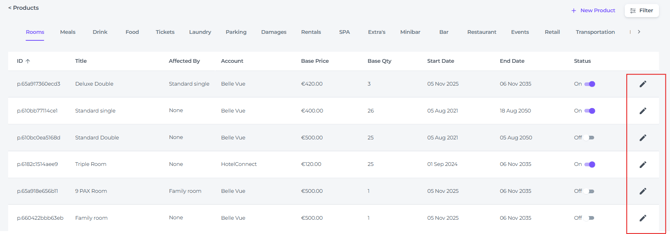
- Edit
-
- Rows per page
Choose how many products you want to display per page: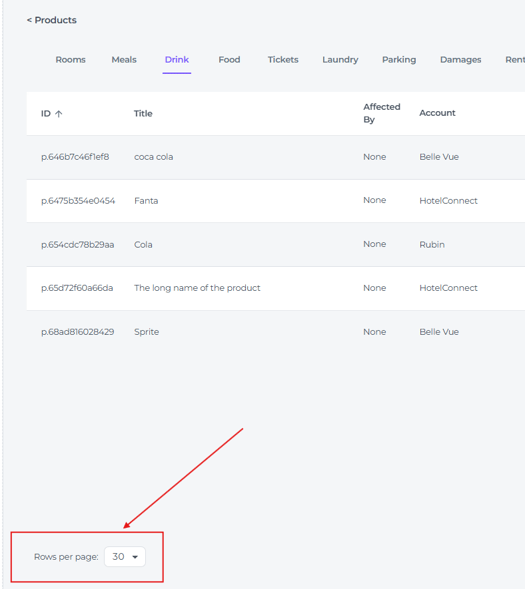
- Rows per page