Overview
feratel Deskline is the destination/tourism booking system used by many tourist offices (e.g. City Marketing Kempten). Noovy does not connect to Deskline directly: rates and availability go Noovy → SiteMinder → feratel Deskline, and Deskline bookings come back the same way.
The connection works when:
- Deskline's interface is switched to SiteMinder.
- The Deskline property code is set on the feratel Deskline channel in SiteMinder.
- Every SiteMinder room rate is mapped to the matching Deskline product code.
This article is for Technical Support agents who set up the connection and Customer Success agents who check it when something is not coming through. It assumes the hotel is already connected Noovy → SiteMinder (see Mapping Noovy to SiteMinder (pmsXchange)).
Prerequisites
- Noovy → SiteMinder connection is live, with all room types and rates mapped and receiving Noovy rates.
- Hotel's Deskline login details. The Deskline side is done by us (TS), using the hotel's own WebClient credentials.
- The hotel has requested the Deskline connection. feratel Deskline is only added in SiteMinder for hotels that ask for it.
Step 1 – Deskline: switch the interface to SiteMinder
The hotel's old channel manager in Deskline must be replaced by SiteMinder.
- Log in to the feratel Deskline WebClient with the hotel's credentials.
- Go to Data maintenance > Interface maintenance (Datenpflege > Schnittstellen-Wartung).
- Open the tab Interfaces for automatic data maintenance (Schnittstellen für automatische Datenwartung).
- Search for SiteMinder and click Connect (Verbinden).
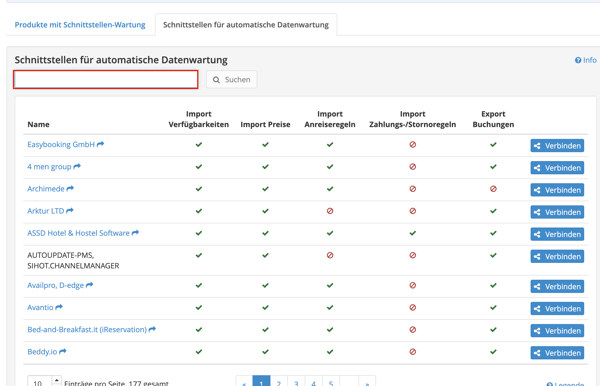
The list also shows what each interface supports: import of availability, prices and arrival rules, and export of bookings.
Step 2 – Deskline: get the codes
Once connected, Deskline generates the codes automatically. You need them for the SiteMinder side.
- Go to the tab Products with interface maintenance (Produkte mit Schnittstellen-Wartung).
- Under RDX / SiteMinder, note:
| Column (EN / DE) | What it is | Example | Used in SiteMinder as |
|---|---|---|---|
| High-Performance Mapping / Leistungsträger Mapping | Property code | SMAHKE001 |
Property code (channel settings) |
| Availability Mapping / Verfügbarkeiten Mapping | Room code | SMASR |
Shown for reference |
| Product Mapping / Produkt Mapping | Product (room + rate) code | SMASRP1 |
Mapped to target in Room rates mapping |
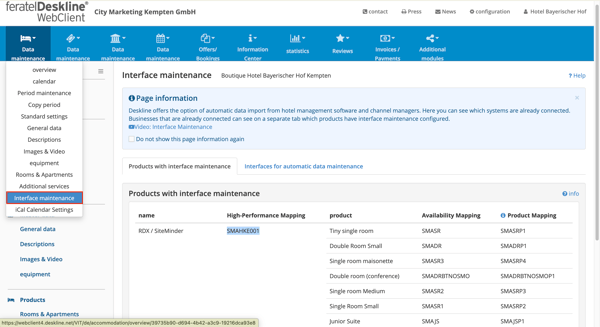
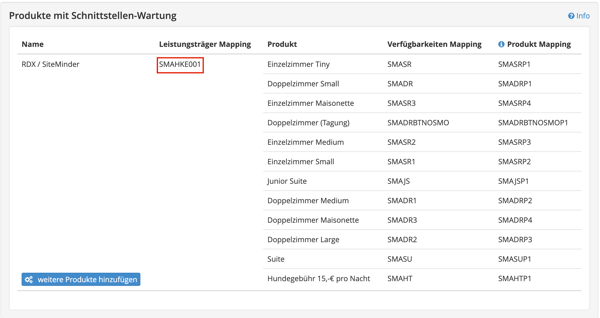
Only accommodation products need mapping. Extra products such as a dog fee (Hundegebühr) are not mapped.
Step 3 – SiteMinder: connect feratel Deskline
- In SiteMinder, go to Distribution > Channels > All channels.
- Search for feratel and open feratel Deskline (status Not connected).
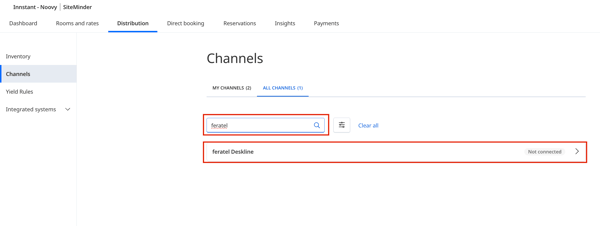
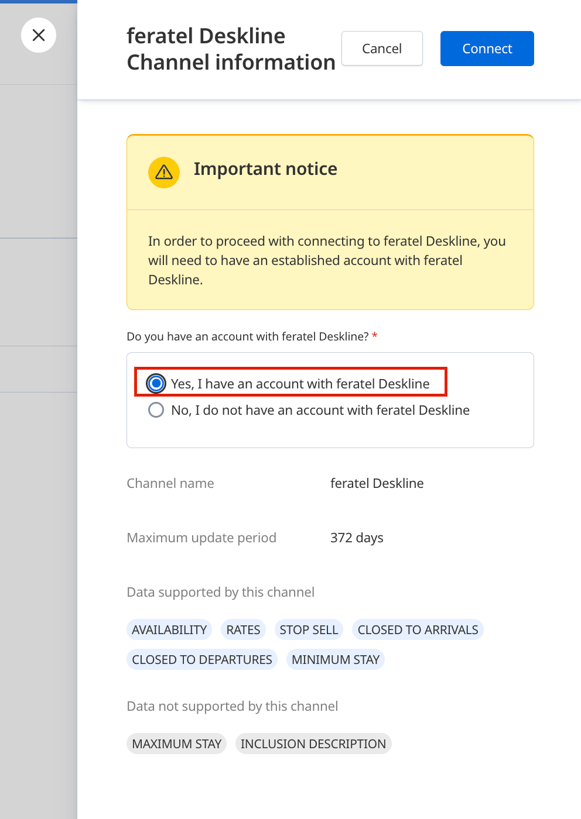
- Select Yes, I have an account with feratel Deskline and click Connect.
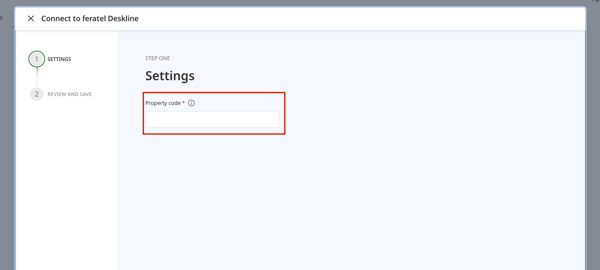
- In Settings, enter the Property code = the High-Performance / Leistungsträger Mapping code from Deskline (e.g.
SMAHKE001). - Go to Review and save and save.
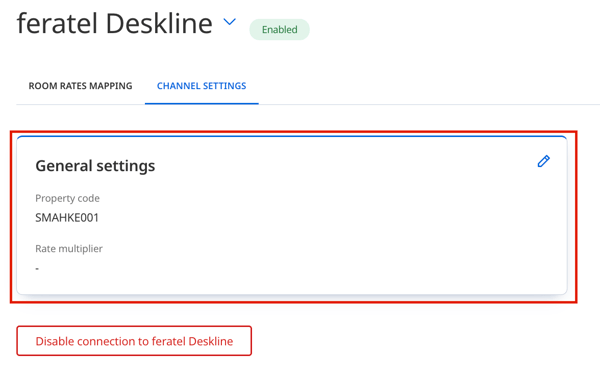
The channel now shows Enabled. The property code can be checked or changed later under Channel settings > General settings. Never use Rate multiplier – leave it empty.
feratel Deskline receives availability, rates, stop sell, closed to arrival, closed to departure and minimum stay, for up to 372 days ahead. Maximum stay and inclusion descriptions are not supported.
Step 4 – SiteMinder: map room rates to Deskline products
- On the feratel Deskline channel, open the Room rates mapping tab.
- Set Mapping status to Unmapped and Group by to Rate plan. The rate plan to map is chosen by the hotel. Use the search to filter on it (e.g.
otafor OTA's BB). - For each room, click Map to feratel Deskline.
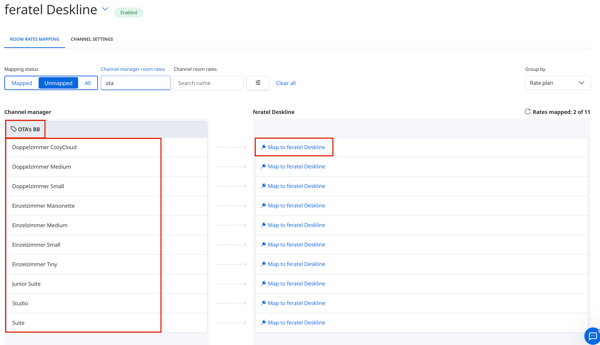
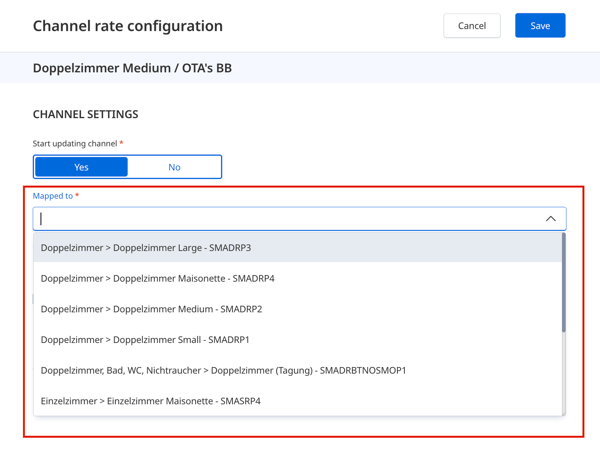
- In Channel rate configuration:
- Set Start updating channel to Yes.
- In Mapped to, pick the Deskline product for the same room. The list shows room group > product – product code (e.g. Doppelzimmer > Doppelzimmer Medium –
SMADRP2). - Click Save.
- Repeat for all rooms. The mapping is complete when Rates mapped shows all rates (e.g. 11 of 11).
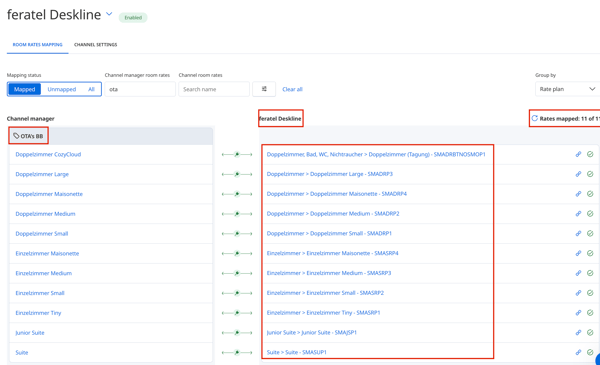
Check each room name against the product name and code before saving: a room mapped to the wrong product sends its price and availability to the wrong Deskline product.
Step 5 – HotelTools: add the channel and push
- In HotelTools, open pmsXchange > Setup and click Add channel.
- Add feratel Deskline and click Submit. Like any channel connected through SiteMinder, Deskline bookings are not received correctly unless it is added here.
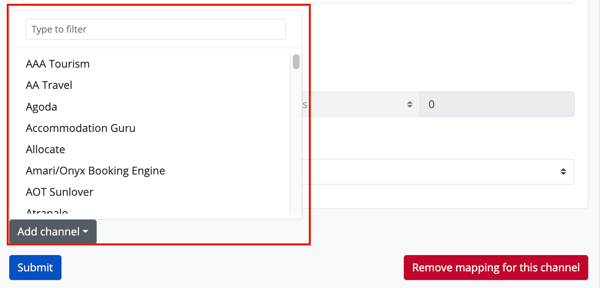
- Go to Settings > Hotels and click the cloud button to push rates and availability.
- In Deskline, go to Data maintenance > Interface maintenance and check that the products are interfacing with RDX / SiteMinder.
Troubleshooting checklist
| Symptom | Check |
|---|---|
| Nothing reaches Deskline | Deskline interface is set to SiteMinder (Verbinden done), and the property code in SiteMinder Channel settings matches the High-Performance / Leistungsträger Mapping code |
| Channel can't be found in SiteMinder | Search under All channels, not My channels |
| One room has no price or availability in Deskline | The room rate is mapped in Room rates mapping with Start updating channel = Yes |
| Prices land on the wrong Deskline product | The Mapped to product code matches the room (check room name and code) |
| Prices in Deskline differ from Noovy | Rate multiplier is empty (never used), and the rate plan the hotel chose is the one mapped |
| Rates mapped shows less than the total | Filter on Unmapped and map the remaining rates |
| Deskline bookings missing in Noovy | feratel Deskline is added under Add channel in HotelTools pmsXchange |
| Max stay or rate inclusions not shown in Deskline | Not supported by the feratel Deskline channel |
After fixing a mapping, push again from HotelTools > Settings > Hotels (cloud button).