Booking Engine
Our booking engine helps you increase revenue and reduce your reliance on third-party booking channels by letting guests book directly through your hotel’s website. Once it’s on your website, guests can book and pay for their reservations in just a few steps.
A booking engine that reflects your brand is key to a consistent guest experience. That’s why you can customise the default booking engine to make it instantly recognisable as your own. When it matches the look and feel of your hotel’s website, guests are more likely to trust it and complete their booking directly with you.
Hotel Settings - Branding Tab
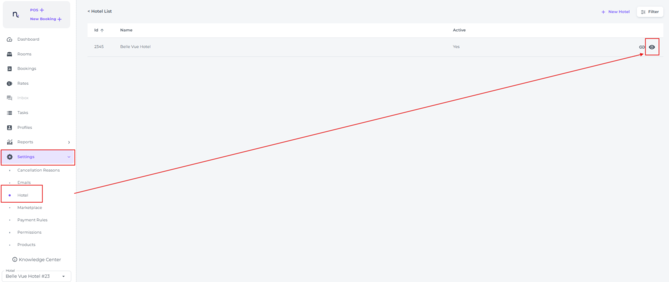
- Open the Hotel Settings: Main Menu > Settings > Hotel > click on eye icon to edit:
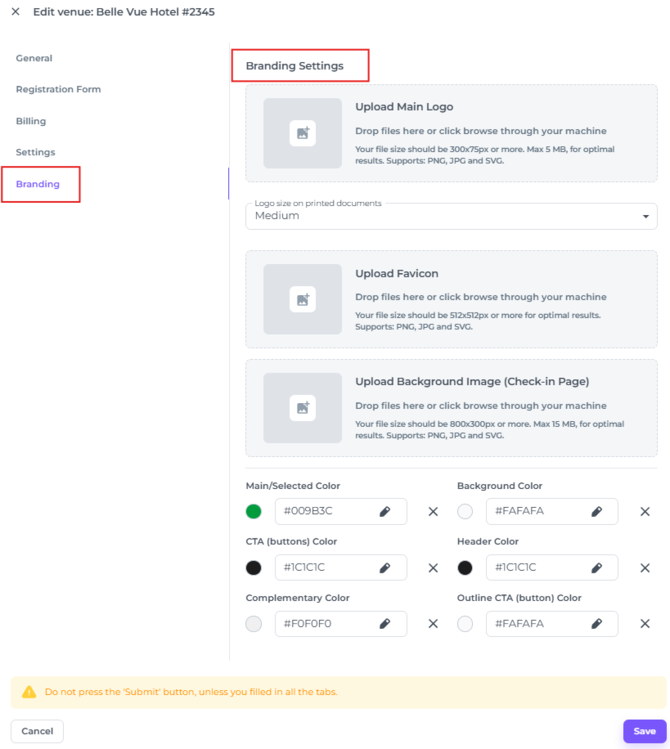
- The Branding Tab will show you the customisation settings for your Booking Engine:
Hotel Logo
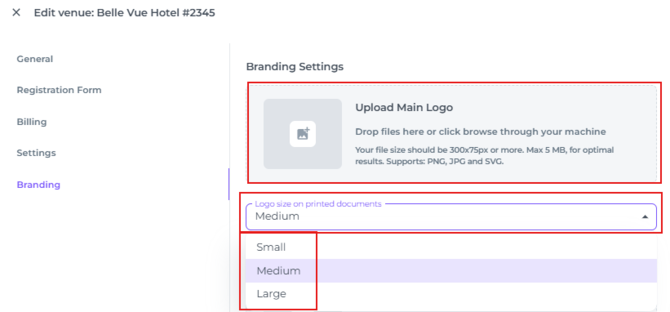
- In the first field you can upload your logo. This used to be done in the General Tab, but has now moved to the Branding Tab
- Make sure your PNG/JPG or SVG file is 300x75 pixels or more and not exceeds the max of 5 MB
- In the drop down menu choose the size of the logo:
Favicon
A favicon is the small icon that appears in the browser tab next to your website’s name. It’s usually your hotel’s logo or a simplified version of it, and helps guests recognise your site, or the booking engine being a part of your site, at a glance. When guests open your booking engine, your favicon appears in the browser tab, so the booking engine feels like a natural part of your website. We recommend you to therefore use the hotel's logo as your favicon too.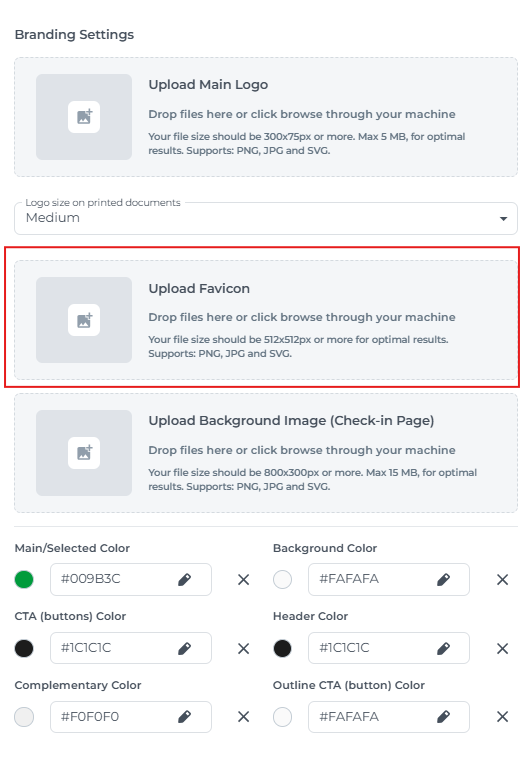
- Make sure your PNG/JPG or SVG file is 512x512 pixels or more and not exceeds the max of 5 MB
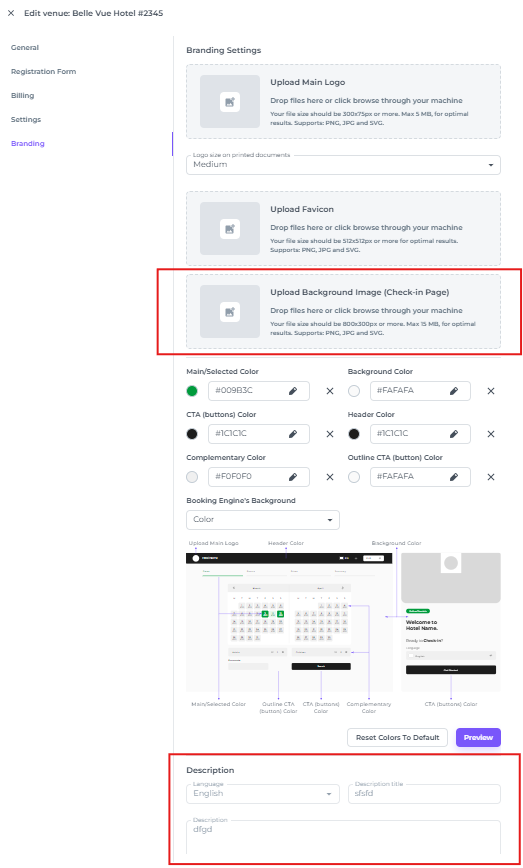
Background
Using an image of your hotel as the background helps guests recognise your booking engine straight away. When they’re redirected after clicking ‘Book here’ or ‘Make a reservation’, they’ll know they are still in the right place.
☝️Please note that the booking engine’s background image is changed under the Colour section, not in the Background field directly below the favicon, as this will change the background for the online Check In feature.
-
Under 'Booking Engine's Background' click on the dropdown menu to change from Colour to Image:
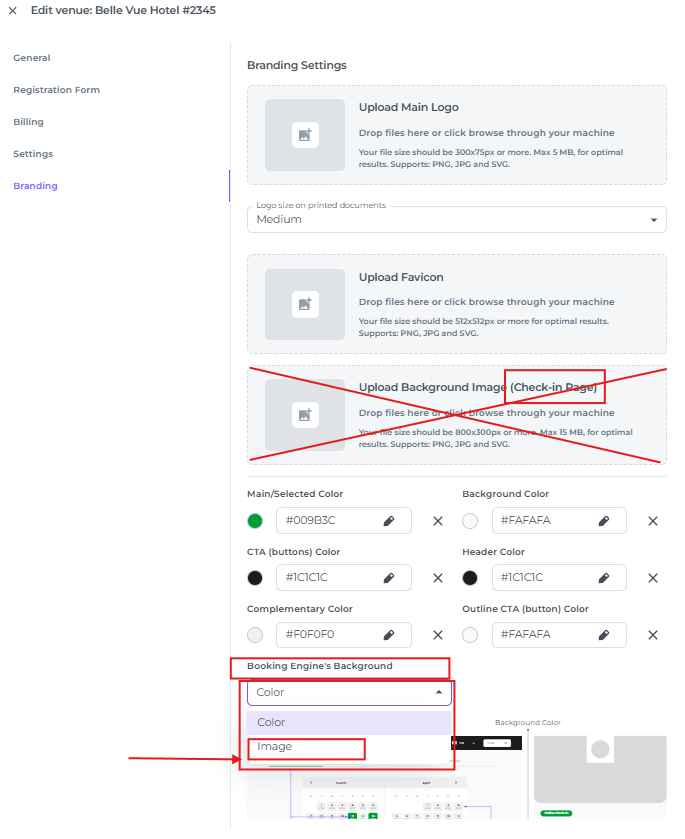
- A field appears where you can upload the image:
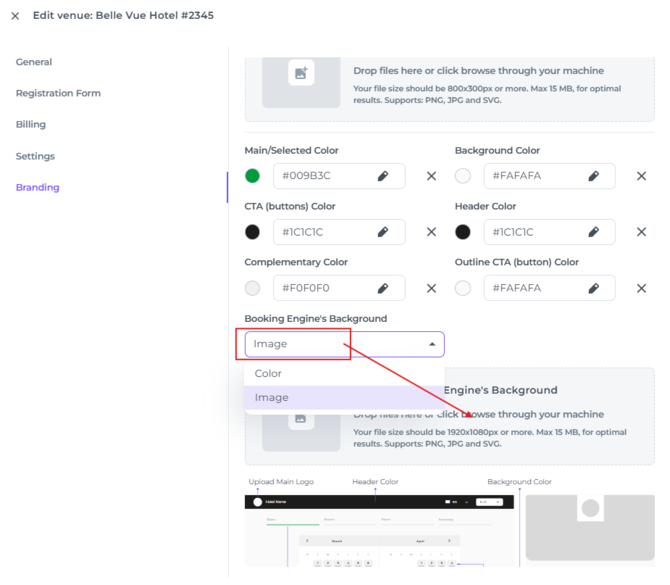
- Make sure the PNG/JPG or SVG file is +1920x1080 pixels and does not exceed 15 MB
☝️Note:
If no image is uploaded, the current default images are shown.
Background Colour
- In the dropdown menu under Booking Engine's Background, select Color:
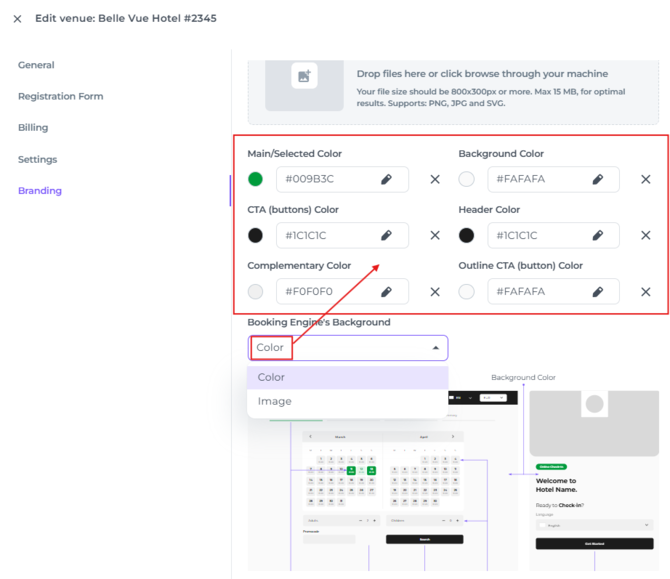
- The image below the colour selector shows which part of the booking engine each colour selector changes:
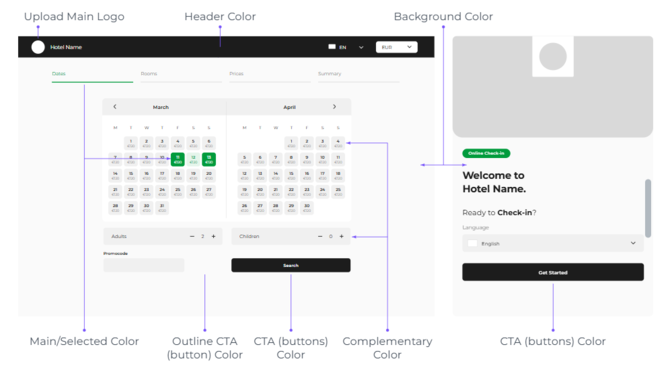
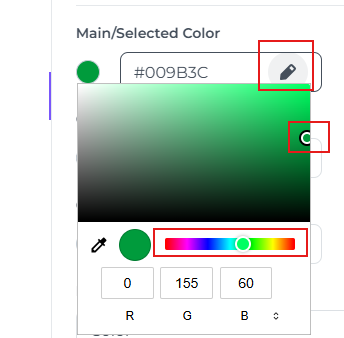
- To select a colour, drag the slider along the colour bar or move the dot across the colour field:
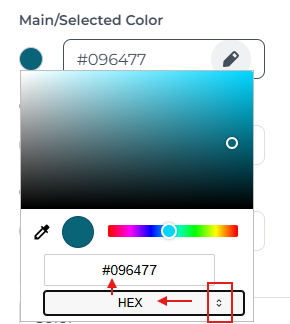
- Alternatively, select HEX and enter the colour code that matches one of the colours on your hotel’s website:
- The X button will reset the chosen colour back to default.
Reset Colours To Default
- To undo all your changes, click Reset Colors to Default. This will remove all the colour changes you have made manually and restore the original settings:
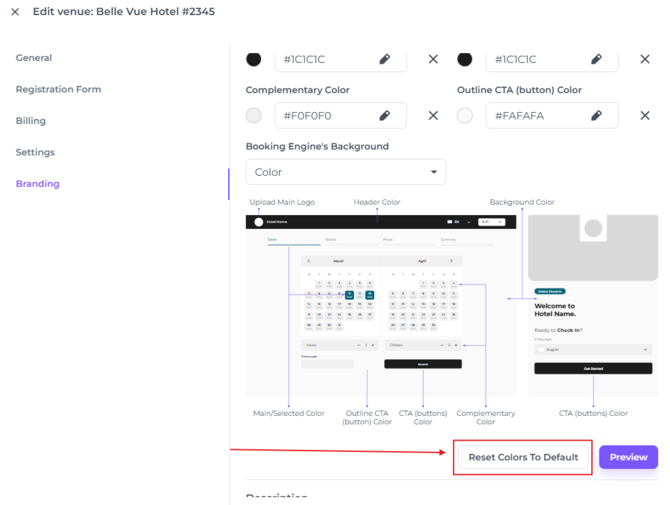
- Clicking See Preview opens a pop-up window showing an image of the booking engine with your new colours applied (This is a static preview only, so the buttons in it are not clickable).
- The pop-up window shows a sample layout (header bar, step indicator, part of the calendar, call-to-action button and background) using the colours currently selected. The preview updates as the user changes the values, before anything is saved.
Saving Image and Colour changes
- Settings are saved when pressing the Save Button
- Given the theme has been saved, when a guest opens or reloads the booking engine, then the new theme is applied.
☝️Note:
Sessions already in progress may continue to show the previous theme until the page is reloaded.
☝️Please Note:
The Branding tab lets you customise not only the booking engine, but also Online Check-in and the self-service Kiosk. The Upload Image and Description sections apply to these features only, not to the booking engine: