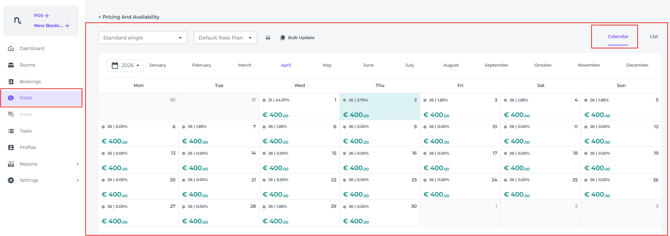
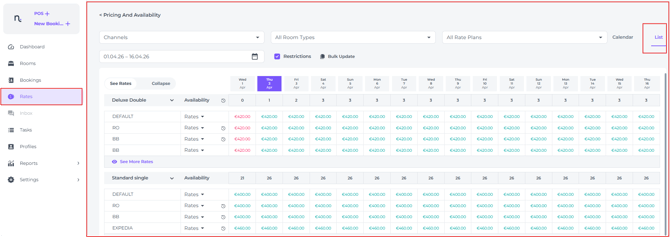
The Rate Calendar offers two distinct layouts:
-
Calendar View
-
List View
If you prefer using the Calendar View for your amendments, please refer to this article.
For the List View, see our guide on: Rate Calendar List View - How change Rates and/or Availability
- From the main menu, navigate to Rates and select the Calendar tab:
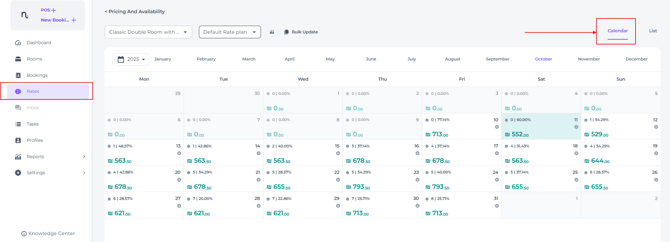
- Select the Room Type for which you wish to make changes.
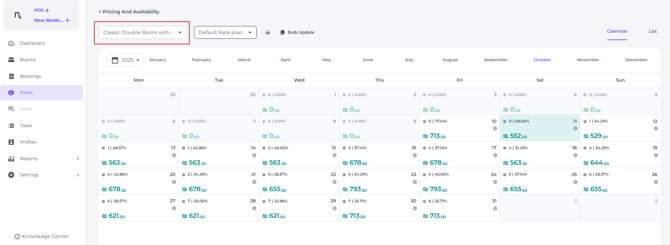
- Select the Rate Plan for which you wish to make changes:
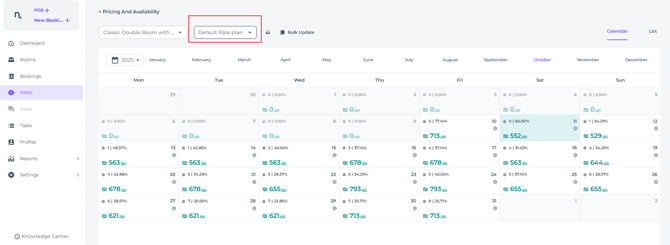
⚠️ Important Information:
Generally, the Default Rate Plan (the Parent Rate Plan) must be selected to amend rates and availability.
The system is configured so that all other rates are updated proportionally, based on the specific rules you have established.
Please note that if a rate or availability is changed for a specific rate plan other than the Default, that plan will no longer be influenced by the Default for the selected period.
⚠️ Consequently, any further updates to rates or availability for that period must be managed directly within that specific rate plan!
It is vital that rate plans are configured correctly, as errors can have significant consequences for your pricing accuracy. Should the Rate Plan settings require adjustment, we advise you to contact the Support Team or your Account Manager, who will be more than happy to assist.
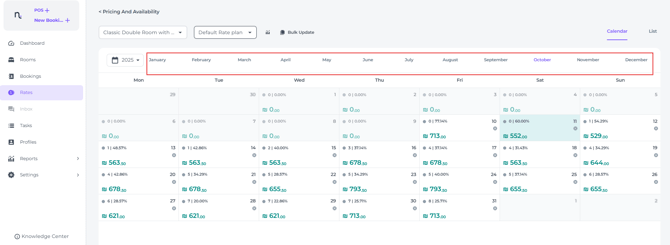
- Select the month in which you would like to amend Rates and/or Availability for specific days:
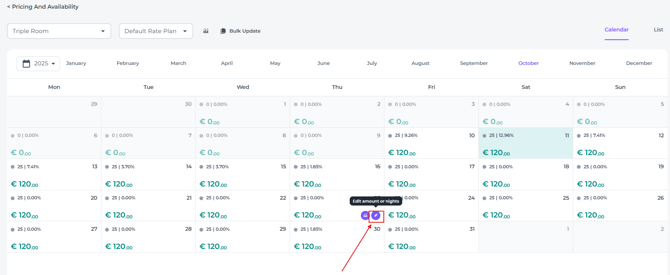
- Double-click on the relevant day you wish to amend:
- Enter the new Rate and/or Availability:
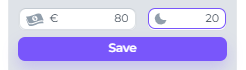 .
. - Click Save; please note that the system may take a moment to process your changes:
💡Tip
To update multiple rates or availability periods simultaneously, find out how to use the Bulk Update feature.