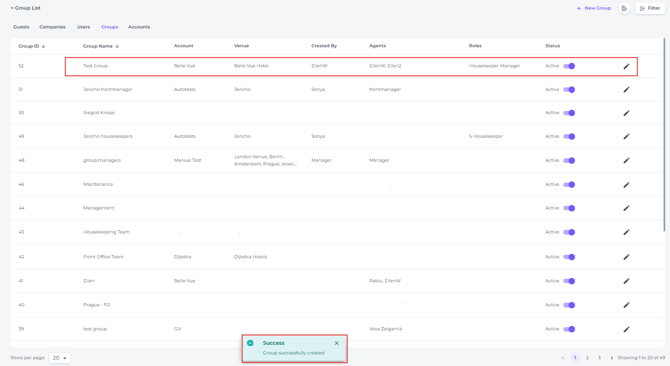
Assigning task to user groups
Tasks can be assigned to individual users or sent to an entire user group at once. This is useful when several team members need to receive the same task or when responsibilities are shared across a department. Creating a user group takes only a few simple steps and makes task assignment more efficient. Once the group is set up, you can assign tasks to the group without selecting each user individually.
Follow the steps below to create a new user group.
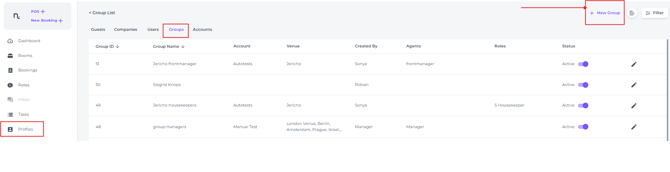
- From the main menu, select Profiles, open the Group tab, and click + New Group:
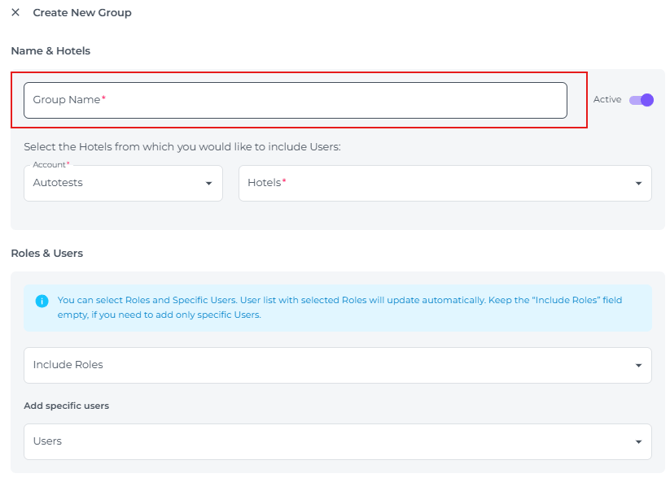
- Enter a name for the user group:
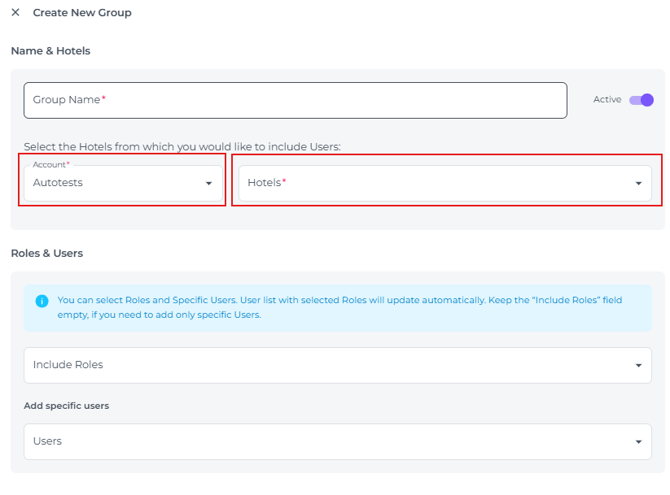
- In the Account field, enter your account name. In the Hotels field, select the hotels associated with the user group (if your account includes multiple properties and the users in the group work across all of them):
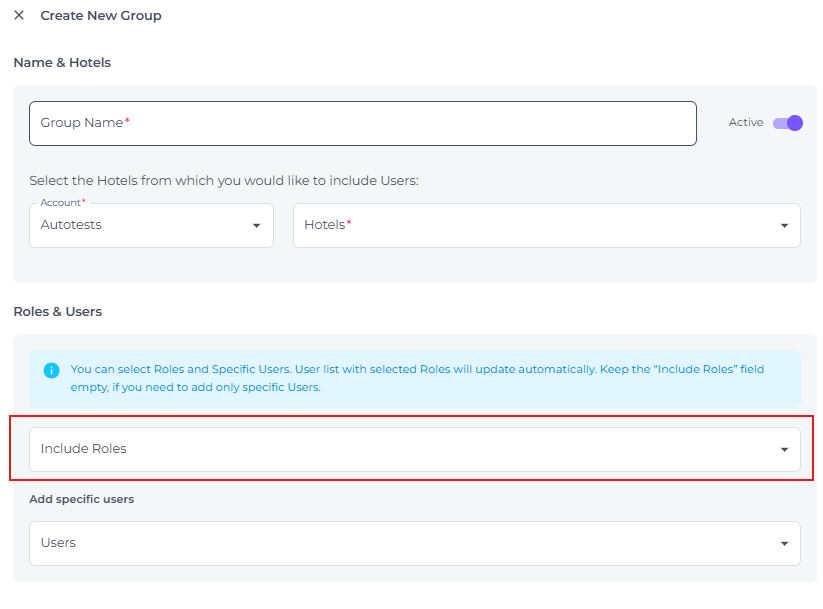
- Select the 'specific Roles' to include all users within this role:
- Create a group from multiple individual users, or add specific individual users to the role selected in the previous step.
For example: Housekeeping managers role can be complimented with an individual user, for example the Front Office Manager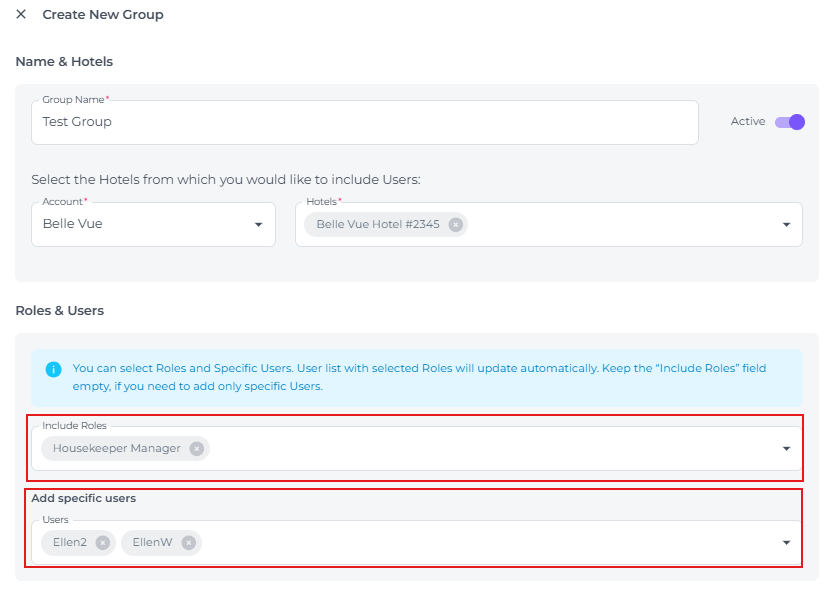
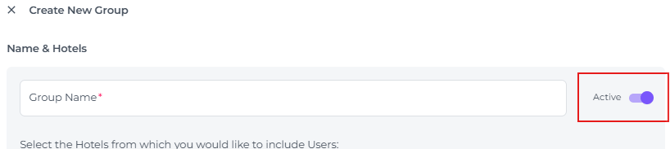
- Enable by switching the toggle on the right hand top corner:
- A pop-up notification will confirm the creation of the new user group: