Housekeeping status
Once rooms have been cleaned, their status must be updated to “clean” manually. In some cases, you may also need to switch a room back to “dirty”, which can be done in just a few seconds. In this article we will show you how.
Please note that automations are also in place:
-
By default, rooms are automatically set to “dirty” as soon as a reservation is checked out. Until the status is manually changed back to “clean,” check-in is blocked to prevent guests from entering an unclean room.
-
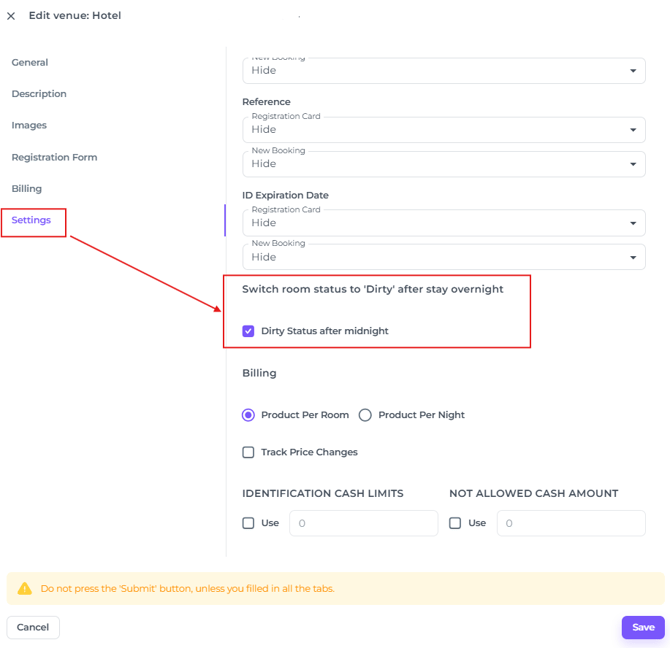
For in‑house (stay-over) reservations, you can also have the status switch to “dirty” automatically at midnight however this is not done by default. This setting can be configured via:
Main Menu > Hotel > Eye icon > Settings > scroll to the bottom of the page:
💡Also check out our article:
Housekeeping room status Automatically set to Dirty at Midnight
Change the room status to dirty or clean in just a few steps:
- Hoover your mouse to the system's menu and click on Rooms:
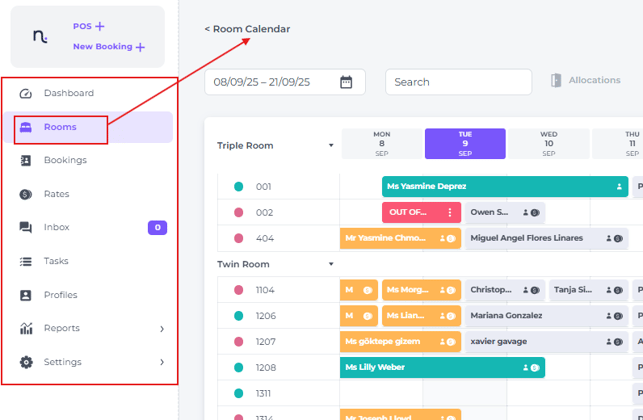
- In the Room Calendar look for the room(s) you would like to change the status for.
- Simply click the coloured dot next to the room number—red indicates the room is Dirty, while Green means it’s Clean:
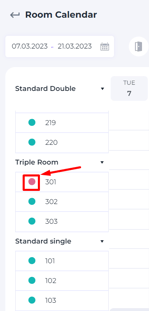
- Clicking on it once will change the status instantly
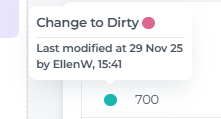
👉 Hoovering your cursor on the coloured dot will give you the information on which user changed the status and when.
💡Tip:
Perhaps needless to say, but do not forget:
One needs to be assured of the actual status by checking physically or by consulting the housekeeper prior changing it in the system!