Change Availability plus Rates for multiple periods in one go. Find this very handy tool in the Rate Calendar.
Calendar view: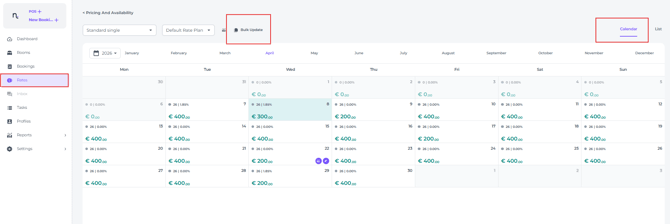
List View: 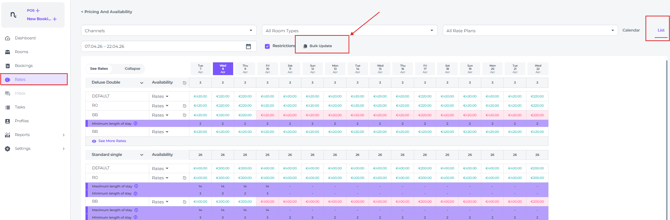
Take the following steps to make changes via the Bulk Update feature:
- By clicking on the Bulk Update a pop-up window will appear.
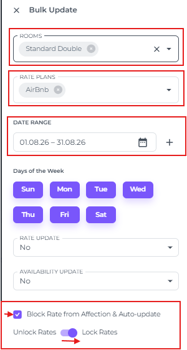
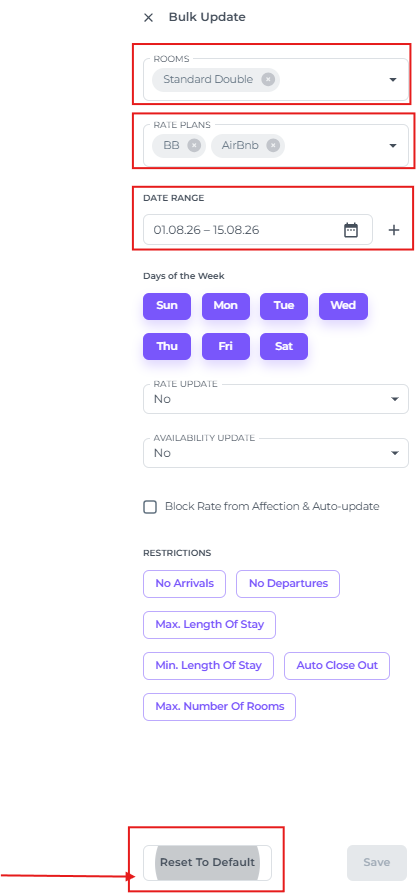
Firstly select the room type(s) that you need to make changes for: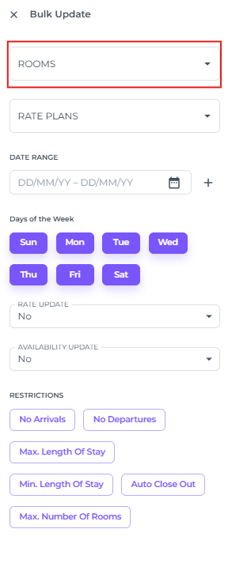
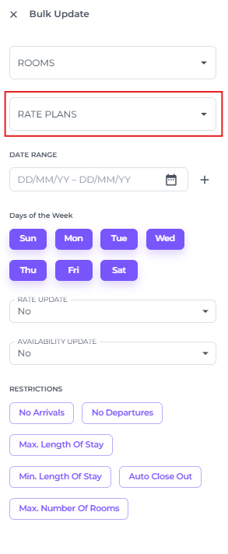
- Select the Rate plan(s) for which you would like to amend rates and/or availability or set restrictions for:
📝 Please Note:
To update rates and availability, use the Default rate plan as this is the primary rate plan, any changes made here will automatically apply to all connected rate plans.
⚠️ Important:
If you select and update other rate plans, they will no longer be managed by the Default rate plan for that period. If you need to make further changes later, be sure to use the same rate plans you originally updated. To return them to their original settings and have them managed by the Default rate plan again, use Reset to Default.
Exception:
For restrictions, the rule is to use any rate plan other than the Default plan, as restrictions do not influence rate plans by the Default rate plan.
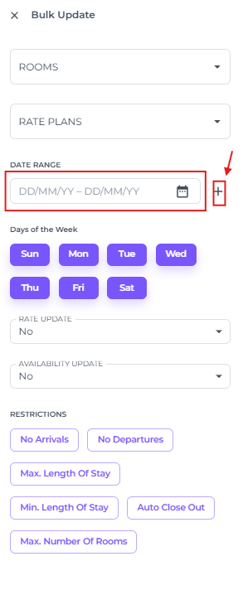
- Choose the date range the changes should be applicable to. You can choose multiple periods for the same changes by using the + sign:
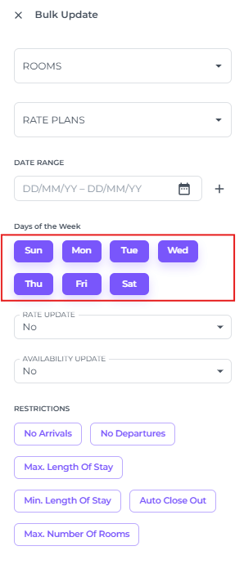
- You can specify which days of the week this action should apply to. By clicking on a day, it will turn white and become inactive; changes will not be applied to any inactive days.
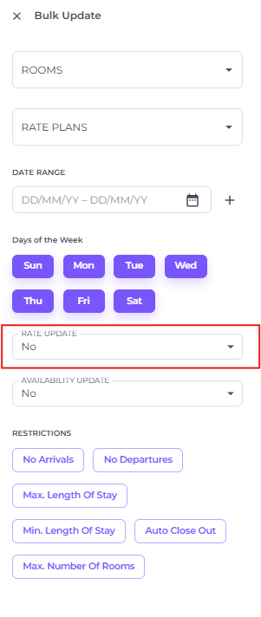
Change Rates in the Rate Update
- No = No Rates update required:
-
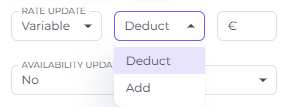
Variable = Add or deduct a specific amount from the current daily rates:
-
Fixed = Set a fixed rate

-
Please note that this approach is not recommended when selecting multiple room types with different price categories, as it will result in the same price being applied to all.)
-
Change Availability in the Availability Update:
-
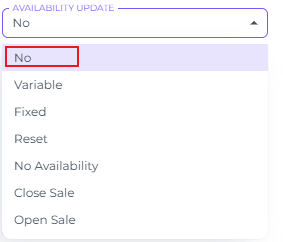
No = No Availability update required
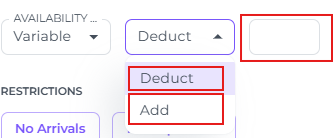
- Variable = Add or Deduct a specific amount of rooms to the actual availability:
- Fixed = Set a fixed amount of rooms available for the room category chosen:

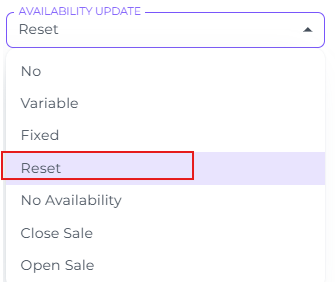
- Reset = Reset the availability to the actual amount, undoing all manual changes:
- No Availability = Sets the availability to zero, meaning no rooms are available for sale.
Note: If cancellations occur during this period, the corresponding room(s) will automatically return to inventory, increasing the number of available rooms accordingly:
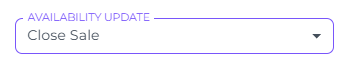
- Close Sale = Sets the availability to zero, closing the sales completely. No cancellations that occur will release rooms back into inventory:
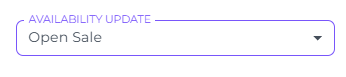
- Open Sale = The only way to undo Close Sale: This will open up the sale to its actual availability:
RESTRICTIONS
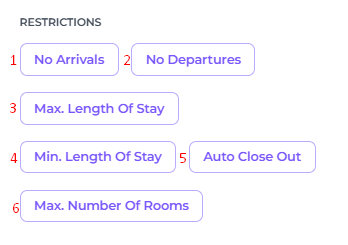
Allows you to apply limitations to the selected period. Multiple restrictions can be set up simultaneously.
📝 Note:
While rates and availability are best managed using the Default rate plan, restrictions are not. Restrictions need to be set individually for each rate plan or a combination of rate plans as needed.
-
No Arrivals: Prevents check-ins on specific dates. Guests cannot start their stay on these days, but they can still stay through them if their arrival date falls outside the restricted period.
-
No Departures: Prevents check-outs on specific dates. Guests cannot end their stay on these days, though they can still stay through them as long as their departure date falls outside the restricted period.
-
Max. Length Of Stay: Sets a maximum length of stay for guests, meaning they cannot book a stay that exceeds the specified number of nights.
-
Min. Length Of Stay: Sets a minimum length of stay for guests, meaning they cannot book a stay that is less than the specified number of nights.
-
Auto Close Out: Automatically closes availability for the selected dates once the availability reaches the specified number.
-
Max. Number Of Rooms: Guests can not exceed the entered number of rooms in one reservation.
-
When you have finished making all your changes, click Save to apply your updates:

Noovy RMS (SmartPricing) Block Rate box
When you are making use of the Automated Rate Updates via Noovy RMS, you can select rates and periods where the automatic update should be disabled. Simply click the box Block Rate From Affection & Auto Update;
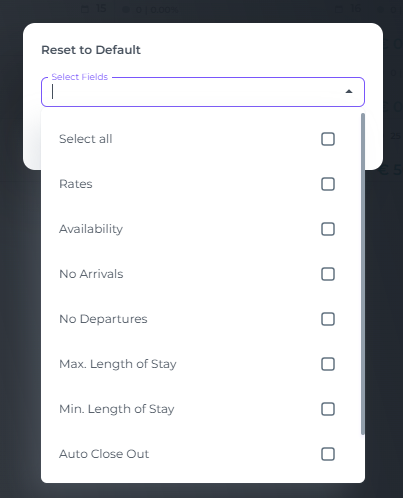
Reset To Default
Reset to Default will remove all manual changes made to individual Rate Plans and automatically follow the settings of the Default Rate Plan afterwards.
Rates and availability should generally be updated on the Default rate plan, as changes made there will automatically apply to connected rate plans based on their Rate Plan Settings. This is why, when you use Reset to Default for manual changes made on other rate plans, those changes will be reset and the rate plans will once again follow the settings of the Default rate plan.
Restrictions are the exception to this rule, as they only apply to the individual rate plans themselves and are not controlled by the Default Rate Plan. For this reason, you should not apply restrictions to the Default Rate Plan via Bulk Update. If you do, those restrictions will not affect the connected rate plans and will also not be removed when using Reset to Default.
Applying Reset to Default:
Rates and availability will be restored to the Default settings and restrictions will be removed because there are no restrictions on the Default Rate Plan.
- Select the room(s), rate plan(s) and the period(s) you have updated manually and select Reset to Default on the Bulk Update.
-
A pop up will appear where you can select the details you would like to reset: