How Noovy Handles Payments
We categorise payments into two distinct formats:
- Payment Gateway: Powered by our Stripe integration, this method allows you to take live payments from credit and debit cards directly.
-
Simple Post: These are manual updates used to track offline payments like cash or bank transfers. They create a record within the system but do not move funds digitally.
1. Payments via the Payment Gateway (Stripe)
- Open the booking you wish to create a payment for.
This can be achieved from the Booking List or the Rooms Calendar: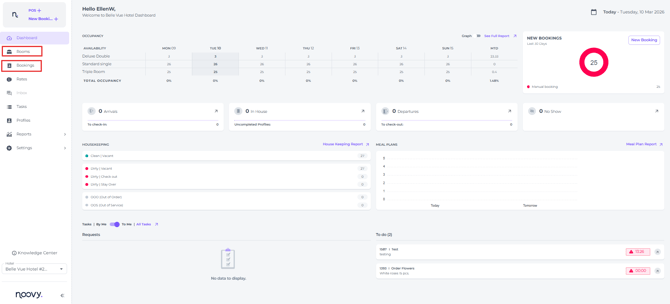
- Access the Billing Area on the booking page:
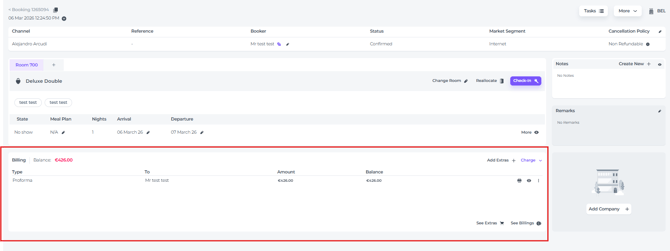
- The balance shows the amount due, but you can take payments at any time, even if the balance is zero.
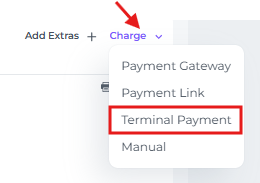
- Click on the Charge button:
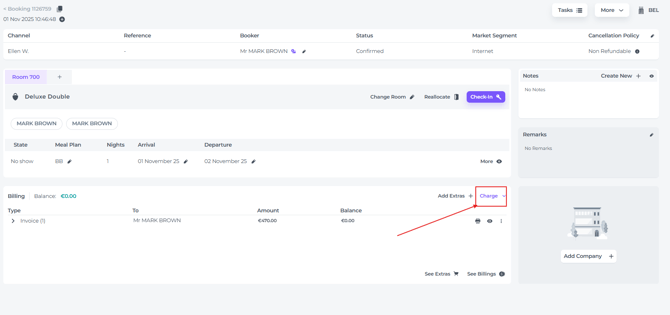
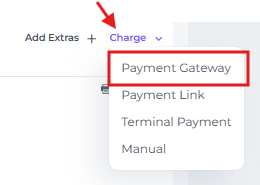
- A pop up screen will appear with the payment method options to choose from:

- Payment Gateway
- Payment Link
- Terminal Payment:
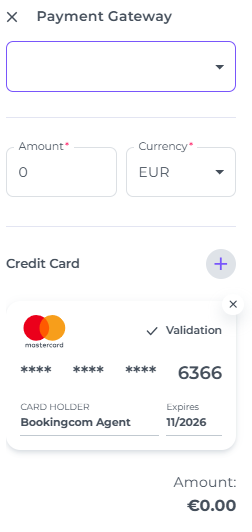
Payment Gateway: You will be able to charge the credit card on file.
-
-
A pop-up window will display the credit card(s) on file. These may include the booker’s credit card used during the online reservation and/or a virtual credit card (VCC) issued by the OTA:
-
-
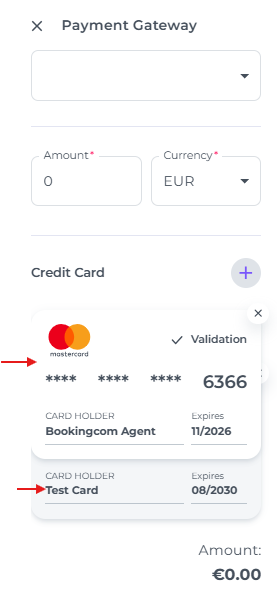
- If there are multiple credit cards attached, firstly choose the one you would like to charge by clicking on it:
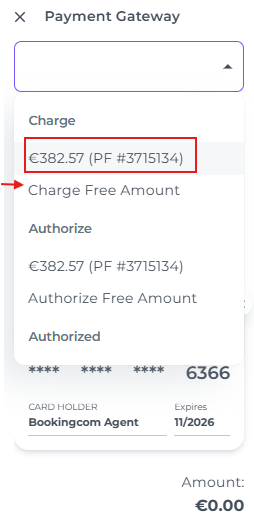
- Click in the first field and choose the relevant Proforma you want to charge, or select “Charge Free Amount” to enter a specific value you wish to collect:
- The card will be charged after you hit the button Charge:
- If there are multiple credit cards attached, firstly choose the one you would like to charge by clicking on it:
Payment Link: Check out the article: How to send a Payment Link
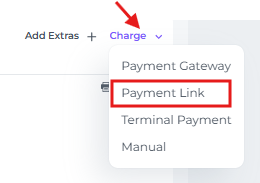
Send a secure payment link directly to the payer via the system. The recipient can then complete the transaction via email. Once the payment is processed, a receipt will automatically be generated in the system. The system will send a default template (if set up in the Emails feature).
💡Tip: Check out the below article if you would like to know more about the email templates you can create in the system to personalise your Payment Link email.
You can manage the email template for Payment Links via the Events tab under the system's Email settings.
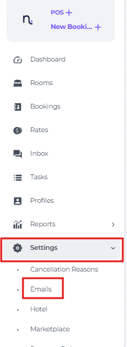
Check out the article on how to create email templates.
👉'How to create a new Email template?'
Should you need help with customising your own templates, please reach out to Support or your dedicated Account Manager.
👉 How to contact the Noovy Support Team?
Terminal Payment: Activate the Stripe Payment Terminal to accept payments in person. The payer can settle the amount on-site using their card or mobile wallet. The receipt will be automatically created afterwards.
-
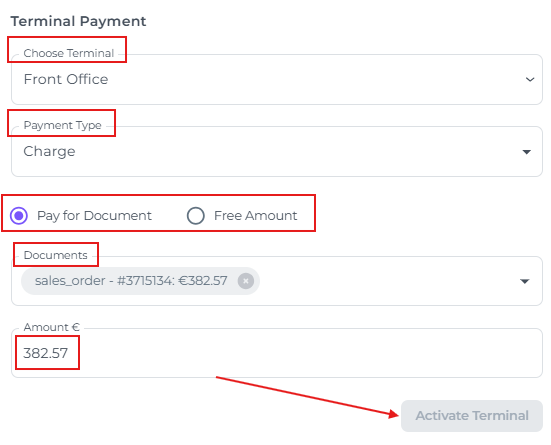
- If there are multiple terminals on site, choose the correct one.
-
Choose the type of action: Payment
- Choose document or enter a free amount you wish the guest to pay for.
- If Document is chosen , you can still amend the amount you wish the guest to pay for.
- Activate Terminal, hand out the terminal to the guest and have the guest settle the applicable amount.
2. Simple Post Payments
☝️ Please note:
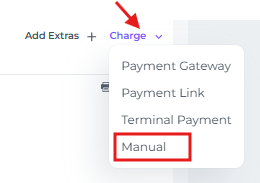
This is a manual payment, which does not involve the payment gateway.
Selecting a credit or debit card as a manual payment method merely records the transaction for administrative purposes; no funds are actually moved. To collect a live payment, you must use either the Payment Gateway or Terminal Payment options.
The manual credit card option is intended for bookings where the payment has already been taken via a previous PMS or outside of Noovy, but still needs to be logged in the system to ensure the Pro-forma has a corresponding record.
-
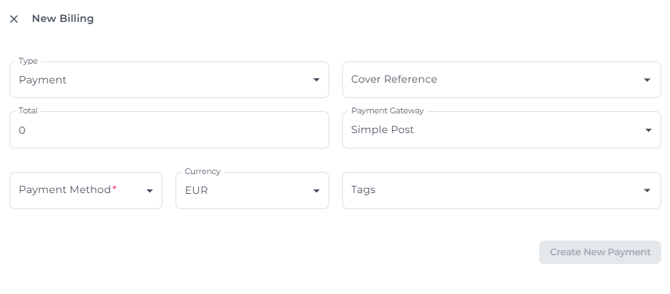
A pop-up screen will open to make a manual payment:
-
-
-
- Type - Payment or Refund.
- Cover Reference - Select the document you wish to settle.
- Total - The amount to be paid on the document. You can change this to a different amount.
- Payment Gateway - Select "Simple Post" when processing manual payments.
- Payment Method - Select the payment method.
- Currency - If available, select the appropriate currency.
- Tags - Tag your payment to categorise it.
- Click Create New Payment to post the payment on the Billings section of the booking.
-
-
💡Tip:
If you have not selected a document to attach the payment to, you can still attach it after the payment has been created. Read in the following article how: