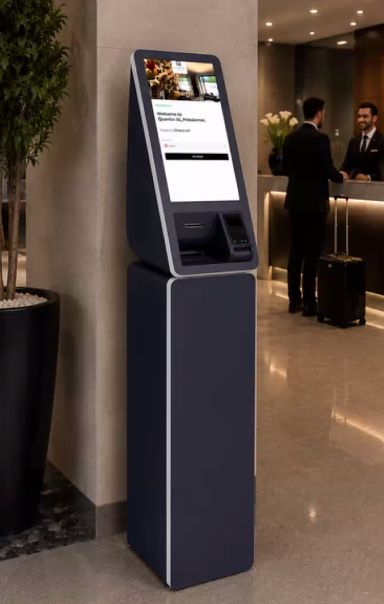
Switching On the Kiosk Reception Standard
-
Ensure the Kiosk standard hardware is switched on.
-
For both the Tabletop standard, as the Stand Alone version, the Power On-Off button is located on the backside of the device.
Reset the Device
-
For optimal performance, reset the device each time it is switched on. Locate the Reset (RST) button on the back of the standard and press it to initiate the reset process.
-
Wait for the system to reboot automatically.
Access the Operating System
-
After reboot, the system will load into the desktop environment.
-
Log in when prompted. Most kiosk systems do not require a password.
Launch the Kiosk Application
-
Open the Google Chrome browser.
-
Navigate to your hotel’s assigned Kiosk URL which is provided by Noovy Support.
The URL can also be found in the Noovy system itself:
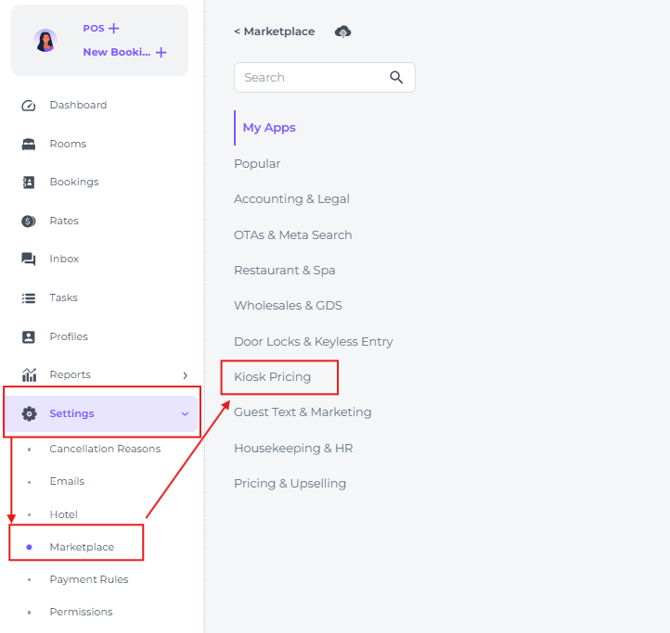
- From the main menu select Settings - Marketplace - Kiosk Pricing:
- Click Set Up :
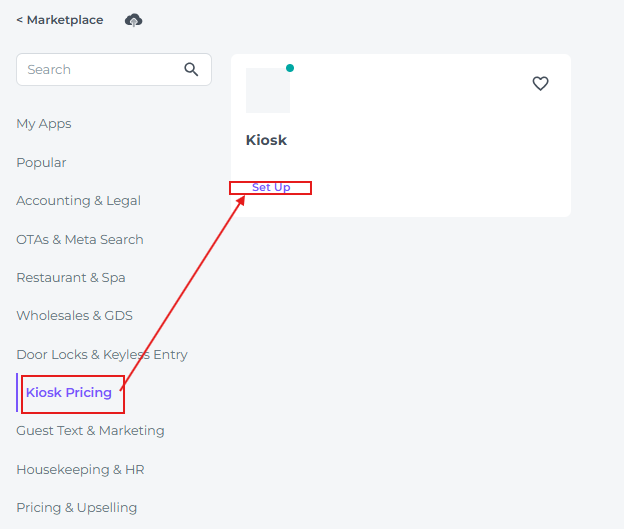
- If you have multiple reception standards, select the standard you will need the URL for and copy the URL when needed:

Authenticate Into the Kiosk Portal
-
Enter the Kiosk Username provided for your property.
-
Enter the Kiosk Password associated with the account.
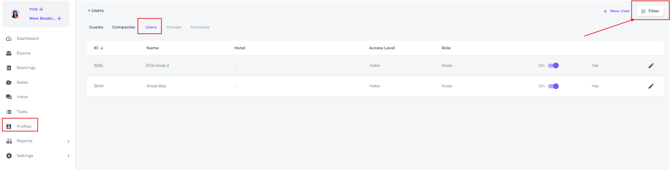
(The user profile can be located via the main menu of your PMS under Profiles – Users. To find it, simply use the filter to search for the specific name of the standard.)
-
The Kiosk Reception Standard welcome screen will then initialise, presenting a professional, guest-facing interface ready for immediate use.
Optimize the Display
To ensure the check-in interface is fully readable and properly aligned:
-
Set the browser zoom to 150% for enhanced visibility.
-
Activate Full Screen Mode (generally by pressing F11 on the keyboard).
Ready for your Guests!
Once all steps are completed, the Kiosk will present the check-in application in full-screen mode, creating an inviting, distraction-free environment for arriving guests.
The interface will be fully optimized for clarity and ease of use, allowing guests to start their check-in smoothly and independently.
This setup ensures a streamlined arrival process, minimizes wait times, and sets the tone for a positive guest experience right from the start.
