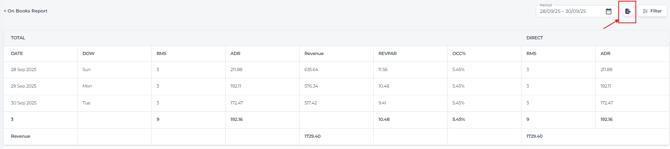
The On Books Report provides a summary of Key Performance Indicators (KPIs) relating to your bookings over a defined period.
-
Identify Trends: Use the report to pinpoint trends in bookings, revenue, and occupancy over time.
-
Compare Performance: Evaluate data across various segments or periods to identify areas of strength and potential improvement.
-
Inform Decision-Making: Use these insights to make informed decisions regarding pricing, marketing, and operations.
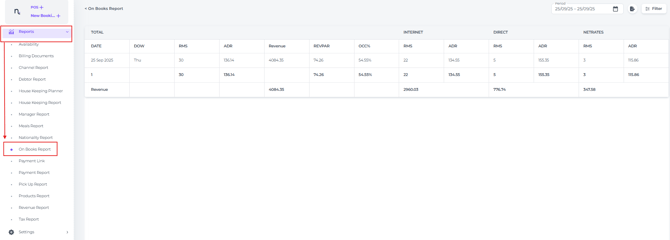
The On Books report can be found from the main menu under Reports :
Running the report
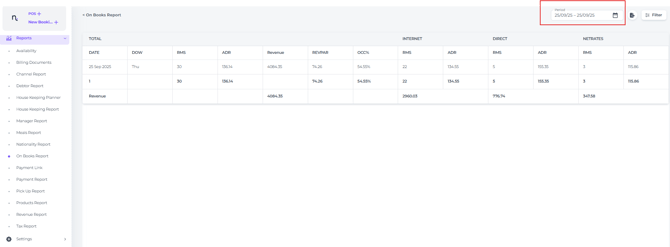
- In the date range field, select the period for which you wish to analyse the On Books details:
Report overview:
Columns explained

-
-
Date – Displays the date of each entry alongside the relevant booking details.
-
DOW (Day of Week) – Indicates the day of the week on which bookings were made (e.g. Mon, Tue, Wed).
-
RMS (Rooms Sold) – The total number of rooms booked for each specific day.
-
ADR (Average Daily Rate) – The average room revenue earned per occupied room during the selected period.
-
Revenue – The total revenue generated from all booking activities.
-
RevPAR (Revenue Per Available Room) – A key performance indicator (KPI) calculated by dividing total room revenue by the number of rooms available during the selected period.
-
OCC% (Occupancy Percentage) – The proportion of available rooms occupied within the selected period.
-
-
Totals:
Overall totals for each metric are provided at the bottom of each column:

-
Segments
If segment groups are configured in your PMS, their data will be included in the On Books report to provide a breakdown by segment.
In the example below the applicable hotel has set up 3 segment groups:

-
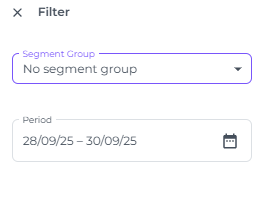
Filters:
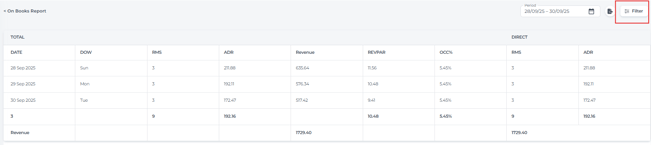
Apply filters to refine your data and focus on specific metrics:
💡Tip:
Export the report in either Excel or PDF format for easy sharing and further analysis: