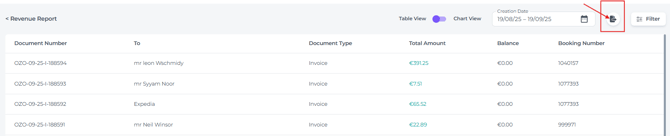
The Revenue Report
Provides a complete overview of all invoices and credits generated within a selected time period, so you can see exactly what was billed, to whom, and for which bookings.
This report helps you track each transaction in detail and gives clear insight into your total revenue or revenue per item (for example, room, parking, F&B, or extras) over any chosen timeframe—whether you are reviewing daily performance, closing a month, or comparing seasons and years. You can quickly spot trends, identify your strongest revenue streams, and check that all charges have been posted correctly.
When exported to an Excel document, the Revenue Report becomes a powerful analysis and reconciliation tool: you can filter and group data for accounting, share structured revenue overviews with your finance team or external accountant, and combine it with other hotel data (such as occupancy or channel mix) to support informed pricing and budgeting decisions.
-
The Revenue report can be found from the main menu under Reports:
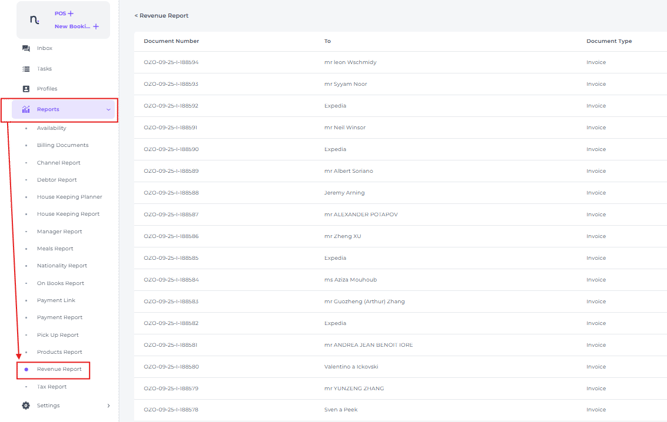
- Adjust the creation date to view revenue for a specific week, month, quarter, or year:

Toggle between table and chart views to visualise your report clearly
Chart view:
Displays total amounts by time period or by categories such as Parking, Food, Totals etc. and highlights the difference between net and gross revenue, including taxes: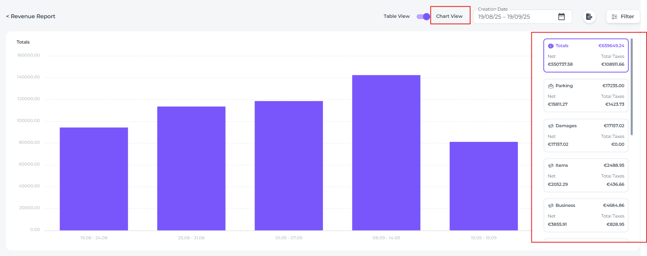
Table View:
Shows each document with the following details:

- Document number
A unique ID that the system automatically assigns when each invoice or credit is created - To
The person or company the invoice or credit is made out to - Document Type
Invoice or credit
*Please note: you can include pro forma documents in the report, but they represent expected revenue, not revenue that has actually been realised. - Total Amount
The total amount associated with each individual invoice or credit. - Balance
Outstanding balance remaining on the booking linked to the invoice or credit. - Booking Number
Booking reference number associated with the invoice or credit.
Filter:

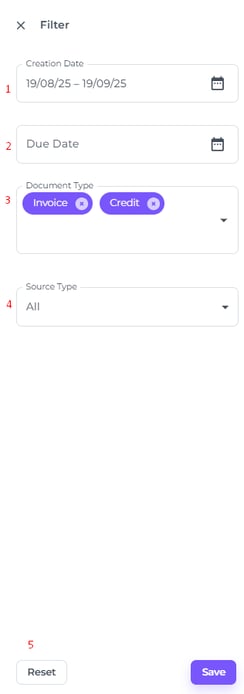
- Creation date
The creation date is when the invoice or credit was generated in the system. - Due date
The departure date for the booking linked to the invoice or credit. - Document Type
Filter on proforma, invoice or credit. - Source Type
Filter on Bookings only, POS (cash register invoices not linked to a booking) or both. - Reset
Clears all filters you have applied.
💡Tip:
To export the revenue report into an excel document, click on the export icon on the right top corner of the revenue page: