Adding breakfast to a booking is quick and straightforward.
There are two ways to add breakfast:
-
Via a Meal Plan – This affects the meal report.
-
Via Extras – This adds only the charge to the room bill and does not affect the meal report. Use this option after the guest’s stay, once breakfast has already been served, so the kitchen does not need to account for breakfast stock and breakfast staff do not need to check who is dining or whether the breakfast has already been charged.
Adding breakfast via Meal Plans
You can add an extra breakfast or meal plan at any time, even if the booking already includes a rate with breakfast. This is useful, for example, when a visitor joins the guest for breakfast.
In the reservation’s Room section, go to Meal Plan and click the pencil icon to edit or add the meal plan: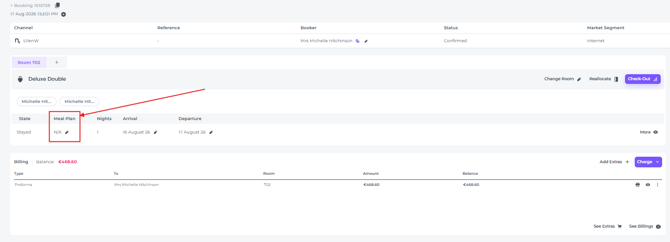
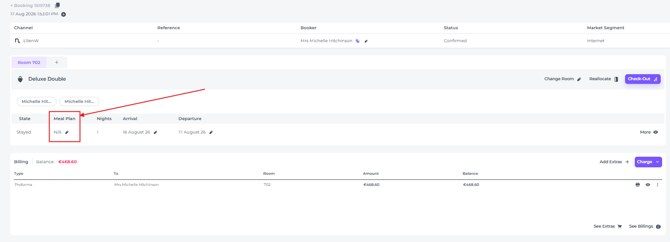
- Click on the pen icon to edit/add the meal plan:
- In the pop up that appears there are several facets you can edit:
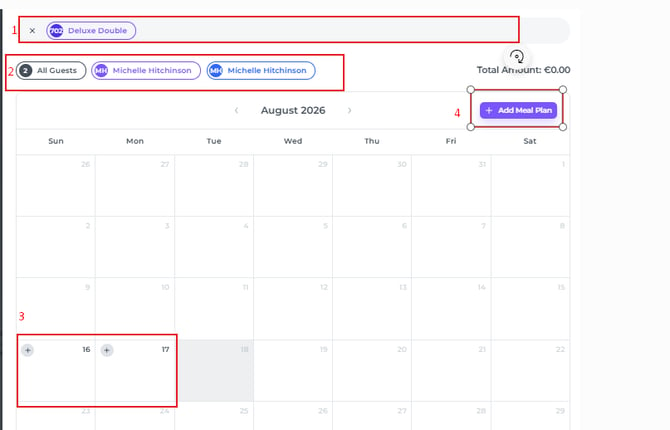
- If the booking includes multiple rooms, select the room(s) to which you want to add the meal plan or breakfast.
- Select the guest(s) who should receive the meal plan.
- Click the plus icon to add an additional meal plan, even if meal plans already exist for the selected dates. If all guests already have a meal plan, you can still add an extra breakfast at any time, for example when a visitor joins the guest for breakfast.
A pop-up notification will appear before the extra breakfast is added: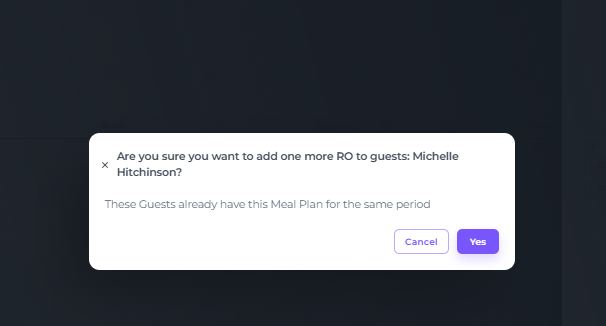
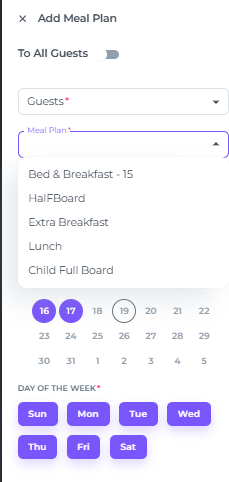
- By default, the entire stay is selected. Choose the meal plan you want to add, adjust the guests as needed, and deselect the days of the week when the meal plan should not apply. (This is useful, for example, when a guest is staying for an extended business trip but does not have breakfast at the hotel on weekends. Click Saturday and Sunday to deselect breakfast for those days):
At this stage, you can also select the arrival date for the meal plan, for example if the guest arrives early: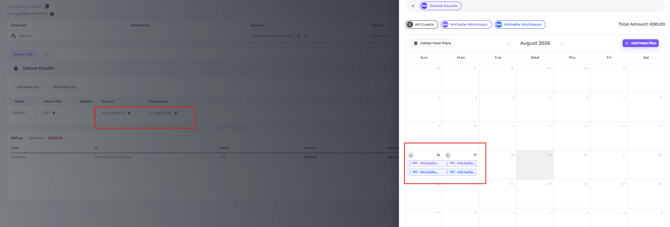
- To delete a meal plan, click the pencil icon next to the meal plan for the applicable room. Select the relevant date and guest, then click the three-dot More actions button to view the available options:
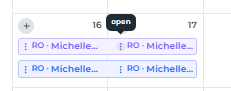
- Choose Delete to remove the selected meal plan, or choose Delete all to remove all meal plans.
Add breakfast(s) via Extra's
If at checkout or even after checkout, it appears that the guest had breakfast, add it as an extra and charge it to the room bill:
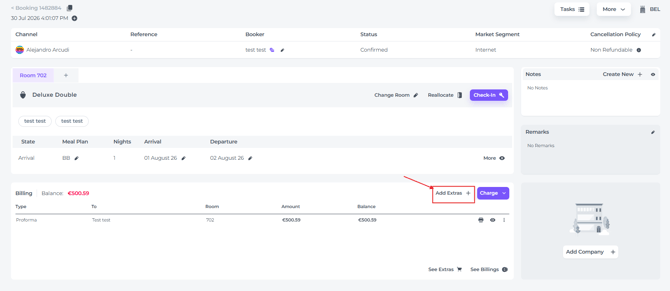
- On the booking page, go to 'Add Extras' to charge the cost:
☝️Please Note:
Extra items are configured in the Settings > Products page. You will only be able to book an extra breakfast if the item actually exists. 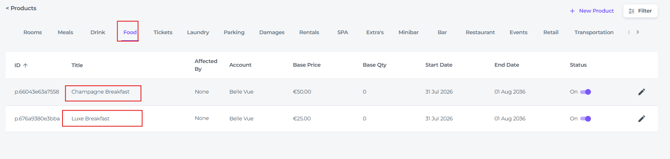
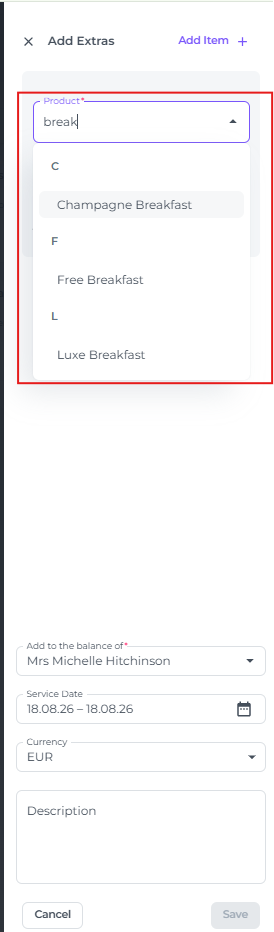
- Choose the Breakfast you would like to add:
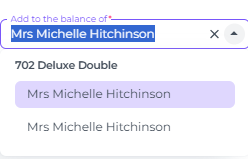
- Choose the payer if there are multiple guests in the booking (the payer can afterwards be amended at any time):
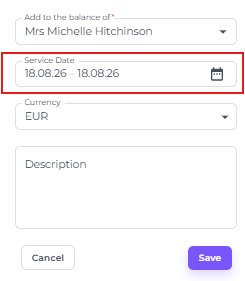
- Service Date - Select the date that the item has been used or will be used:
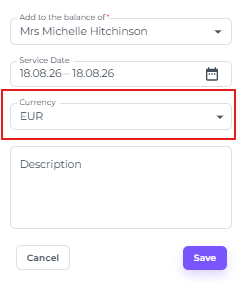
- If multiple currencies are available choose the desired one :
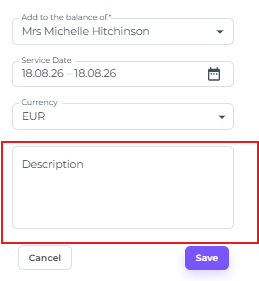
- Add a description if desired, for example: extra breakfast / visitor guests:
- Hit save and your breakfast will be added, which you can view and/or edit in See Extra's:

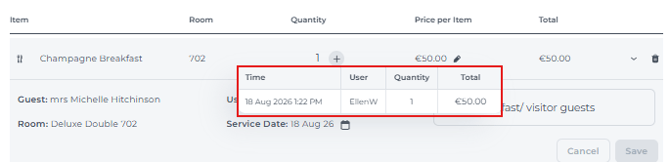
A pop up will open the field where you can edit quantity, price, service date and description: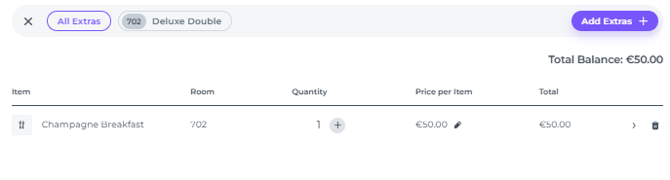
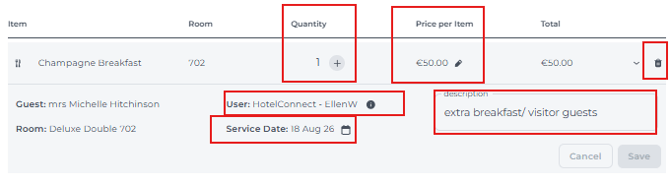
Hoovering over the Information icon behind the user will gie you the logs / history: