What are Extras (Products)?
Products (also known as extras or items) will have been created when your account was set up for the hotel. Navigate to Settings > Products to manage them:
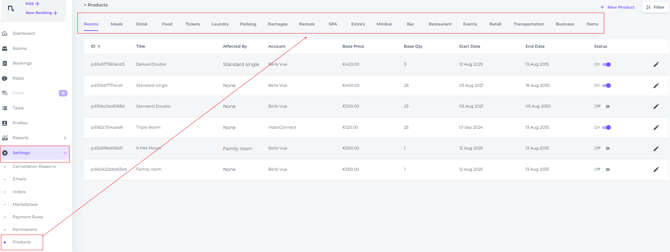
Further products can be added later if required.
Check the article 'How to create new products?' or contact your account manager/ Support if in doubt.
⚠️ If you create new products yourself, please ensure that each product is linked to the correct VAT group. This is a critical step; failing to categorise products correctly can lead to significant accounting errors.
ADDING EXTRAS TO A BOOKING:
-
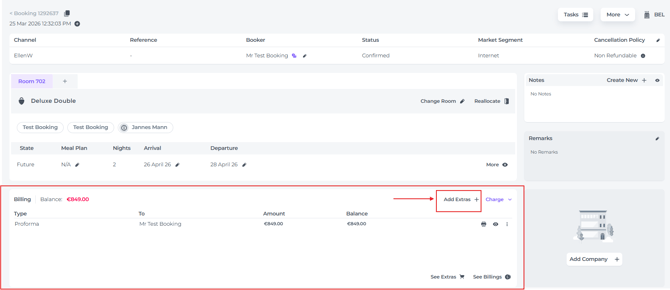
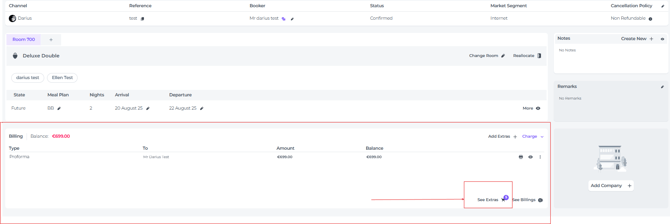
On the relevant booking page, navigate to the Billing section and select Add Extras:
A pop-up screen appears: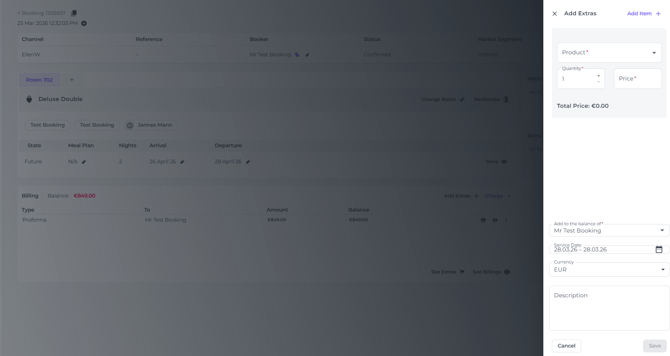
-
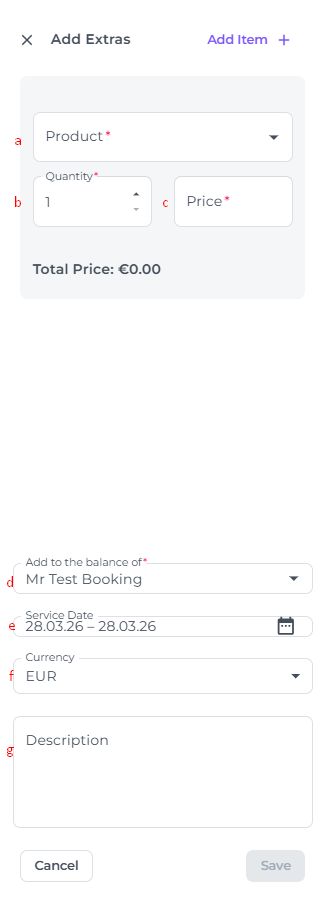
Pop-up fields explained:
-
- a) Product - Find* the product you would like to add to the booking.
☝️*If the product does not appear on the list, please double-check the spelling or try searching for synonyms; the item may be listed under a different name than expected.
If it still cannot be found, the product may not have been created yet. In this instance, please ask your manager to create the item or confirm if it should be added to the system.
-
-
b) Quantity - The quantity of the product you wish to add to the booking.
-
c) Price - The price is preset; however, it can be adjusted here if necessary.
-
d) Add to the balance of - If there are multiple guests, select the correct payer from this field.
-
e) Service Date - If the service date (the date of use) differs from today’s date, you can update it in this field.
-
📝 Please Note:
The product will be added to the current proforma only if the service date falls within the stay dates. Otherwise, a new proforma will be generated.
If the booking is for a future date, the product will be automatically added to the existing proforma.
If the stay date has already passed and you are still adding an extra or product, you must create a proforma MANUALLY.
-
-
f) Currency - The currency of the country where the hotel is located. If multiple currencies are available, you can select the relevant one.
-
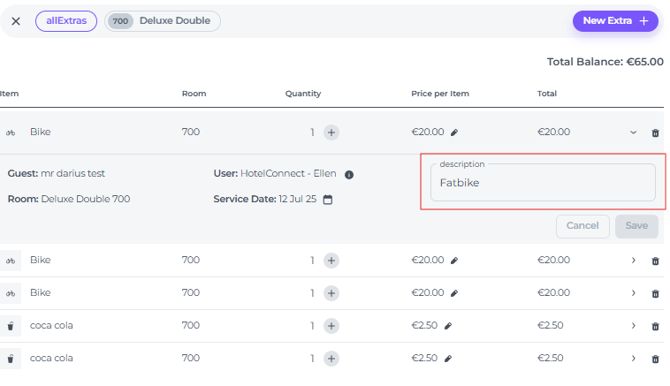
g) Description - Add any specific internal remarks or notes relevant to this product. * These notes are for internal use only and will not appear on the guest invoice.
-
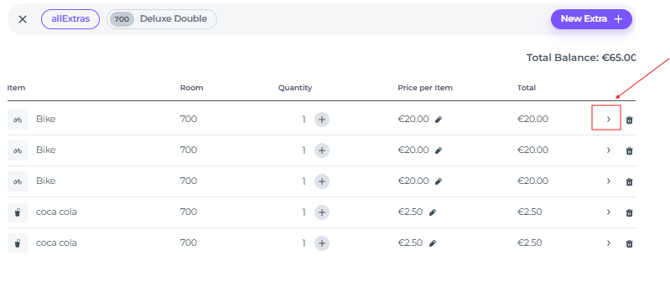
👉 To view or edit these notes, navigate to "View Extras" on the booking page.
- Hit SAVE when al fields are correctly filled out, the extra will be added to the booking as a temporary notification will attest: