⚠️ Please Note:
Rate plans are typically configured by your Account Manager during onboarding, in consultation with the property.
❗❗If you need to add or adjust a rate plan later, we strongly advise contacting your Account Manager to ensure correct channel mapping and other technical settings.
Follow the steps below to create a new rate plan:
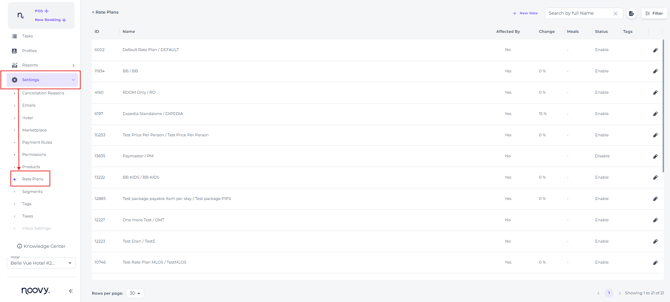
- From the main menu go to Settings - Rate Plans:
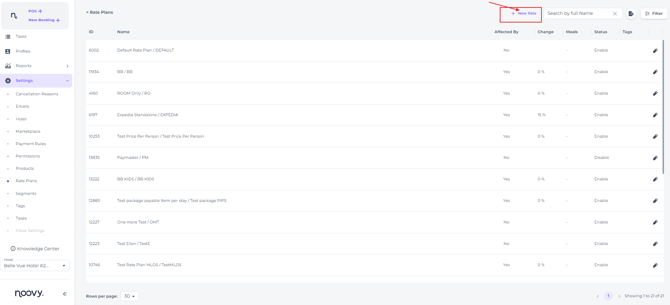
- Click '+New Rate' to open the rate plan creation panel:
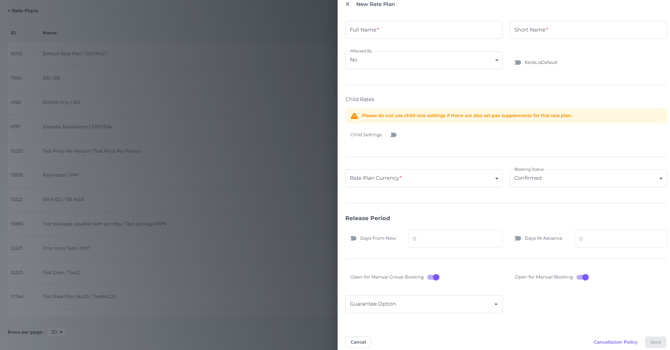
- A pop up screen will appear that allows you to create the Rate Plan:
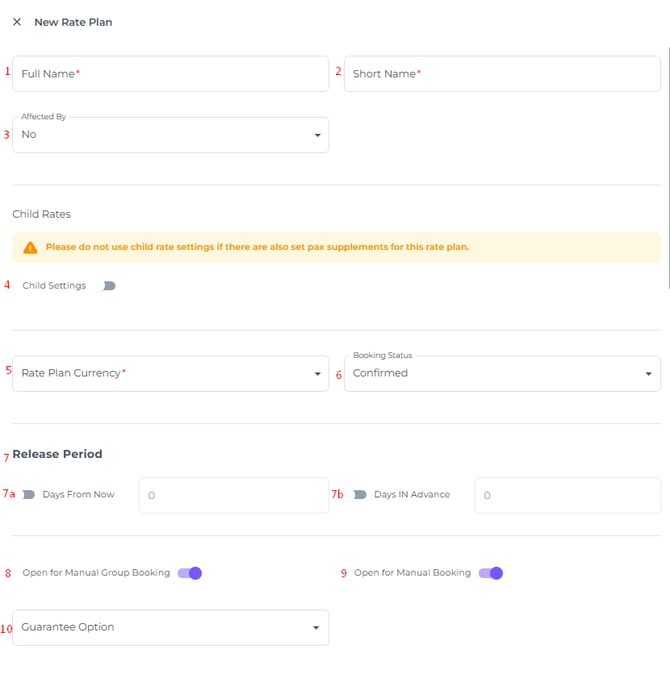
All fields explained:
-
Full Name - Provide a clear, descriptive name for your new Rate Plan.
- Short Name - Enter an abbreviated version of the full name that closely resembles it.
- Affected By - Enter the Rate Plan that is affecting the Rate Plan you are currently creating.
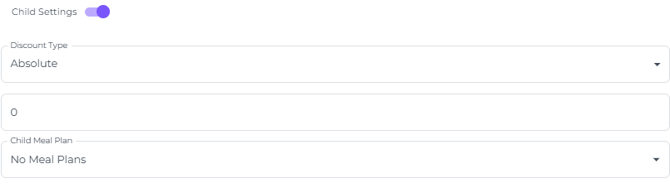
- Child Settings - When toggled on you will be able to give discounted rates for children (any person aged under 18) as well as to attach a meal plan for child breakfast (a child breakfast should be set up in the feature Meal Plans).
- Rate Plan Currency - Select the appropriate currency for this rate plan if more than one option is available.
- Booking Status Confirmed or On Request - “Confirmed” is the standard status. When you select “On Request,” all bookings on this rate plan must be manually approved. Use this option if you want full control over which bookings are accepted for this rate plan, and make sure to check daily for any pending “On Request” reservations.
- Release Period - You can choose to have the rate plan active x days from the current date in the future (7a) or have it active x days from the current date (7b)
- Open for Manual Group Bookings - When toggled on, this rate plan will be available for group bookings.
- Open for Manual Booking - When toggled on, this rate plan will be available for manual individual bookings.
- (Guarantee Option - No longer functioning/outdated feature)
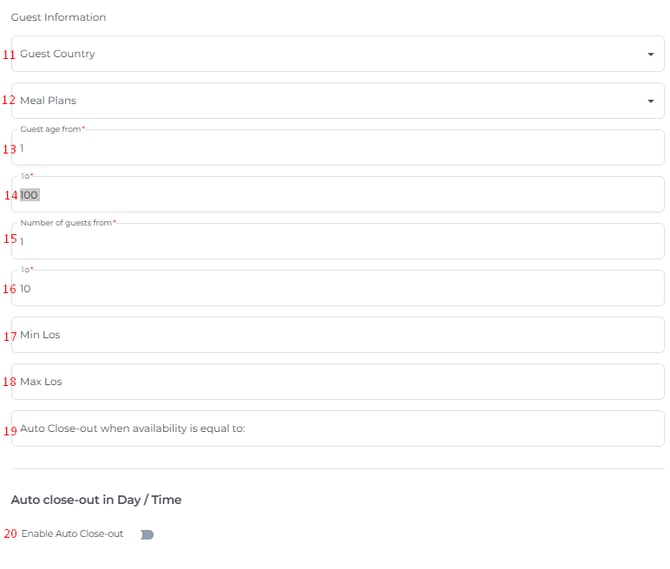
- Guest Country -Specify the country if you want only residents of a particular country to be eligible to book this rate.
- Meal Plans - Select the appropriate meal plan to include with this rate.
- Guest age from - Set a minimum age if people under a certain age are not eligible for this rate.
*For example, when a child rate applies. Setting a minimum age ensures the rate and meal plan only apply to suitable age groups. - (Guest age) To - Set a maximum age if people over a certain age are not eligible for this rate.
- Number of guest from - Set the minimum number of guests.
For instance, if you enter 2, the rate is only available for bookings of two or more guests; solo travelers cannot book this rate. - (Number of guests) To - Indicates the maximum number of guests permitted to book this rate.
- Min Los - This restriction will set a minimum length of stay on the rate plan. (Therefore it will override any Min Los set on the rate calendar).
*For example: setting this to 3 means guests must book at least 3 consecutive nights to access this rate. - Max Los - This restriction will set a maximum length of stay on the rate plan. (Therefore it will override any Max Los set on the rate calendar).
*For example: setting this to 3 means guests can book up to 3 consecutive nights to access this rate. - Auto Close-out when availability is equal to -Enter the number of rooms at which availability will automatically close sales and therefore stop accepting new bookings for this rate.
- Enable Auto Close-out - When enabled, you can specify on which days of the week, and from what time, this rate will be unavailable for booking. This will allow you to control the rates available for booking.
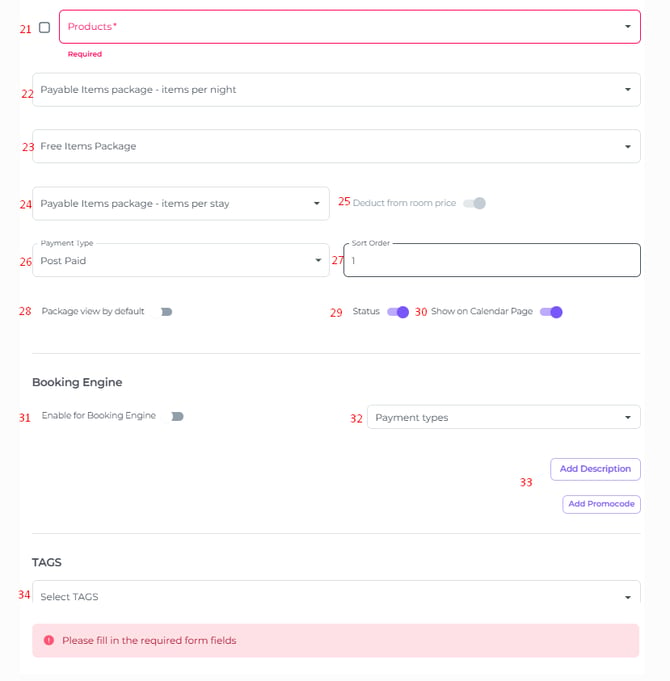
- Products - Add the room types that should be included in this rate.
- Payable Items Package Per Night - Add items to the package:
- The item price is allocated evenly across all nights of the stay and subtracted from the room rate, while keeping the total booking amount unchanged (the total remains exactly as displayed in the channel).
- The deduction is distributed evenly across all nights of the stay (with minor rounding adjustments if necessary). Select the items that are not included in the room rate—these will be added on top of the rate shown in the rate calendar.
- Free Items Package - Select the items that are included in the room rate—these items will appear on the Proforma with a value of 0.
- Payable Item Package Per Stay - Add items to the package
Items are added once per booking ( per room! ) instead of per night
These items are automatically added to the booking when it is created - Deduct from Roomprice - Some channels already include the item price in the rate sent to Noovy. If this rate plan was created for one of those channels, enable this switch.
- Payment Type -Select whether this rate plan will be Post-Paid (pay at the property) or Pre-Paid (pay in advance; recommended for non-refundable rates)
- Sort Order - Set the position of this rate in the list of Rate Plans
- Package View by Default -When this toggle is enabled, the rate is displayed in package view. All items included in the rate plan (meal plans, room, and extras) are combined into a single line with the rate plan name. For example, on the invoice you will see “Special package with minibar” instead of separate lines such as “Double room”, “Bottle of cola”, etc.
- Status - When toggled on, this rate is activated and available for guests to book
- Show on Calendar Page - Recommended. This enables you to manage rates and availability for this rate plan directly through the Rate Calendar. When toggle is switched off, the rate plan will not be shown on the Rate Calendar drop down menu for rate plans
- Enable for Booking Engine - Will enable the RP to be used in Noovy's Booking Engine
- Payment Types - Applicable to the Booking Engine
- Add Description/ Add Promocode - Applicable to the Noovy Booking Engine
- Select Tags - Tags set for this rate plan
📝Note:
-
Ensure all settings align with your property's operational requirements and cancellation policies (if applicable).
-
Check the rate calendar to verify the rate plan is correctly applied, and make any necessary adjustments.
-
If there are any uncertainties please do not hesitate to seek advise from your account manager.