What are Notification Rules?
Having designed your email templates, you can then utilise our Rule Engine to automate their delivery. This sophisticated piece of kit ensures that communications reach your guests at the optimum moment, be it an immediate confirmation or a scheduled post-stay follow-up. This article demonstrates how to configure these rules accordingly.
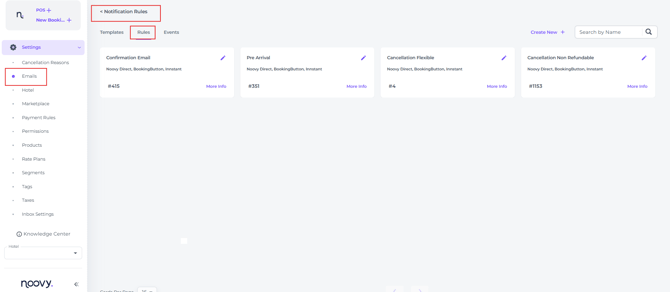
You can find this feature in the main menu under Emails > Rules:
Creating a Notification Rule
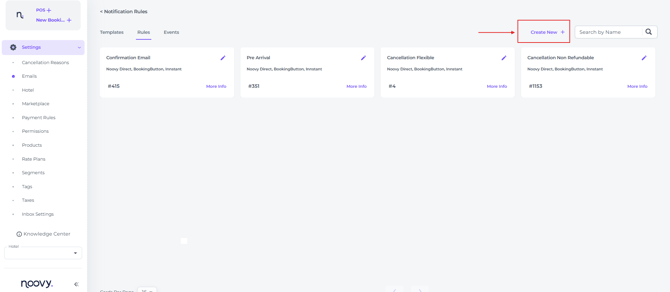
- Click on Create New + :
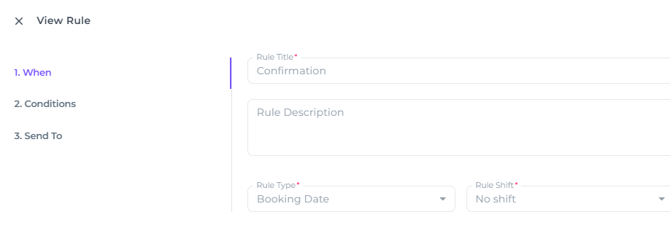
New Rule Tab 1 ‘When’ – Define the sending time
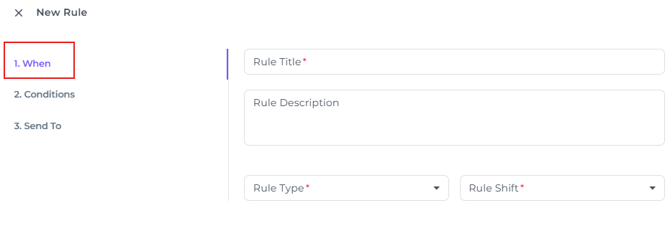
- Rule Title -give the Rule a clear, concise and defining name
- Rule Description - Short and understandable
- Rule Type - Define when the message should be sent:
- Booking Date - The day the booking was created
- Arrival Date - The first day of the stay
- Departure Date - The final day of the reservation
- Check-In – The moment the booking is checked in within the system
- Check-Out - The moment the booking is checked out within the system
- Cancellation Date - The moment the booking is cancelled within the system
- Guest Birthday – Based on the birthday stored in the guest profile
📝Note: When a booking is updated, the Rule Engine automatically adjusts the sending time.
-
Rule Shift - After the Rule Type is chosen you can opt to Add or Deduct x days and x hours to the time of sending:
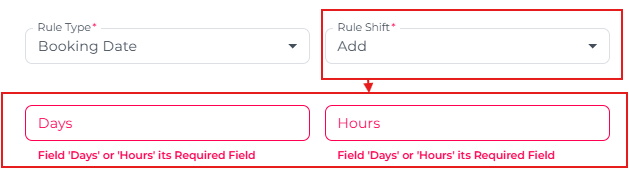
Example 1:- Template to be send - Post Departure
- Departure Date - May 11th
- Rule shift - Add 2 days and 8 hours
- Outcome - Send out on May 13th at 8:00 AM
Example 2- Template to be send - Post Departure
- Departure Date - May 11th
- Rule shift - Deduct 1 day and 8 hours
- Outcome - Send out on May 10th at 4PM
You can always opt for No Shift, the time of sending will therefore be done at the moments described in Rule Type.:
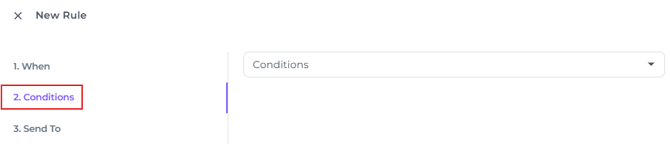
New Rule Tab 2 'Condtions' - Booking criteria
-
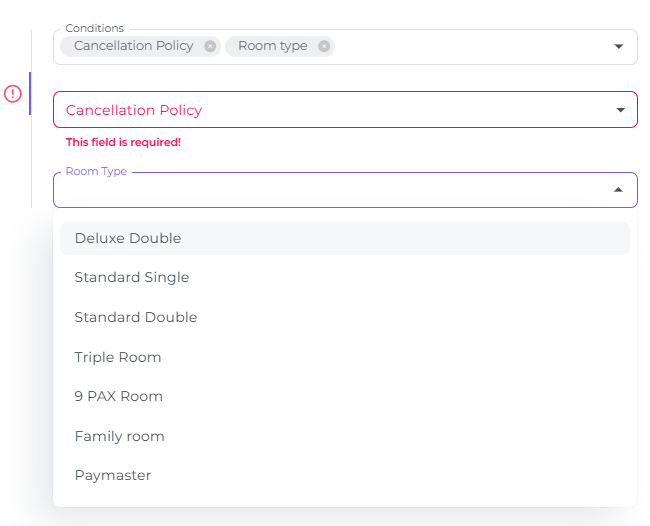
Click on the Conditions Tab - Conditions field and enter the correct criteria to ensure the rule only targets reservations that strictly meet the requirements:
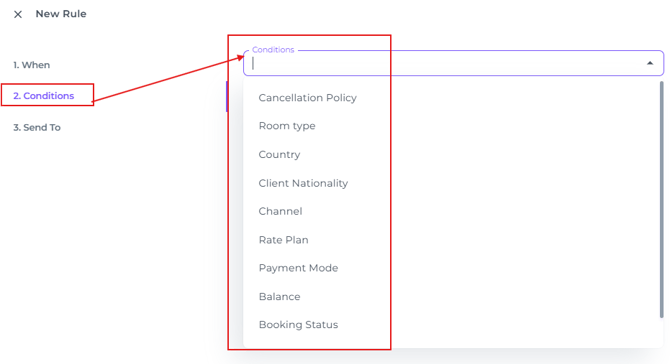
- Cancellation Policy - Refundable or Non Refundable Bookings (especially important if payment policies are included in the notification or guest letter)
- Room Type -The specific room category booked (If certain context of the template contains information on the specific type of room)
- Country - Based on the country of origin on the Guest Profile (if certain information only applies to the country where the guest lives)
- Client Nationality - Based on Profile/ Passport information (ensures the guest receives it in the most appropriate language)
- Channel - Booking source (OTA / channel) where the reservation was created. The rule applies on the channels entered solely.
- Rate Plan - Which rate plan(s) should be targeted by this rule
- Payment Mode - Prepaid or Postpaid (as configured in the rate plan)
- Balance - Decide if the rule runs based on the existing booking balance at the time of execution (Greater than >, Less than <, or Equal to =).
- Booking Status - Select the appropriate booking status for this rule to trigger the correct email template (for example, “Cancelled” for cancellation confirmations).
- Selecting conditions opens the drop-down menus where you can choose the applicable criteria:
New Rule Tab 3 'Send To' - Which template should be sent, and to whom?
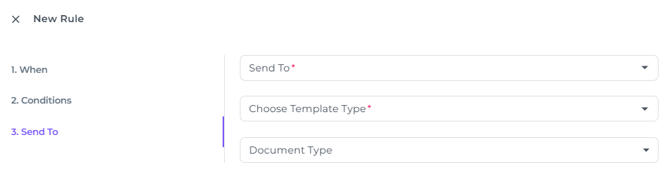
- Determine the recipeint type:
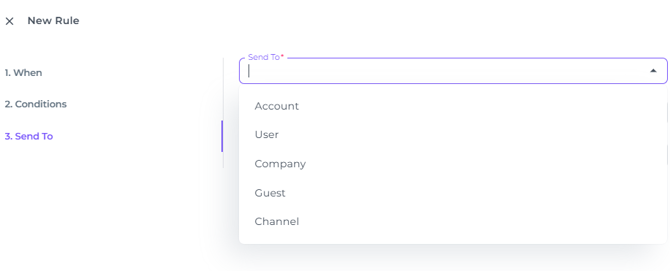
- Account -The rule will be sent to the email address associated with the Noovy account
- User - The rule will be sent to the email address associated with the Noovy user
- Company - The rule will be sent to a selected company profile
- Use the toggle to choose between all companies linked to bookings that match the criteria or only specific company profiles:

- Use the toggle to choose between all companies linked to bookings that match the criteria or only specific company profiles:
-
- Guest - The rule will be sent to guests who's bookings match the criteria defined in the previous steps.
- Use the toggle to choose between all guests with bookings that match the criteria or only specific guest profiles:

- Use the toggle to choose between all guests with bookings that match the criteria or only specific guest profiles:
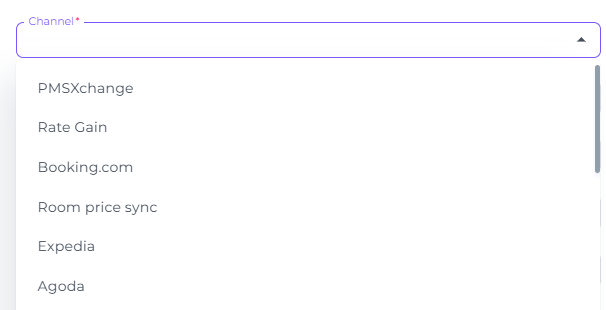
- Channel - The rule will be sent to a selected Channel:
- Choose Template Type - Displays all active templates and lets you select which one should be sent
- Document Type - If you want a document to accompany the selected template, choose the document type here
- Guest - The rule will be sent to guests who's bookings match the criteria defined in the previous steps.
Save the new rule to activate it immediately.
The rule will appear immediately in the Rules tab list.
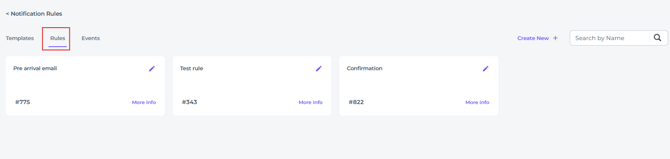
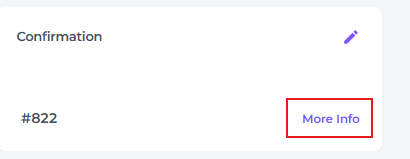
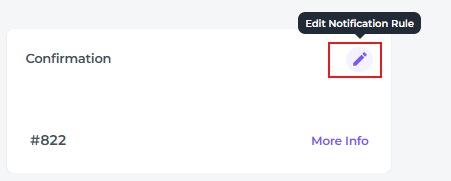
You can edit rules at any time by clicking the pen icon:
* After a rule is edited the system automatically checks all bookings making sure the right actions happen for each booking.
This is also where you can Delete the rule: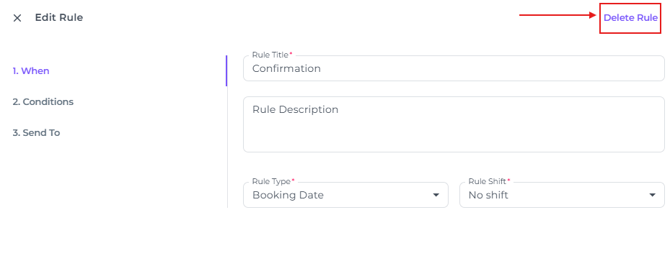
The rule can be viewed by clicking on 'More Info':