The purpose of the 'Ignore Availability' button
Changing rooms within a booking is straightforward, swapping rooms via the room calendar even faster and simpler. In both cases, however, it was previously not possible to make the change if the availability for the desired room was zero.
As always, we have listened to our clients' feedback, and you can now override availability, giving you complete control over your reservation management.
Read on to find out how to change rooms, even when there is no availability.
⚠️ Please note the Risks & Constraints
Risks:
-
Ignoring availability could result in accidental overbooking if the option is not used with care.
-
Staff may misuse the option without fully understanding its impact on availability.
Constraints:
-
The "Ignore Availability" option is restricted to users with the appropriate permissions to prevent misuse. It uses the same permission that currently applies to ignoring availability when creating a booking via New Booking.
Check Availability
Before making the change, we recommend checking the actual availability for the day in question.
-
Check your availability via the Availability Report (Main Menu > Reports > Availability Report) :
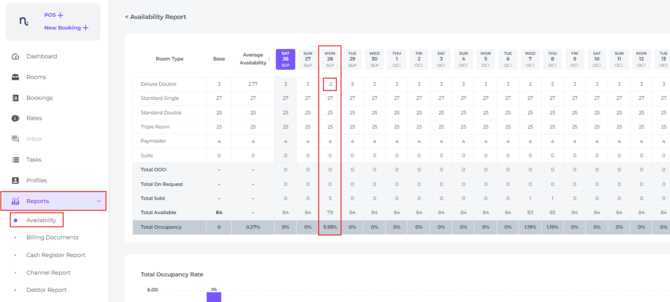
In the example above, the -2 shown for the Deluxe Double is a direct result of changing rooms while ignoring availability.
If you would like to change rooms for other reservations, checking the availability report in advance will give you a clear indication as to if it is wise to change more rooms to this roomtype which is already overbooked.
It was already possible to ignore availability when creating a booking via New Booking, by switching on the Ignore Availability toggle:
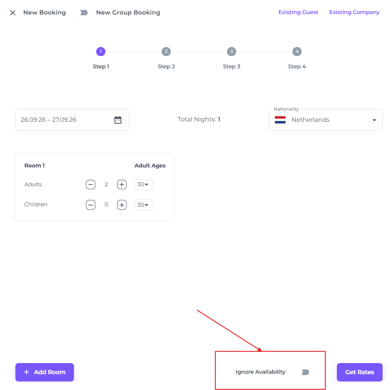
You can now use the same Ignore Availability toggle when changing rooms in an existing booking via:
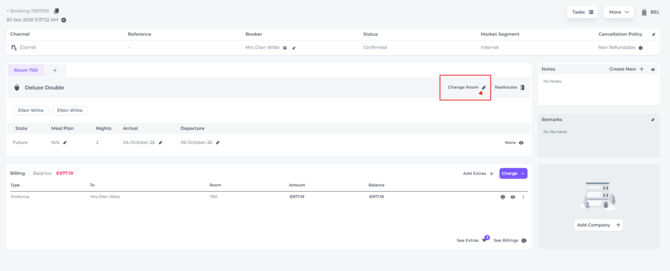
1. Booking Page:
- Click on the pencil at Change Room:
-
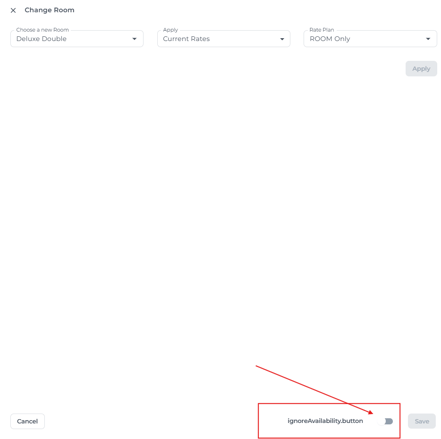
See the Ignore Availability switch at the bottom of the pop up that appears:
-
When toggled on, all room categories, available or not, will be displayed in the Choose a New Room field:
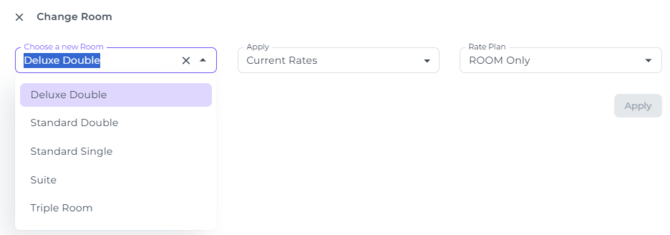
-
Proceed with the usual steps when changing rooms and hit Apply and Save.
2. Quick Booking Pop Up:
- Also click on the pencil at Change room:
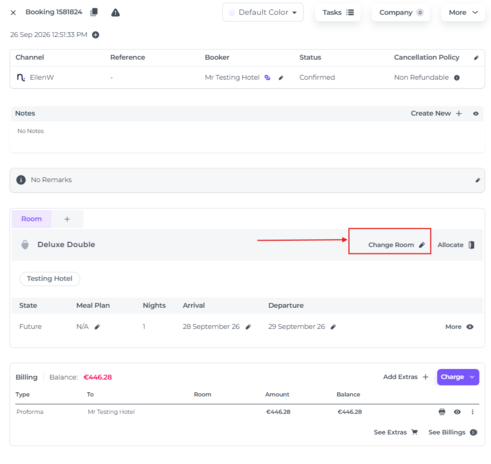
-
Take the same steps as described above in 1. Booking Page
3. Room Calendar Drag and drop
-
Click & hold on the reservation you would like to change room type for
-
Drag the reservation to the desired room of the fully booked roomtype and release the mouse button
-
A pop-up screen will appear, not allowing you to drop the reservation due to unvailability
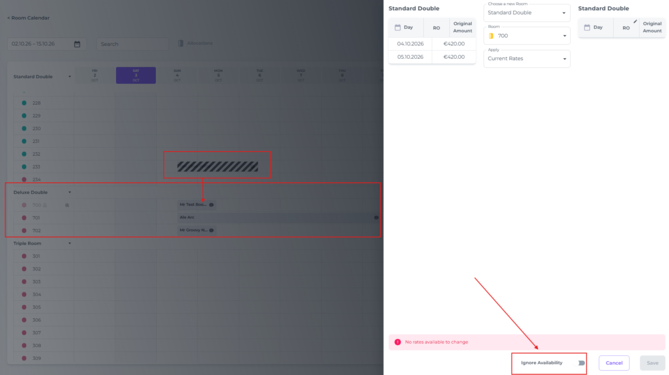
-
This is when you toggle the Ignore availability button
-
You can now drop the reservation on the desired room type and room number and choose the price applicable
-
Current Rates - Keep the rates the same as the original Room type Rates
-
New Rates - The rates are aligned with the current rates for the new room type
-
Additional Fixed Amount - Set your own rate
-
-
The Save button will be active to move the booking to an unavailable roomtype:
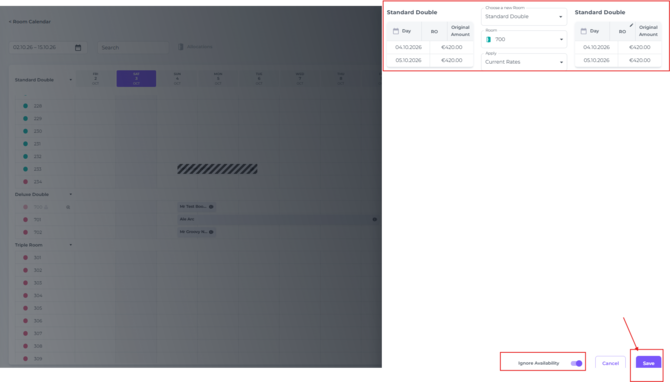
-
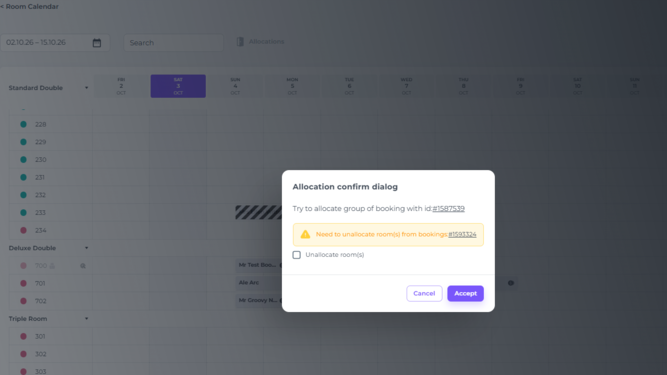
Confirm you want to proceed by ticking the box to unallocate the booking and Accept:
-
The new reservation will then be successfully moved into the desired room, and the reservation that was previously allocated to it will be placed in the Allocations section:
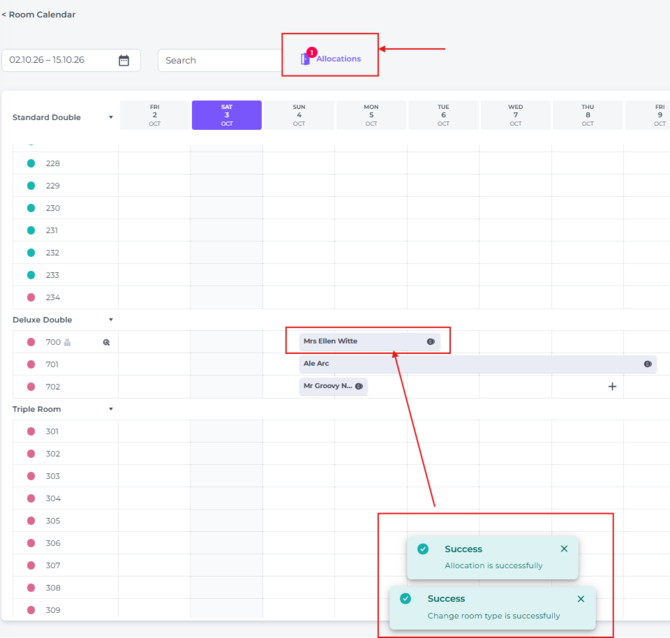
- You have now deliberately chosen to overbook. The booking that made way for the new one is now unallocated, so you will need to take appropriate action. This may mean moving the booking to a different room or, in a worst-case scenario, relocating the guest to another hotel.