The Availability Report:
-
Displays a real-time overview of vacant, sold and blocked rooms. Even if availability has been manually increased or decreased in the Rates Calendar, this figure shows the actual remaining inventory.
Equally, you can check whether it is safe to use the Ignore Availability option when changing rooms or creating a new booking so you can prevent overbooking whilst managing the allocation of your bookings.
-
Gives a clear comparison of occupied and available rooms, helping you maximise your overall revenue.
-
Provides the ability to monitor availability by room type,
☝️Please note:
Out of Order (OOO) rooms are also shown on the report yet are deducted from your actual inventory. Should you clear the OOO status, these rooms will be restored to your availability for the dates in question.
-
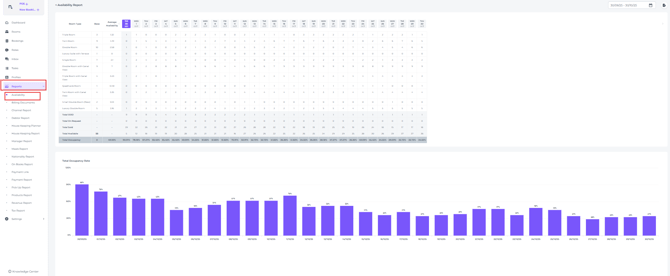
The Availability Report can be found via the main menu under Reports- Availability:
-
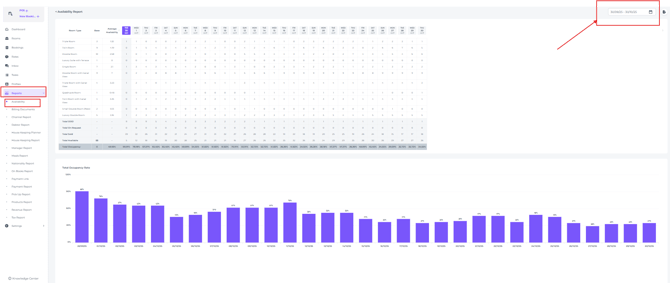
In the date range picker chose the period you would like to view the details for:
-
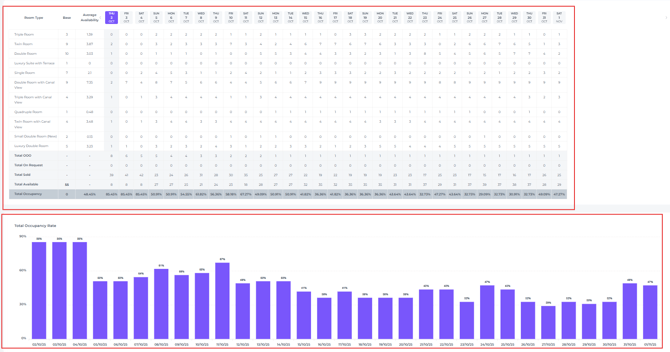
The report shows you the actual Availability (rooms left to sell) and the actual Occupancy per day (Rooms sold) in a graph for clearer visualisation:
-
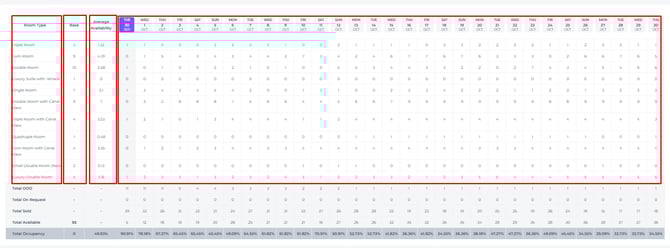
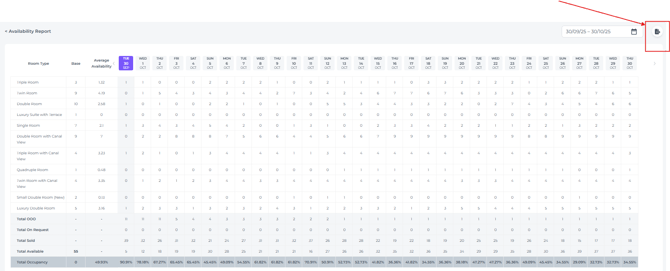
In the Top Half of the table you will see:
-
Room Type: Lists all physical room categories (inventory) that are currently active within your PMS.
-
Base: The actual number of rooms (inventory) in your property. This total is the total of all room types combined. Therefore this property of the example below, has an inventory 55 rooms.
-
Average Availability: Displays the average availability for each specific room type over the selected period.
-
Calendar Dates: Displays the availability per room type for each specific
calendar date.
-
-
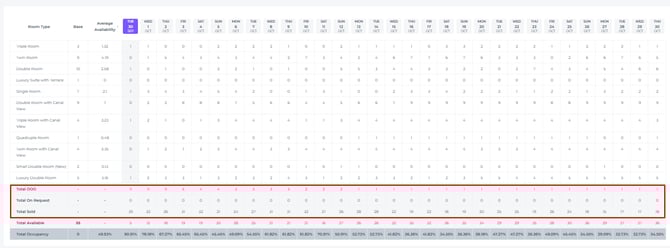
The central section of the table displays:
-
-
Total OOO: The combined total of Out of Order rooms across all room types (i.e., those not available for sale) for specific dates.
-
Total On Request: This shows rooms with an ‘On Request’ status. For these, a release time can be set to manage the booking automatically; if the guest does not confirm by this time, the reservation must be cancelled manually. Please note: rooms with this status are not deducted from your total availability.
-
Total Sold: The combined number of sold rooms across all room types.
-
Reminder:
Rooms which are set Out of Order will be taken out of the inventory, therefore the Total Available Base rooms will be less if there are rooms with the OOO status
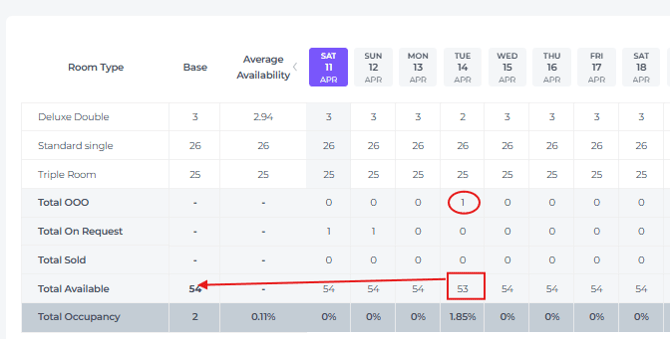
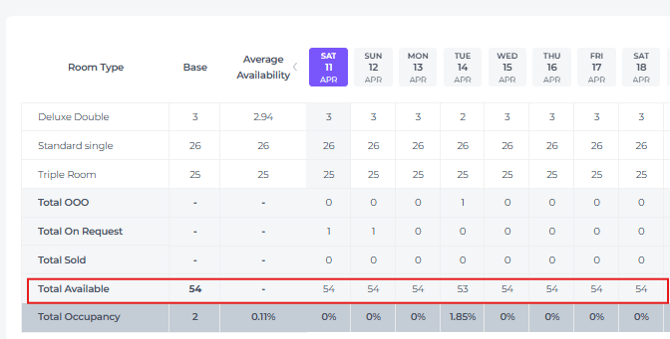
- Total Available - Total availability across all room types, excluding any rooms set to Out of Order (OOO).
-
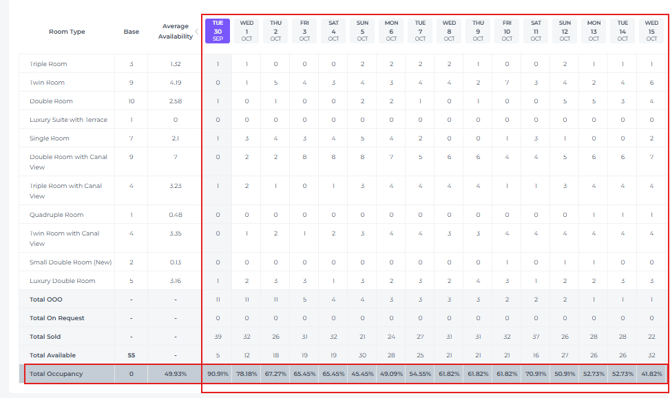
Total Occupancy - The total of rooms sold/occupied per day in percentages:
-
Export Options: The report likely includes options to export the data in Excel format for further analysis and sharing:
📝Note:
Please note that the figures in this report reflect the actual number of available rooms per day at your property. The availability shown here always displays the real-time count of rooms physically available. Even if availability is adjusted manually in the Rates Calendar of the system.
*The only status that affects the availability is the OOO status, as this will be taken out of the inventory.
This means: Base Inventory minus Sold rooms minus OOO rooms = your physical actual availability.
*On Request is not taken out of the inventory and until this reservation is confirmed it is still available to be sold.
Example:
On October 2nd there are:
-
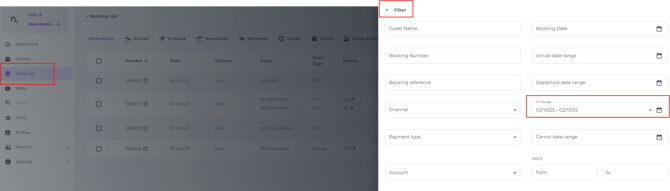
3 rooms Total Sold( 2 SGL and 1 Deluxe).
This can be checked if you search for the 'In House' criteria on the specific date in the Booking list Filter:
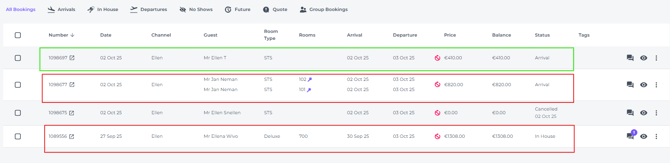
The green highlighted reservation is On Request and therefore does not count in the Total Sold Rooms:
N.B.:
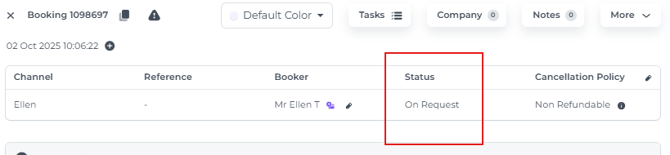
To check the On Request status click on the eye icon behind the reservation and check status in the pop up that appears:
-
One single room is marked as Out of Order (OOO), which means it is removed from the available inventory. As a result, the report will show 23 available single rooms instead of 24:
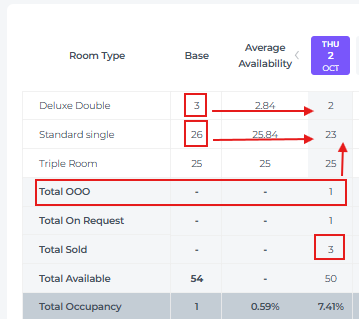
Manually changed availability:
As said: the manually adjusted availability via the Rates Calendar will not affect the availability report.
On this date, October 2nd, the availability for the single room was set on 20 in the Rates Feature of the system: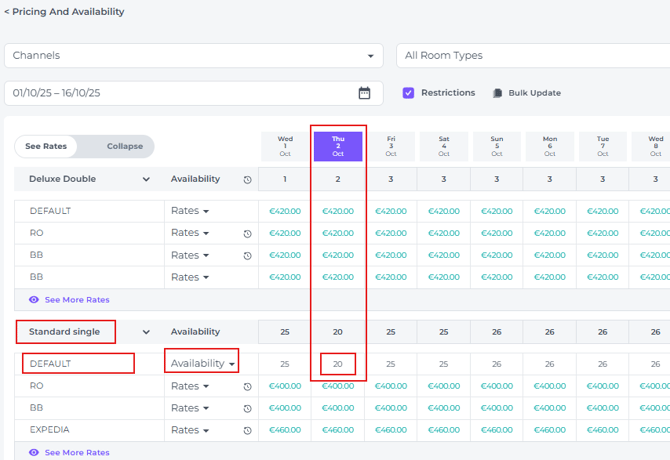
The Availability Report, however, remains unchanged:
26 Base Available - 1x OOO room - 2x sold rooms = 23: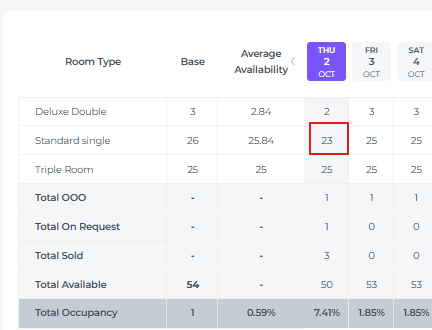
Total Occupancy Rate Graph:
A bar graph visually representing the daily total occupancy rates.
- Trends: The graph helps visualize trends in occupancy over the selected date range.
X-Axis: Represents the dates within the selected date range: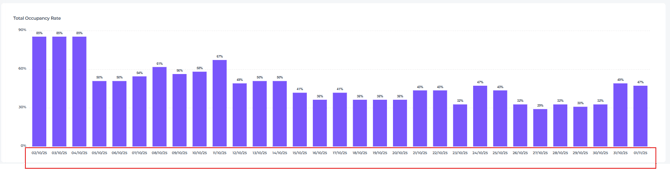
Y-Axis: Represents the occupancy rate percentage (0% to 120%):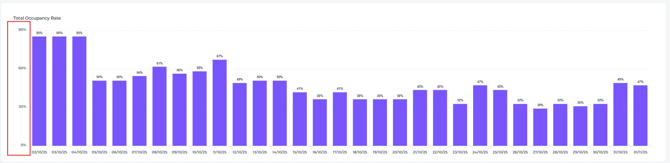
The occupancy rate percentage per date is displayed above each bar: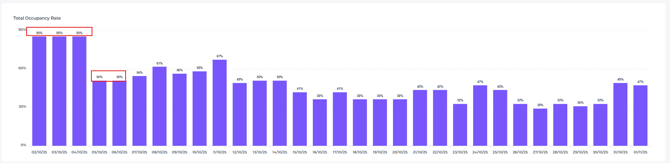
🛠️Troubleshooting:
-
Data Discrepancies: If you notice any discrepancies in the data, ensure that the date range is correct and that all room data is accurately entered into the system.
-
Graph Display Issues: If the graph is not displaying correctly, ensure your browser is up-to-date and that JavaScript is enabled.
-
Report Generation Issues: If you encounter issues generating the report, please contact our support team: email support@noovy.com or by phone + 31 20 532 1781.