ℹ️ Credit card Authorisations from start to finish:
The Authorisation
Many hotels place an authorisation hold on the guest’s credit card at check-in to cover potential incidental charges and ensure payments are collected smoothly. When there is no action afterwards, the authorised amount on a credit card will automatically be released within 30 days.
👉See article: 'How to Authorise a Credit Card'
Cancel an Authorisation
You can cancel the authorisation after departure, which will release the amount sooner back to the guest's bank account. A specific timeline when the amount will be back on the account depends on the efficiency of their bank. Generally it takes 7-10 days, if it takes longer, we advise the hotel to have the guest contact their bank.
👉 See article 'How to Cancel (release) Credit Card Authorisation'
Capture an Authorisation
Another option is to 'capture' the authorisation at check out, if the guest agrees. This means that the authorisation is converted into an actual payment. Any left to pay charges that remains afterwards can be settled by the guest using their preferred payment method.
*By choosing to capture the authorisation at check-out, you streamline the payment process and prevent delays in returning funds to the guest’s account—helping to ensure a positive experience. ☝️Mind you: It’s essential to confirm the guest’s consent before proceeding, which can be documented with a signature on the printed invoice to provide clear authorisation for the charges. If a dispute is raised after check-out, this documentation will serve as important evidence.
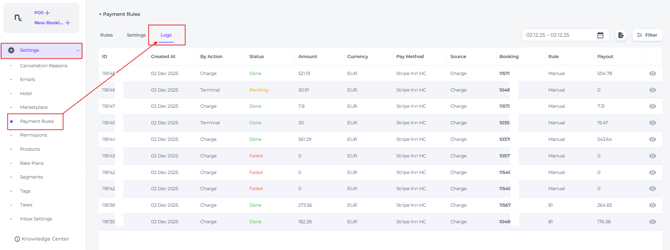
- On the main menu go to Settings - Payment Rules and choose the Payment Logs tab:
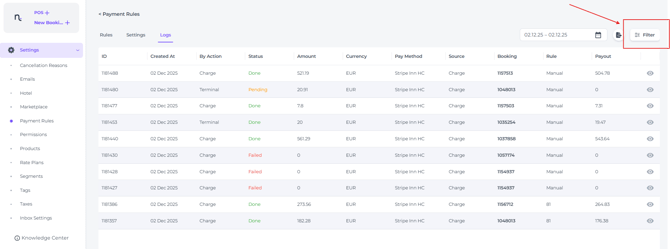
- To isolate the concerning authorisation, use the log's Filter and its search functions:
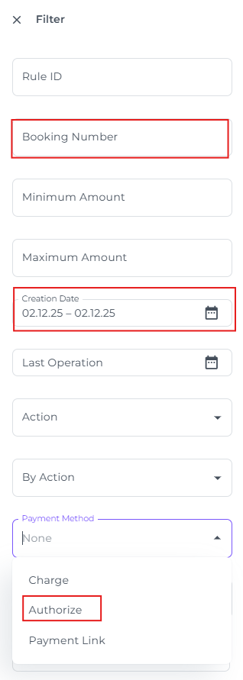
- The quickest way to find the relevant authorisation is to enter the Booking Number, Creation Date, and set Payment Method to Authorisation:
-
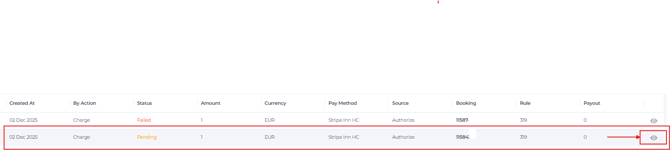
Once the authorisation is found, you can choose to cancel the authorisation or capture, in this case we will capture:
- Click on the Eye Symbol for the detailed view to see more information on the transaction:
You will see the transaction details, including 1) the booking number (which allows you to click on and open the booking) 2) amount authorised, 3) unique Charge ID issued by Stripe, and 4) the exact date and time the authorisation was created:
- Click on the Eye Symbol for the detailed view to see more information on the transaction:
- To Capture is simply hitting Charge:

*You can opt for the total authorised amount, or a part of it, depending on the outstanding balance on the guest's booking. - Immediately after the charge, the booking will show a receipt.
*We recommend you to have this printed and signed so you have a written consent for the charge.