ℹ️Did you know:
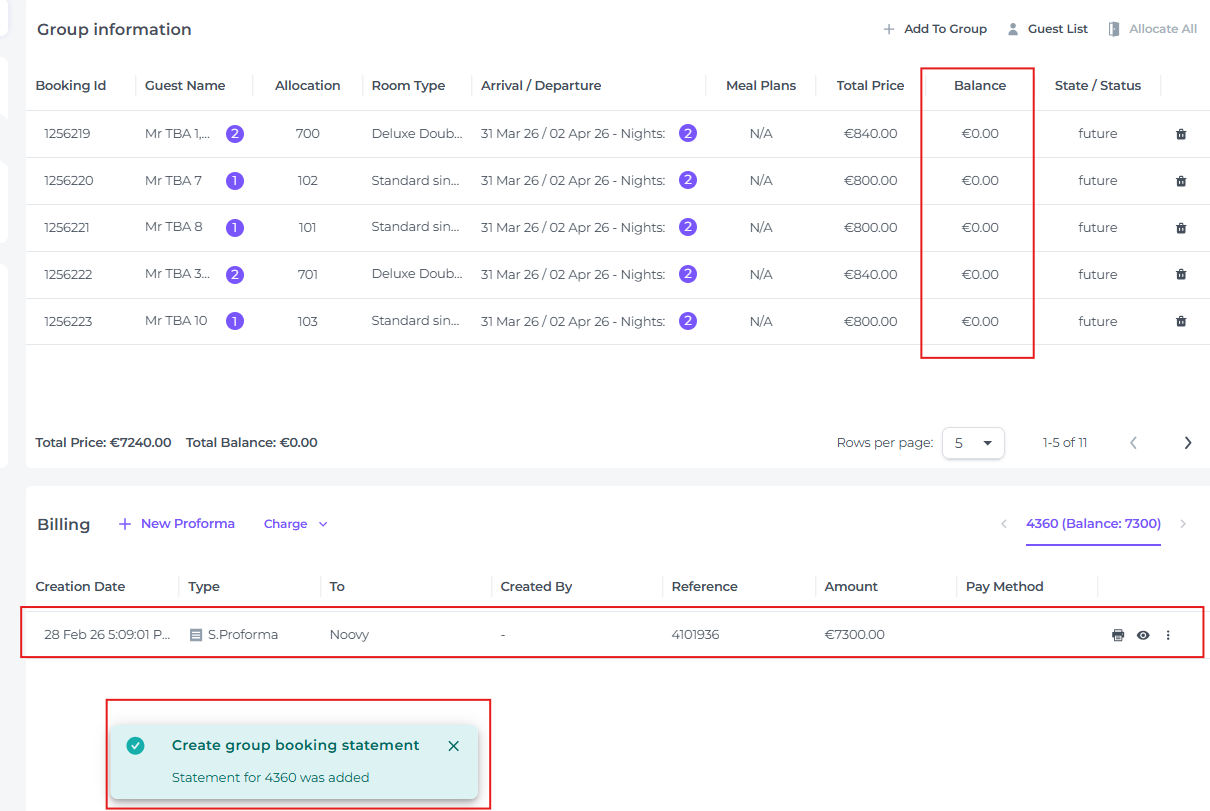
When a group is first created, each individual reservation maintains its own Proforma and Balance. However, once a group statement is generated, those individual balances are transferred to the group level. The individual reservations will then show a '0' balance, while the Proforma remains for reference.
- In the main menu, go to Booking - Group Booking and select the relevant group booking for which you want to create a statement. Use the filter to find the group booking if needed:
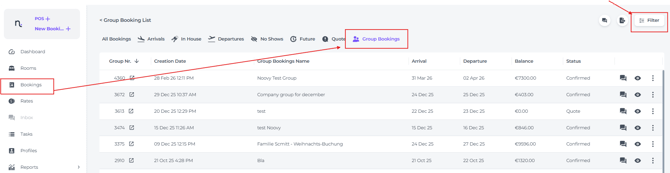
- When found: Open the booking by clicking on the 'open' symbol:

- If no existing group statement is available, all individual reservations should still display their own outstanding balance:
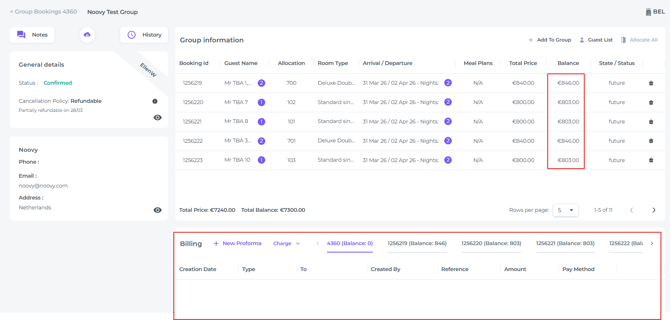
📝 Please note:
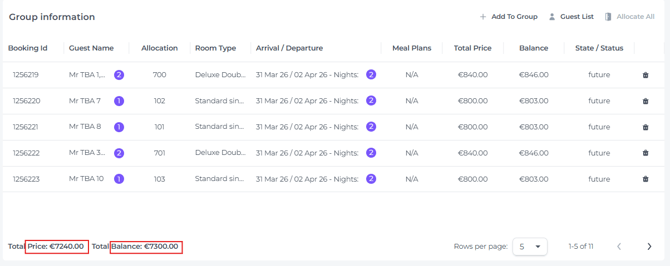
The total group reservation Price differs from the Total Balance because the Price only reflects the base room rate. If breakfast is not included in the rate, it will not be shown in the Price. Similarly, city tax or tourism tax is generally not included in the total Price amount.
Rule of thumb: Balance is the amount still left to pay.
How to start creating a statement:
- Click on +New Proforma:
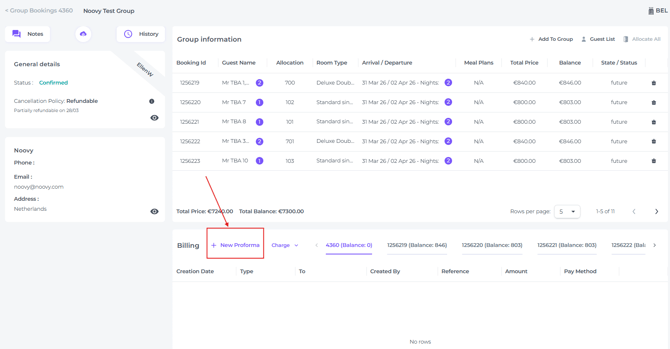
- A pop up will appear showing you 6 fields:
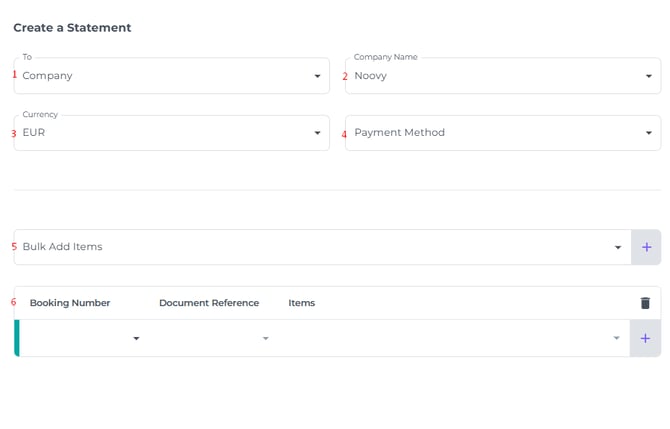
1) To
The group entity is predetermined, as is the company name (2), both defined when the booking was created.
2) Company Name
The name entered whilst creating the group booking.
3) Currency
If multiple currencies (3) are configured in your Noovy account, you can select which currency should apply.
4) Payment Method
Choose the expected payment method (4). Once a payment is recorded and the statement is finalised into an invoice, the actual payment method used will be displayed.
5) Bulk Add Items
Create a statement with multiple reservations and items. Choose to create a statement in one of the following options :
a - for all reservations within the group
b - per room type
c - per item type
Click the triangle icon to expand this facet: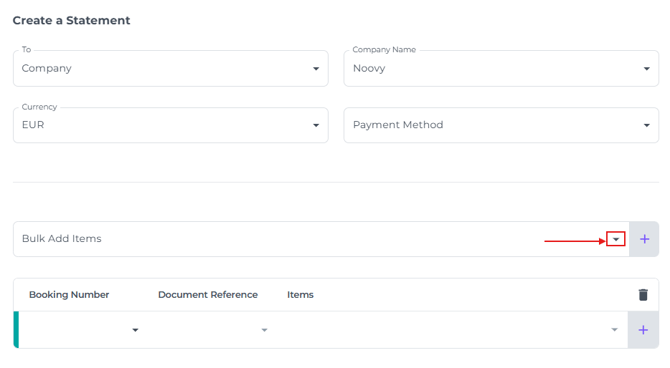
a - Statement for all reservations within the group
By clicking on the box Add all, you will add all applicable items (all room types, all other items attached to those room types) to the statement: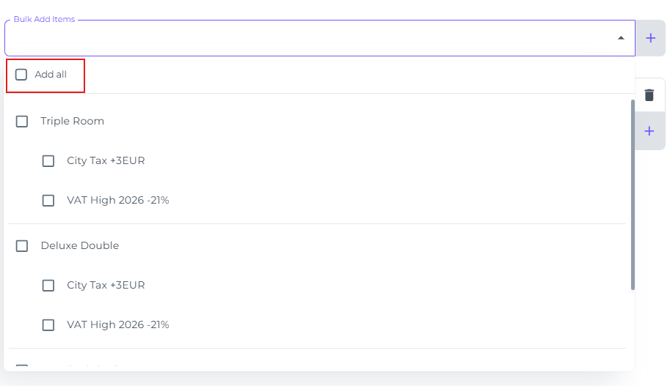
b - per room type
By clicking on the room types you wish to put on the statement, all items connected will be selected automatically: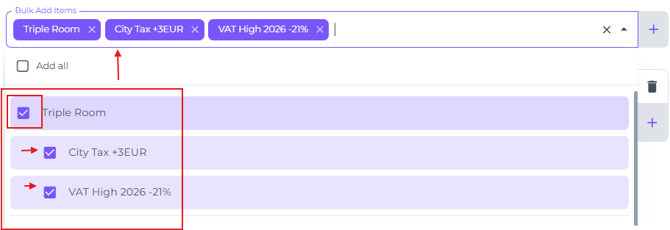
c - per item type
By clicking on a specific items per room type the statement will only include those selected: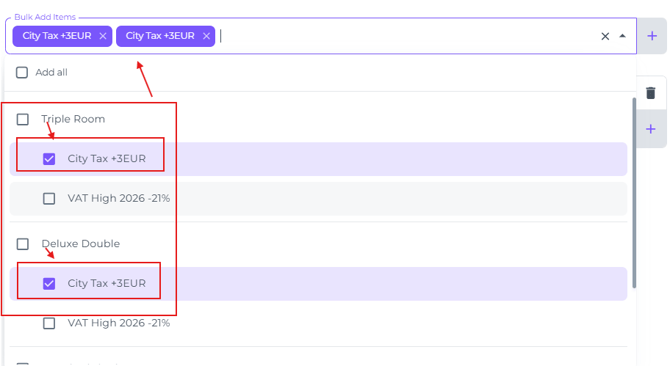
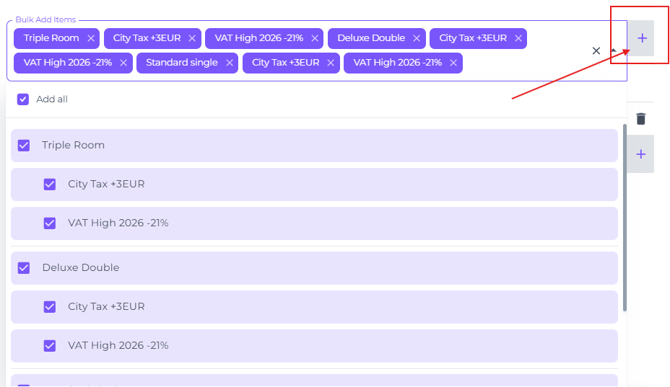
- When your preferred way is executed, click on the + behind the bulk update field. This will result in the item list that will be forming the statement.
- Click on SAVE:
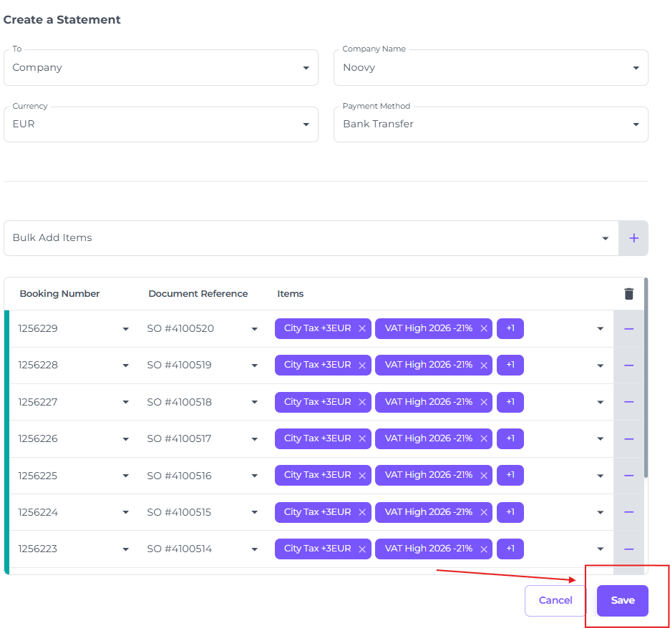
- The statement will be created, and you can see afterwards that the balance of the reservations are on '0':
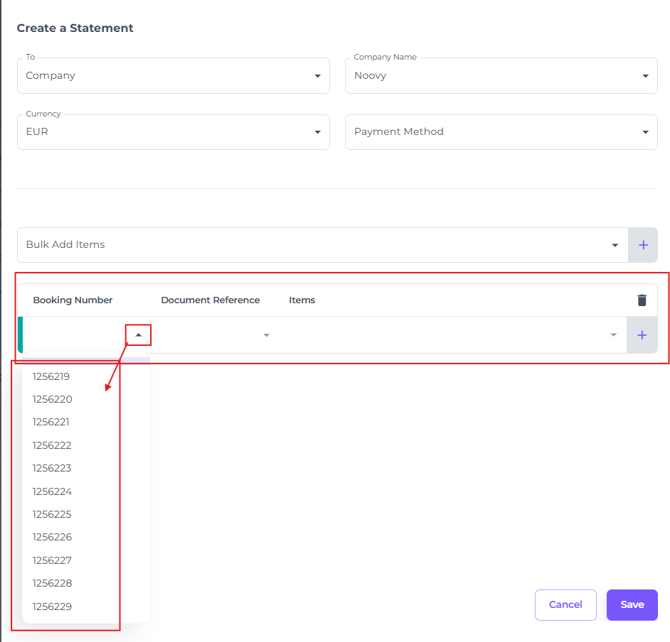
6) Statement per Individual bookings - By clicking on the triangle icon under Booking Number you can choose the individual reservation you would like on the statement:
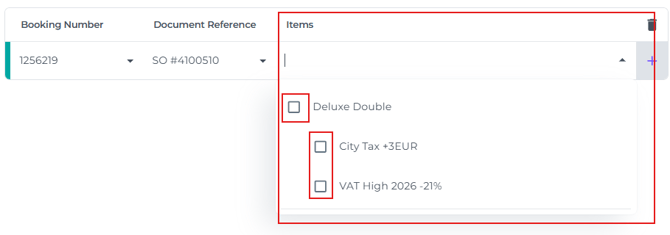
- Click the field next to Document Reference to select the Proforma you want to transfer to the group statement (if multiple Proformas are available per individual; reservation):

- Choose the items (by ticking the concerning boxes) you would like on the statement for this specific individual booking next:
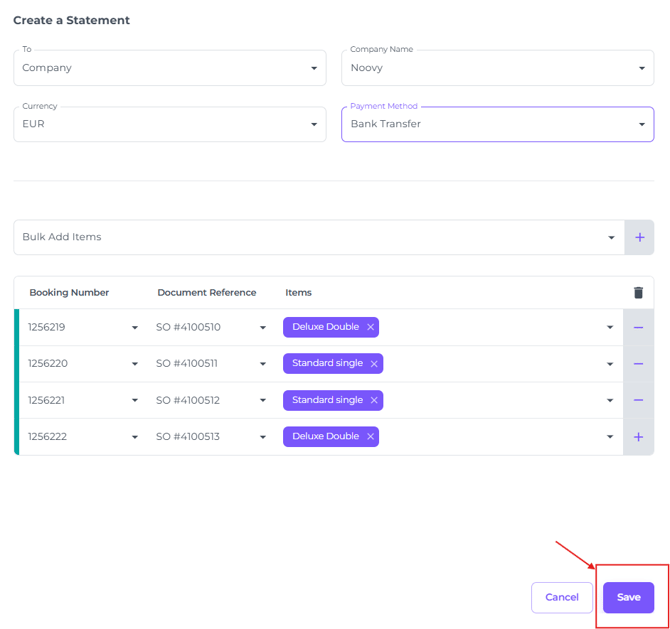
- Click on the + to add another individual booking to the statement:

- Confirm that the correct data has been selected for the statement, then click SAVE:
- The statement has been created, you can print or download:

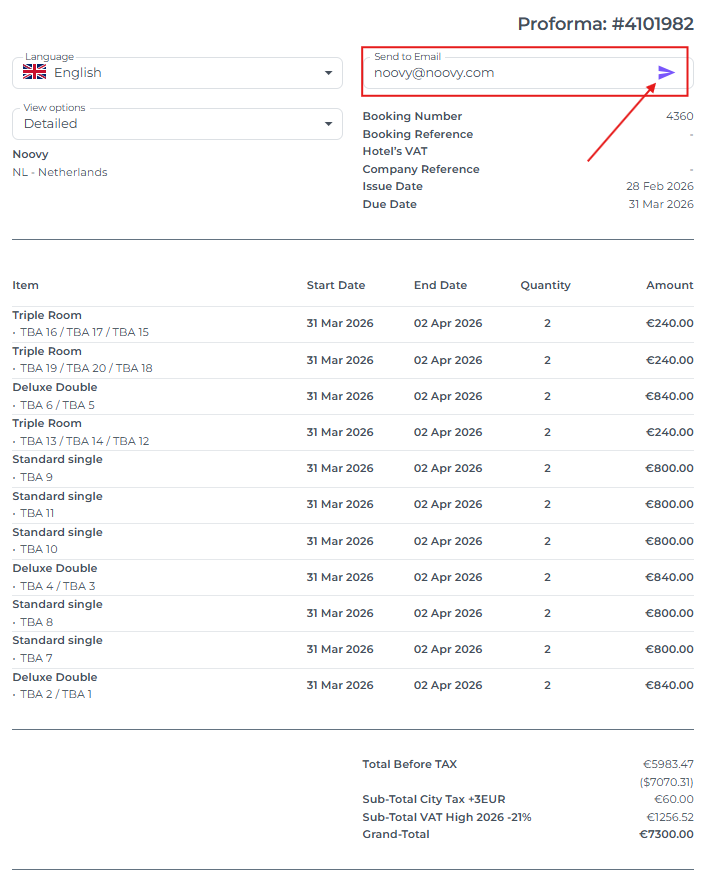
- or view and send to an email address:

You can change the email address in the field if desired: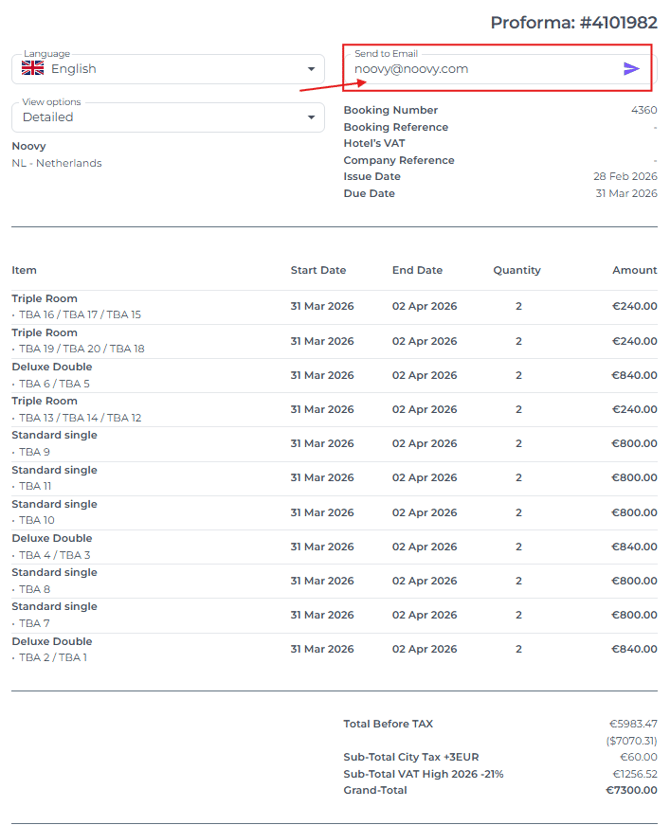
- And send by clicking on the purple arrow: