The Payment Link Report is an advanced reporting tool designed to provide a comprehensive audit trail of every payment link generated and dispatched. It offers a detailed breakdown of the following key data points:
-
Creator: Identifies the staff member or system process that generated the link.
-
Associated Bookings: Directly links each transaction to its corresponding booking record.
-
Stripe Reference ID: Provides the unique identifier connected to your Stripe Payment Gateway for easy reconciliation.
-
Transaction Amount: Displays the specific value requested via the link.
-
Recipient Details: Lists the email address to which the payment request was sent.
-
Validation Status: Shows the current real-time status of the link (e.g., pending, paid, or expired).
The Payment Link report can be found from the main menu under Reports :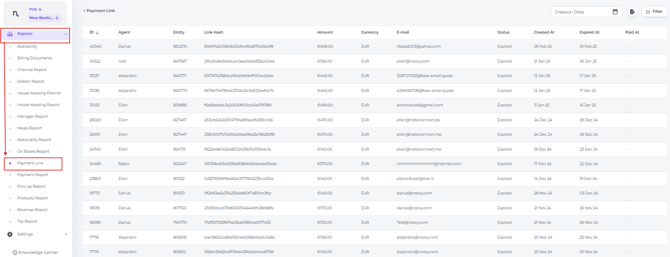
CREATING the report:
Date Filtering & Sorting
-
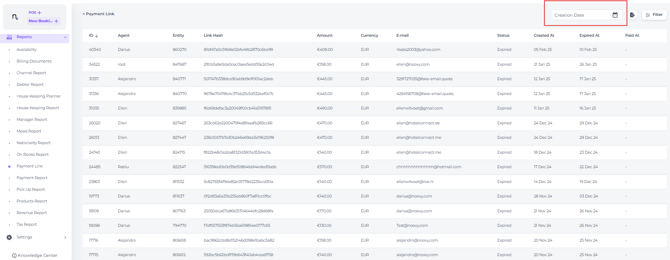
To refine your results, use the Creation Date field:
-
Specific Date: Select a date to view only the payment links generated on that particular day.
-
Full History: If you leave this field blank, the report will display all payment links in your records.
*By default, the report is sorted in reverse chronological order, ensuring the most recently created links appear at the top for quick access.
Column Definitions
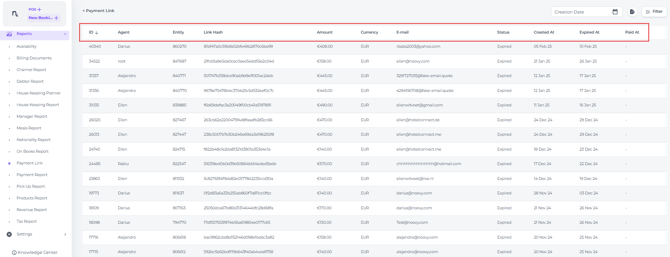
To help you navigate the report, here is an explanation of each column:
 :
:
- ID - the unique identifier assigned to each transaction.
- Agent - the team member who issued the payment link.
If a payment link is sent automatically due to a configured rule in the system, the report will display the username of the team member who set up that rule.
- Entity - reservation Number – the reference number assigned by the system. Clicking on it will open the booking page in a separate tab.
- Link Hash - URL of the transaction, which can be used as a payment confirmation or reference for your bank.
- Amount - the amount requested via the payment link
- Currency- the currency used for the payment link (if available)
- E-mail - the address to which the payment link was sent
- Status -
- Created - the moment the link is generated by a team member, or when the system automatically issues the link based on a pre-set payment link rule.
- Expired - the payment was not completed before the link expired.
- Paid - the payment was completed before the link expired. A payment receipt will automatically be visible within the associated booking record.
- Failed - A Failed status indicates that a payment attempt was initiated but could not be successfully processed. This may occur for several reasons, including:
-
Insufficient Funds: The account did not have enough capital to cover the transaction.
-
Security & Fraud: The payment was flagged or declined by the bank’s security filters.
-
Incomplete Process: The guest navigated to the payment page but abandoned the session before finishing.
*For a detailed breakdown of why a specific payment failed, please refer to the metadata provided within your Stripe dashboard.
-
- Created At - Date of creation.
- Expired at - Link expiration date.
- Paid At - Date the payment was completed.
FILTER
-
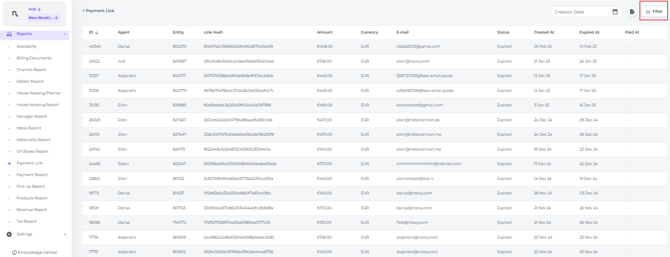
Use the Filter to narrow down your search:
-
Use the Filter to narrow your search using criteria such as:
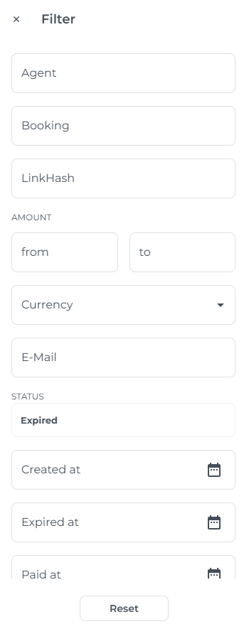
- Agent: Filter links created by a specific agent.
- Booking Reference: Locate links associated with a specific booking number.
-
Reference: Search using the unique Stripe identifier (Hash)
-
Amount:
Price Range – Enter minimum and maximum values in the 'From' and 'To' fields. Exact Amount – Enter the same value in both fields. - Currency: Applicable if multiple currencies are enabled for your property.
-
Email Address: Filter by the recipient’s email address.
-
Status: View links based on their current state (e.g., Paid, Failed, or Pending).
-
Date Range: Utilise the Date Range bar to filter links based on when their status changed to Created, Expired, or Paid.
This is especially helpful for spotting incomplete payments so you can follow up and protect cash flow.
Upload your report
- Create an Excel report by clicking the export icon:
