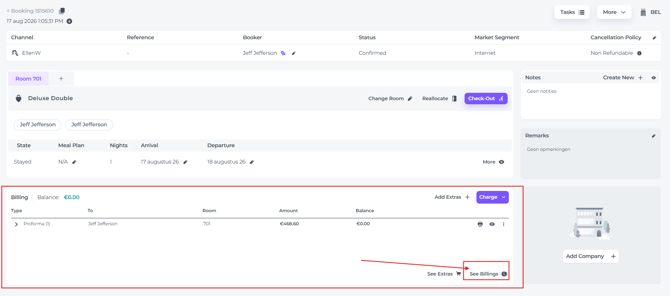
In the financial section of a booking, select See Billings to open the booking’s billing section:
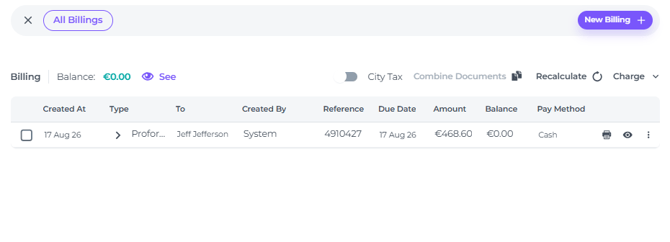
Here, you can review all billing documents associated with the booking and access the actions available for each document, such as opening, editing, or managing them. The available options may vary depending on the document type and your permissions.
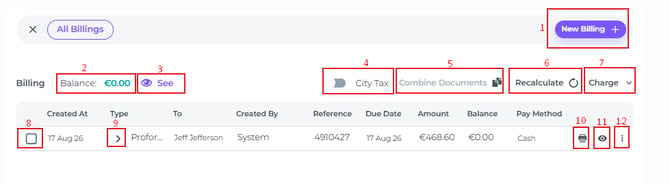
- New Billing - Create a new document manually
- Balance - Shows what is left to pay, or if there is an overpayment
- See - Will show you cancelled documents, or hide them by clicking on the eye icon
- City Tax – Allows you to remove the city tax when the guest is a local resident or when the tax exemption applies to a company.
- Combine Documents - (Proformas only) Combines multiple proformas into a single document
- Recalculate - Recalculates proformas after a booking amendment that did not change the proforma details.
- Charge - Charge the Proforma(s) that are still open
- Check box - Select the documents that need to be combined
- View - The arrow indicates there is a payment attached to the Proforma/Invoice
- Print - Print the document
- Eye icon - open the document to view the details
- More Actions button – Opens additional options for managing the document. See this article for more insight: The More Action Button on the Billing section Explained