The More Action Button in the billing Section
The More Actions button, shown as three dots, gives you quick access to additional actions for the selected item. In the Billing section of the Booking page, this button appears next to several document and transaction types, including the Proforma, the Invoice, Payments, and Refunds. Each of these items has its own set of actions, allowing you to manage billing details more efficiently without leaving the page.
In this article, we will take a closer look at each of these More Actions menus and explain what each option does, so you can better understand how to manage your billing documents and related transactions.
Where in the Billing Section can I find the More Action Button?
On the Booking Page in the Billing Section, the More Action Button can be found behind the documents Proforma - Invoice - Payment - Refund: 
Proforma
Proforma available options: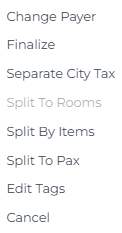
-
-
Change Payer
Choose your new (available) payer from guests, Travel Agent or Company.
-
Finalize
Finalise the Proforma to generate an Invoice
-
Separate City Tax
This will separate the City Tax from the Proforma, for example in case the tax will be paid by another payer.
-
Split to Rooms
If a booking includes multiple rooms, you can create separate Proforma documents for each room when different payers are responsible for payment.
-
Split by Items
If a booking includes multiple items (extra's), you can create separate Proforma documents for each extra when different payers are responsible for payment.
-
Split to Pax
If a booking includes multiple guests, you can create separate Proforma documents for each guest when each guest is responsible for payment, or simply separate Invoices per guest are requested.
-
Edit Tags
Add a Tag to the Proforma to categorise.
-
Cancel
Remove the Proforma from the Document list. This will result in a lower balance.
-
Invoice
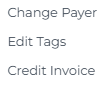
-
-
Change Payer
Choose your new (available) payer from guests, Travel Agent or Company.
-
Edit Tags
Add a Tagto the Invoice to categorise.
-
Credit Invoice
A credit invoice reduces the balance owed; after issuing a credit invoice, a new invoice must be generated.
-
Payment
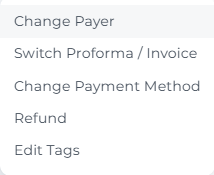
Payment available options
-
- Change Payer
Choose your new (available) payer from guests, Travel Agent or Company. - Switch Proforma/Invoice
Choose which Proforma or Invoice the payment needs to be attached to. - Change Payment Method
Only applicable to Simple Post Payments, that do not require the Payment Gateway Option (and interface with the Payment platform Stripe). Simple Posts are Cash, Bank transfer, On Account. - Refund
Process a refund for this payment. - Edit Tags
Add a Tag to the Payment to categorise.
- Change Payer
Refund
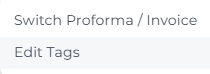
Refund available Options:
-
- Switch Proforma/Invoice
Choose which Proforma or Invoice the refund needs to be attached to.
- Switch Proforma/Invoice
-
- Edit Tags
Add a Tag to the Refund to categorise.
- Edit Tags