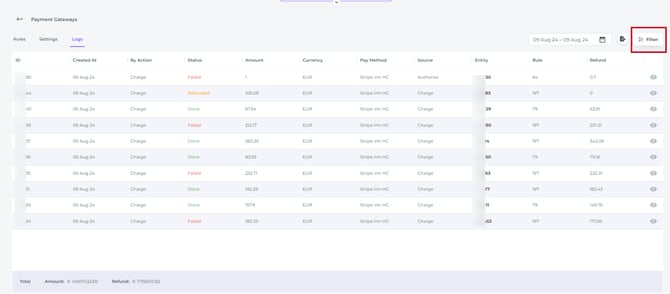
The Payment Gateway Logs provide a comprehensive overview of all payment transactions made via Credit or Debit Card, as well as of the sent Payment Links.
This includes:
-
both successful and failed payment attempts (any payments initiated through online check-in, terminals, or manual actions)
-
(partial) refunds
-
partial refunds
By centralising all activity in one place, the logs help you trace every step of the payment journey, support reconciliation with your accounting, and quickly investigate guest payment questions or disputes.
Noovy uses the Payment Gateway interface with Stripe, a financial infrastructure platform that allows businesses of all sizes to accept, process, and manage online and in-person payments, subscriptions, and other financial services. Through this integration, your hotel benefits from secure, PCI-compliant payment processing, advanced fraud prevention tools, and automated payouts, while keeping the full transaction history visible inside Noovy. This ensures a transparent and auditable payment flow, reduces operational risk, and gives your team the insight needed to manage payments confidently and efficiently.
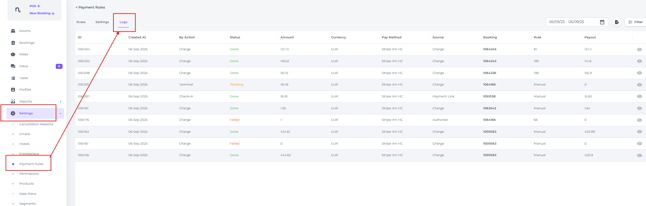
Go to menu - Settings - Payment Rules - Logs:
-
Select the date range to view logs for your desired period:

-
Columns explained
- In the Payment Gateway Logs, you can review comprehensive details for every transaction processed through the system:
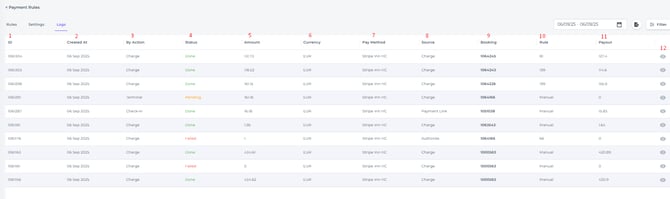
(right-click the image and select “Open image in new tab” to enlarge it)
- ID: System Transaction ID
- Created At: Transaction Creation Date
- By Action: From where was the transaction created:
- by Charge via the reservation
- by Terminal
- by Online Check In/Payment Link - Status: Status of Transaction:
- Done = Payment executed successfully.
- Failed = Payment Failed/ unsuccessful.
- Pending = Waiting for payment following an authorization or the issuance of a payment link.
- Expired = No payment was received through the payment link before the specified expiration date.
- Cancelled = Either cancelled by the guest, or hotel.
- Refunded = The previously created payment has been refunded in full.
- Partially Refunded = Merely a part of the payment was refunded. - Amount: Amount of Transaction.
- Currency: Currency of Transaction.
- Pay Method: Payment Gateway Provider (Stripe).
- Source: Preformed Action: Charge - Authorisation- Payment Link
- Entity: Property management System Reservation Number
- Rule: If a transaction is charged or authorized by rule, the corresponding rule number will be displayed; if processed manually, “manual” will appear.
- Payout: Net amount paid to the property after the (Stripe) commission is deducted.
- By clicking on the eye symbol behind each transaction, detailed information about the selected transaction can be viewed:

Details explained
For each field in a payment line

- Received - The amount charged
- Cappturable - For authorisations, this displays the amount held and reserved for potential future charges.
- Refunded - The amount refunded after charge was made.
- Fee - The Payment Gateway commission deducted from the total charged amount as indicated in the tab Received (1)
- Charge ID - Unique identifier provided by the Payment Gateway platform (Stripe)
- Card Country - Indicates the country where the card was issued
- Virtual CC - If marked True, the card charged was a Virtual Credit Card (VCC); if False, it was not a VCC.
- Card Type - Credit or Debit card
- Pay Method - Mastercard/ Visa/ American Express,/Vpay etc.
- Description - The way the transaction was made, by Terminal/ Payment Link/ by Rule
📝Note:
The Pay Out amount (net amount paid to the property after commission) is calculated by subtracting the Fee (4) from the Received (1) amount.
Export
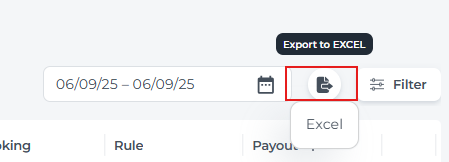
- Finally, you can export the report and download an Excel file.
💡TIP:
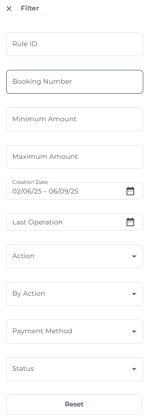
The Filter function allows you to quickly search for transactions that match your specific criteria—whether you need to locate a single transaction or review groups of transactions by type. Multiple filtering options make it easy to find exactly what you’re looking for.