What is the Billing Document report?
The Billing Document report provides a clear, centralised overview of all financial documents associated with your property, including proformas, invoices, credit notes, payments, refunds, and cancelled proformas. This simplifies the process of tracking charged amounts, settled payments, and outstanding balances.
This article details the report's functionality, guiding you through locating the Billing report in Noovy, using the various tabs to isolate specific document types or statuses, and interpreting each column. Additionally, you will learn how to filter the overview for quicker checks during daily operations or audits, and how to export the data for deeper analysis, reconciliation, or sharing with your finance team.
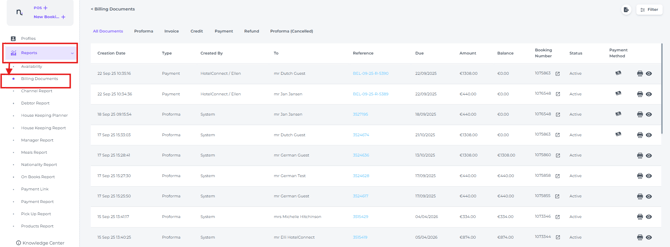
The Billing report can be found from the main menu > Reports:
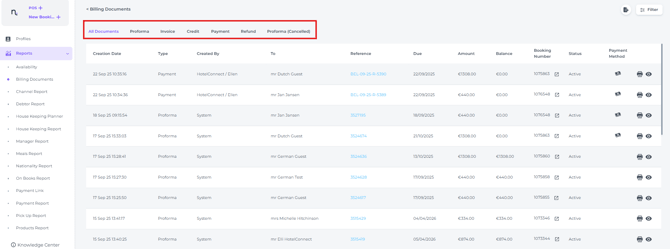
The Billing Document tabs
Clicking a specific tab will display the corresponding billing documents
-
All Documents – Displays all billing records in one overview (Proforma - Invoice - Credit - Payment - Refund - Cancelled Proformas)
-
Proforma – Shows unfinalised financial statements, including upcoming or historical charges and payments
-
Invoice – Displays finalised, itemised invoices that confirm sales of goods or services and show recorded payments
-
Credit – Shows refunded documents, including full proformas and/or invoices.
-
Payment – Lists any revenue received or posted; *note this may also include manual payments (simple posts)
-
Refund – Shows partial or full refunds processed.
-
Proforma (Cancelled) – Displays all cancelled proforma's
Columns explained:

-
Creation Date – The date on which the billing document was created. (*Note: This is different from the check-in or stay date.)
-
Type – Indicates the type of billing document (e.g. Invoice, Payment, etc.).
-
Created By – Identifies the user or agent who created the document or processed the refund.
-
To – Identifies the guest or account linked to the document.
-
Reference – The unique document ID number.
-
Due Date – Shows the expected payment date for the document, based on your property’s settings.
-
Amount – The total value of the billing document.
-
Balance – Outstanding balance (depending on your filters, this may include both open and closed documents).
-
Booking Number – Shows the internal booking number (created by the system).
-
Status – Indicates whether the document is active or cancelled.
-
Payment Method – Indicates how the bill was paid (for example, by cash, credit card, etc.).
-
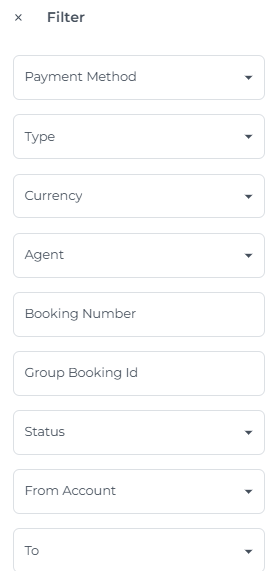
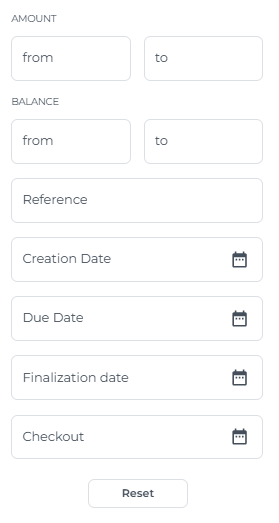
Filter
Multiple options to further narrow down your document search:

These filters make it easier to review finances and provide clear insights during audits or reconciliations:
-
Export
Generate a PDF document or Exel document:
