What is the Booking Pop-up and where can I find it?
The Booking Pop-up is a concise version of the booking page that can be opened from the Booking List, or from the Rooms Calendar.
It is your command centre for rapid reservation management. View key details and perform core actions, such as check-ins and billing, with a single click. This guide breaks down the information and actions available to help you speed up your front-desk operations.
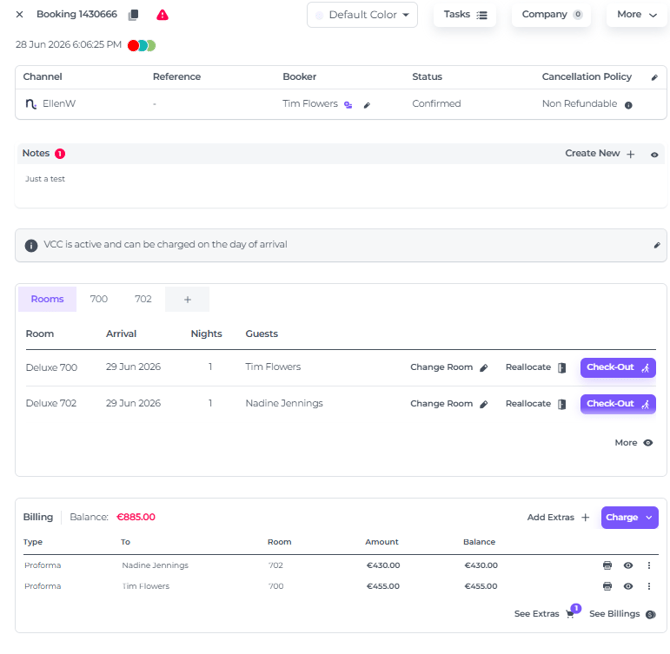
See everything you need at a glance:
Open from the Booking List:
-
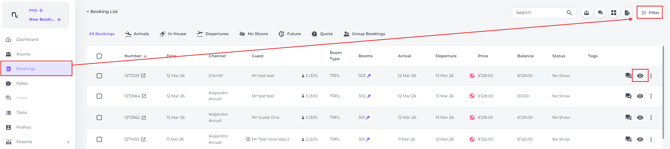
Choose Bookings from the main menu and find the reservation by using the filter:
-
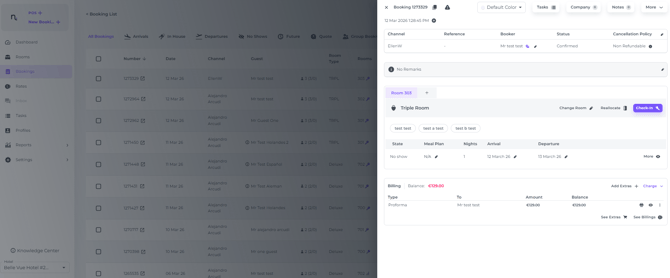
When you located the booking click on the eye icon and the Booking Pop-Up will appear:
Open from the Rooms Calendar:
-
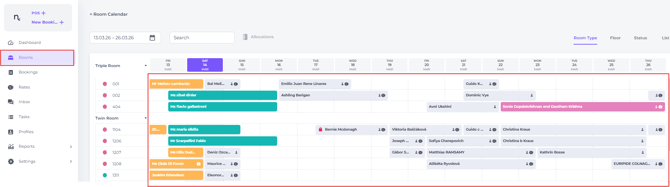
Choose Rooms from the main menu and click once on the reservation you would like to open:
-
The Booking Pop-up will immediately open:
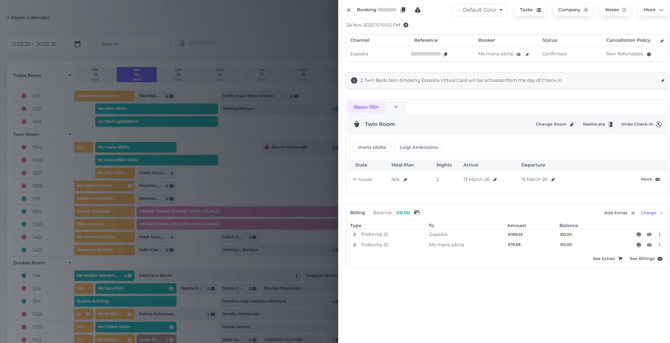
The page explained per section:
Booking Header Information -Essential details
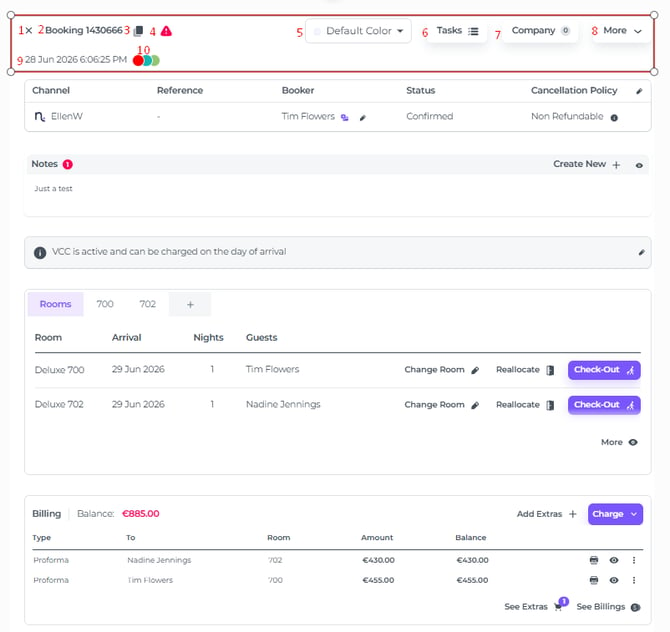
- Close Page - Click on the cross to close the Booking Pop Up
- Booking Number - The system's unique booking number.
- Copy Booking ID - So you can quickly paste it elsewhere in the system to locate the booking.
- Attention Tag -The 'caution' icon will appear in red, alerting you to read important notes or details that require your immediate attention.
-
Colour Coding: Assign custom colours to any reservation, regardless of its status. This feature allows you to categorise bookings for rapid identification and better organisation.
Note: Ensure your entire team is briefed on what each colour represents to maintain a consistent workflow.
- Tasks Button: Access and manage all tasks linked to a reservation to ensure timely follow-ups and a bespoke guest experience. This feature helps you stay on top of every detail, from special requests to routine maintenance.
💡Tip: Check out the articles 'How do tasks work?' and 'How to create a Task?' - Company Profile: Add or amend a company profile for business reservations. This ensures accurate billing and reporting for corporate stays.
- More - Extra options to choose from:
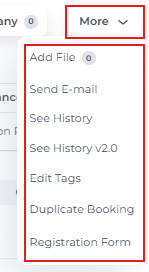
- Add File: Upload files to the booking or view previous attached files.
- Send E-mail: Use and edit Templates to send conformation and/or notification E-mails to the guests.
- See History: Review the History logs to track any updates made to the booking.
- See history v2.0: This will soon become the only (improved) History view available under More.
- Edit Tags: Edit or remove the current Tags.
- Registration Form: To modify or print the registration form, and access the online check-in service.
- Duplicate Booking - Replicate the existing booking details and create a new booking.
- Creation Date & Time: View exactly when a booking entered the system, whether it was received via an OTA (Online Travel Agent) or manually created by a staff member.
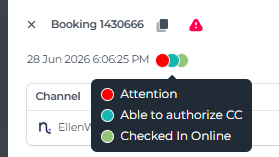
- Tags: Tags are used to alert colleagues to specific requirements or considerations that need attention, ensuring a coordinated approach to guest service. Hoover on the dots to view the tags:
General Information
This section shows the booking’s origin and booker details.
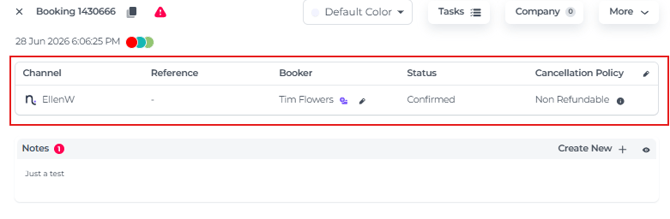
- (Booking) Channel: Identify the source of the reservation, whether it originated from an OTA (Online Travel Agent), your own direct booking engine, or was manually created by a member of staff (showing the user name).
- Reference Number: The unique ID assigned to the booking by the channel/OTA.
- Booker Name: The name of the person who made the booking, with an option to edit if needed.
- Status: Indicates whether the booking is Confirmed, Partially Confirmed, On Request, Quote or Cancelled.
- Cancellation Policy: The cancellation policy attached to the booking. By clicking on the information icon, the details of the cancellation policy will show (if set up correctly)
- Edit button: The pencil icon will allow you to amend the General details if desired.
Internal Notes
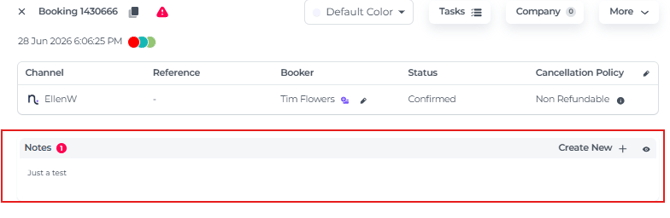
Use this private field for internal guest or staff notes; unlike Remarks, these are never visible to guests.
-
The badge indicates the number of notes attached to the booking, with the last note showing:

-
If you would like to see all notes, click on the eye icon:

-
Or even create a new note from the booking pop up:

Remarks
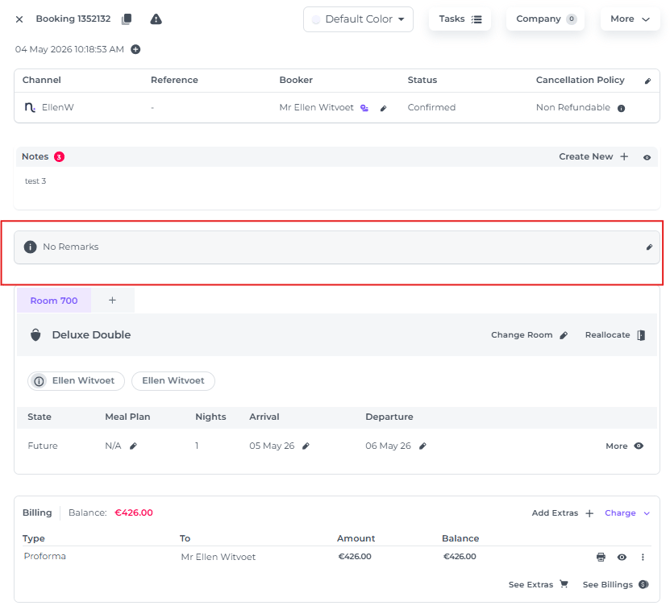
Shows comments entered by the guest and any remarks imported from the booking channel.
Room Assignment and Details
-
This section provides a complete summary of the assigned rooms and guest details. Click on any detail to proceed the action required or click on the pencil icon to amend.
-
Select the More button to access an extended range of amendment tools and settings.
-
Check in and out can be achieved in this section of the pop-up as well.
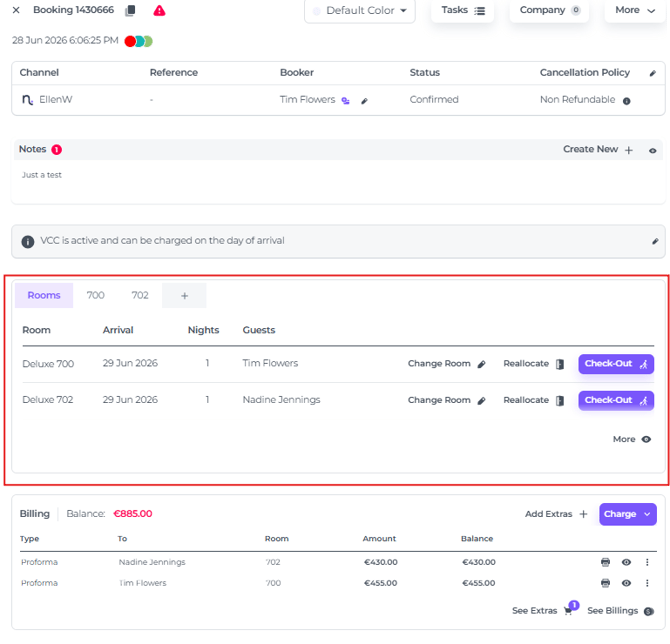
- Room Number: View the assigned room number.
- Lock Icon: Lock Room to prevent reallocation (Set the room to Do Not Move)
- Room Type: The Room type assigned.
- Guest Names: View the names of all guests associated with the booking.
- State: Track the current status of the booking, such as Future - In House - Arrival - Departure -Stayed - Checked In - Arrived - No Show
- Meal Plan: View or manage the meal plans for the booking (e.g., BB - Bed & Breakfast).
- Stay Dates: See the arrival and departure dates, with the ability to modify the dates if necessary.
- Room Management Buttons:
- Change Room: Easily switch the guest to a different room.
- Reallocate: Reassign guests to alternative rooms within the booking.
- Check-In/Check-Out Buttons: Quickly perform check-in and check-out procedures.
Billing Section
Manage all financial aspects of the booking in one place.
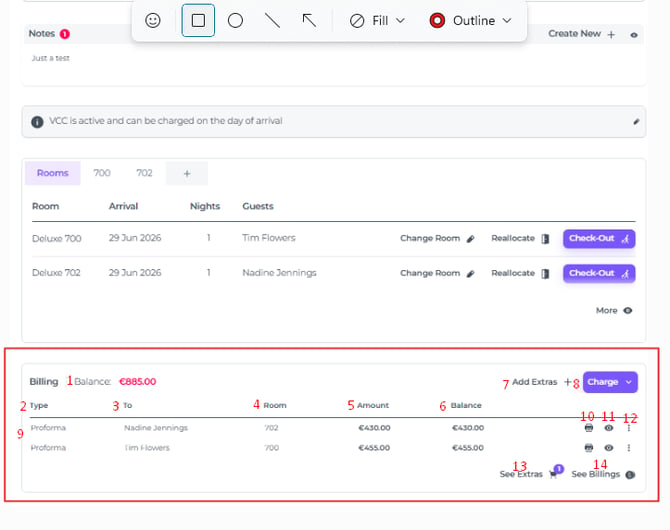
- Balance - View the outstanding balance of the booking
- Type - Documents: Proforma, Invoice, Credit, Payment and Refund
- To - Payer of the Document
- Room - The room applicable to the document
- Amount - Document amount
- Balance - Outstanding balance/left to pay amount.
- Add Extra - Add extra charges to the room such as Items
💡Tip: Check out the article 'How to Manually add Extra's to a booking?' - Charge - Settle the bill, several options.
💡Tip: Check out the article 'How to collect payments' - Documents - Proforma, Invoice etc.
- Print - Print Document.
- View - View the details of the Document.
- More Action button - Select from multiple options:
Proforma Options: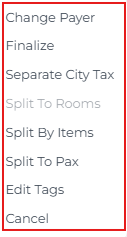
Change Payer - Choose your new (available) payer from guests, Travel Agent or Company.
Finalise - Finalise the Proforma to generate an Invoice
Separate City Tax - This will separate the City Tax from the Proforma, in case this will be paid by another payer.
Split by Room: For multi-room reservations, generate individual Proforma documents for each room. This is ideal when different parties are responsible for their own accommodation costs.
Split by Item: Separate specific extras or incidental charges onto individual Proforma documents. This allows for flexible billing when different payers are covering specific items.Split per Guest: Create separate Proforma documents or invoices for each guest. This is perfect for group bookings where guests are paying individually or require personal receipts.
Edit Tags - Add a Tag to the Proforma to categorise.
Cancel - Remove the Proforma from the Document list.Invoice Options:
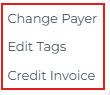
Change Payer - Choose your new (available) payer from guests, Travel Agent or Company.
Edit Tags - Add a Tag to the Invoice to categorise.
Credit Invoice - A credit invoice reduces the balance owed; after issuing a credit invoice, a new invoice must be generated.
Payment Options: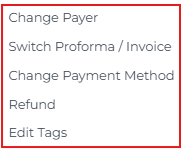
Change Payer - Choose your new (available) payer from guests, Travel Agent or Company.
Switch Proforma/Invoice - Choose which Proforma or Invoice the payment needs to be attached to.
Change Payment Method - Only applicable to Simple Post Payments, that do not require the Payment Gateway Option (and interface with the Payment platform Stripe). Simple Posts are Cash, Bank transfer, On Account.
💡Tip: Check out the article 'What is the difference between Simple Post and Payment Gateway?'
Refund - Process a refund for this payment.
Edit Tags - Add a Tag to the Proforma to categorise. - See Extra's - View all incidental items attached to the booking, with the option to amend or remove them as required.
- See Billings - View all document details and be able to edit or delete proforma's and/or create manual documents.