Cash Register Report - Cashier & Shift Management
Keeping your front desk cash drawer transparent and under control shouldn't be a hassle. That's why Noovy introduces structured shift management, real-time balancing, and flexible cash adjustments, giving you an easy way to support daily cash operations whilst meeting strict compliance standards.
At the heart of this feature are a few key concepts:
-
Cashier (Cash Register):
The virtual record of your physical cash drawer, tracking all cash entering or leaving the property
-
Shift:
Defines an operational window, such as a working day or staff rotation, locking transactions into a set period for effortless auditing. Payments & Refunds cover cash-only transactions processed through standard booking or POS operations
-
Deposits
Manual cash adjustments not linked to a guest folio or POS order, whether that's a cash-out (money removed from the drawer, such as bank drops or petty cash) or a cash-in (money added, such as a float top-up).
Benefits of the Cash Register Report:
-
Shift enforcement:
Ensures that cash payments can only be processed once an active shift has been opened with a verified starting float.
-
Audit readiness:
Makes daily balancing easier and supports integration requirements, such as EFSTA, that require explicit drawer opening and closing logs.
-
Cash movements:
From guest payments to bank deposits recorded in one clear, unified report.
Where to find the Report
- From the Main Menu go to Reports > Cash Register Report
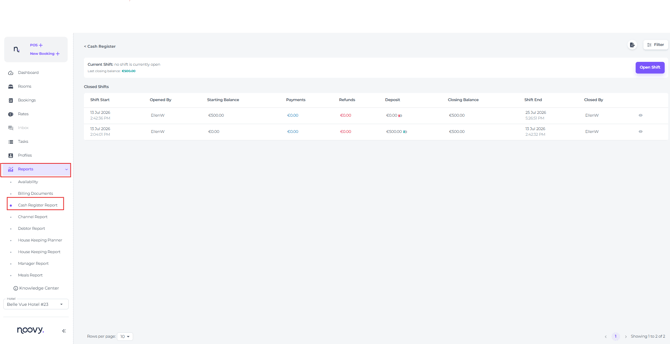
Fields Explained

- Open/Closed shift
Shows whether a shift is currently open or closed - Last Closing Balance
Shows whether the previous shift ended with the standard cash float amount, or whether part of the cash was still pending to be returned to the cash float, for example after refunds or other manual cash adjustments. It can also indicate whether cash should still have been dropped before the shift was closed. - Shift Start
The Date and Time the shift was Opened - Opened by
The user that opened the shift (who will also be the only user to close the shift. Generally this is a task for the user with a senior role) - Starting Balance
Starting balance is automatically taken from Closing balance of last shift and will generally have to be checked physically when shift is taken over - Payments
The total amount of (cash only) payments made during the closed shift (this should be the amount to drop for bank deposits) - Refunds
The total amount of cash refunds made (when guests are entitled to receive refunds, or when for example Taxi costs need to be paid or petty cash is needed for buying supplies) - Deposits
The total physical cash drawer amount manually adjusted based on cash received or refunded. - Closing Balance
This is the actual amount physically left in the drawer at the moment the shift is closed.
- Shift End
The Date and time the shift was closed - Closed By
Shows which user closed the shift. This can only be the same user who opened it.
Open Shift
- Only one Shift at a time can be opened for a hotel
- Payments cannot be posted until a shift has been opened.
-
When the shift is opened by clicking on the Open Shift button, the shift will start with the Closing Balance of the previous shift:
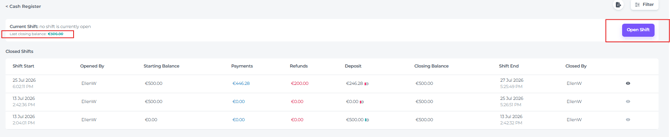
- This starting (cash float) balance will be checked by the user opening the new shift and taking over from the previous one before opening shift.
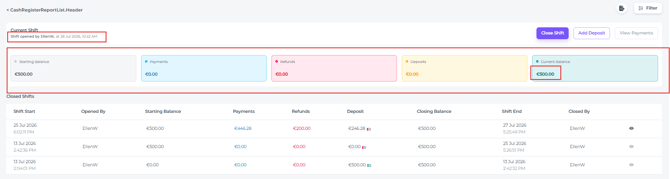
- In this example, the starting balance when the shift is opened is the standard cash float amount of €500, as used in the examples above:
View Payments
- The View Payments button is only visible when a shift is open:
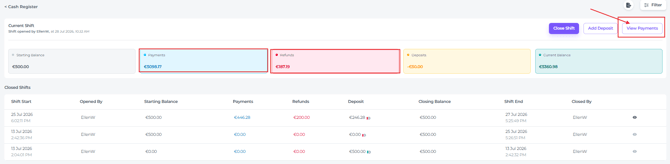
- It will open the Payment Report in a new Tab (only filtered for cash payments and refunds and that period only):
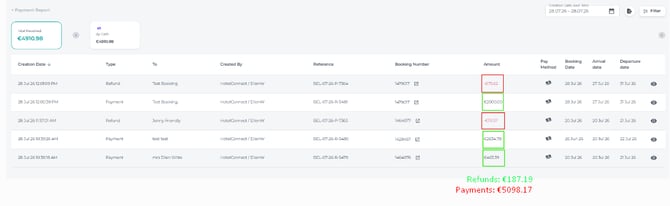
- Ultimately, the Payment Report should reflect the closing balance at the end of the shift:

Close Shift
At the end of the shift the following closing balance is determined, using the following formula:
Starting Balance + Payments - Refunds - Deposits
=
Closing Balance
Closing the shift means you need to determine the cash drop or cash return from the administration department. This means using the above formula.
In a correctly balanced process, the closing balance should normally return to the standard cash float for the next shift. Meaning that there is always a specific amount in the drawer.
For example:
Standard float is €500, the closing balance should also be €500. If not, money is still temporarily outstanding and has not yet been returned to the drawer by administration. Or, if the closing balance is higher than the standard float, this usually means a cash drop should have been made before closing the shift.
-
-
-
Example 1: no movements during the shift
 In the example above, a cash-in deposit of €500 was recorded on 13.07 at 02:04 hrs, creating the Starting Balance of €500 ffor the shift.
 Later, at 02:42 hrs on 13.07, the Closing Balance was confirmed as €500. As no payments, refunds, or additional deposits were made during that shift, the register was closed with the same balance of €500.
In this case, the closing balance matches the standard cash float, which means the drawer ended exactly as expected.
- Example 2: Several Movements during shift (payments,refundsanddeposits)

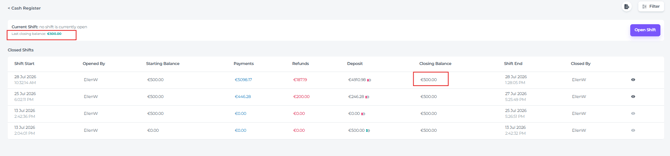
In this example, to return the physical drawer amount to the Starting Balance of €500, the amount to drop at the bank should be the difference between the Starting Balance and the Closing Balance (€5360.98) = €4860.98
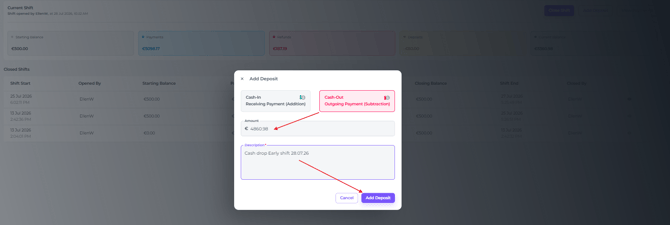
To record the bank drop in the Cash Register Report, create a Cash Out Deposit of €4860.98 as described below.
-
-
Add Deposit
Deposits adjust the total cash drawer amount by recording cash received or cash refunded.
☝️Deposits are created by the user who opened the shift BEFORE closing the shift.
-
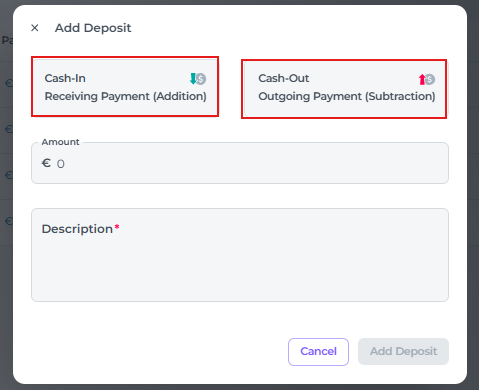
Deposits can be created two ways:
-
- Cash-out (Positive value): Outgoing money. Most common case (e.g., depositing money to the bank or paying for expenses like taxis/supplies)
- Cash-in (Negative value): Incoming money. Used when a manager adds "float" or "change" to the drawer.
- Cash-out (Positive value): Outgoing money. Most common case (e.g., depositing money to the bank or paying for expenses like taxis/supplies)
How and when to create a deposit
Scenario 1 - Cash Out Drop
This means you have more cash in the drawer than the standard cash float, so the excess should be dropped and taken to the bank.
Current Balance €5360.98 -/- Starting Balance €500 = Cash Out Deposit €4860.98:
-
Before closing the shift and after the physical to drop cash amount of €4860.98 was set aside, click on Add Deposit:

- To record the bank drop, in the pop-up select Cash Out, fill in the amount , enter a description, and click Add Deposit to finalise:
- Check whether the Current Balance (Closing Balance) is accurate.
- If not, research and make the necessary corrections.
⚠️Once a shift is Closed there is no possibility to make corrections!
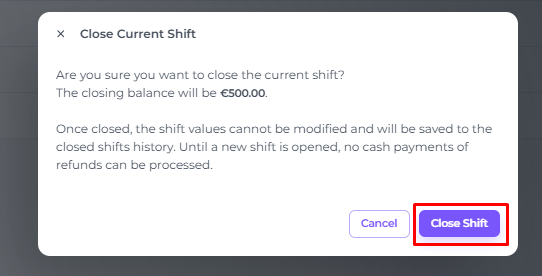
If it is correct, you can close the shift by clicking the Close Shift button:
- A final warning notification will appear. If you are absolutely sure, click Close Shift:
- The Closing Balance becomes the Starting Balance for the next shift:
Scenario 2 - Cash In Return
In case of a Cash IN Return, the cash float will be less than the standard amount of 500.
In the example image below, the cash register report shows you that there are no payments, no refunds, only a Cash Out Deposit of 100. 
Current Balance €400 -/- Starting Balance €500 = Closing Balance -€100. This amount should be returned to the drawer in order to restore the standard cash float amount.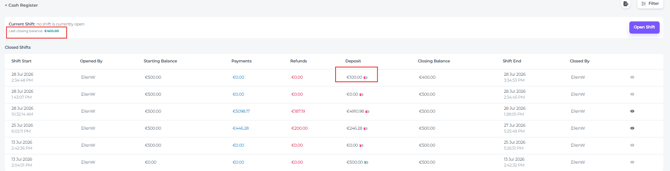
This Closing Balance will become the Starting Balance for the next shift(s) until the €100 is returned into the cash float by administration:
When the amount is returned a Cash In Deposit should be created: 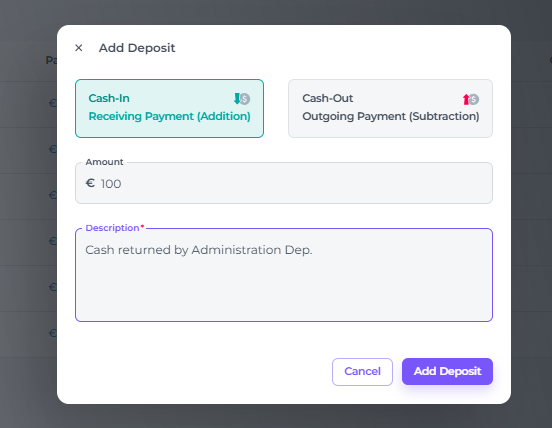
Which restores the current balance. 
Export
Export your Cash Register Report by clicking on the Export Button and choose the format PDF or Excel: 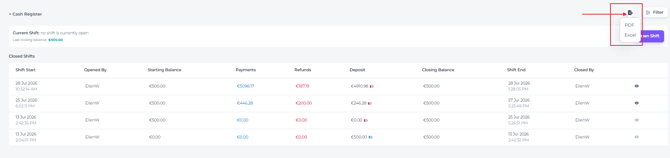
Permissions
-
- Manager
- Front Desk Manager
- Front Desk
- Assistant Manager
- Back Office Manager
In the tab Permissions on the Main Menu, a manager can assign and change these permissions for other (custom) Roles:
- View billing (existing one)
- Open and view a Cash register report
- Filter the list of Closed shifts
- Without this permission, Main menu tab “Cash register“ should become disabled with a tooltip “No permission to view Billing“
- Update Cash register (place new permission in the tab “Accounting“)
- Open and Close Shift
- Add Deposits