What is the Debtor Report
Quickly to see which guests, companies, or agencies still have outstanding balances for a specific property.
The report helps you monitor overdue invoices, prioritise follow-up, and keep your accounts receivable under control.
You will learn where to find the report in Noovy, how to interpret each column, how to filter and segment debtors (for example by type, amount, or due date), and how to export the data for further analysis, sharing with your finance team, or archiving.
-
The Debtor report can be found from the main menu > Reports :
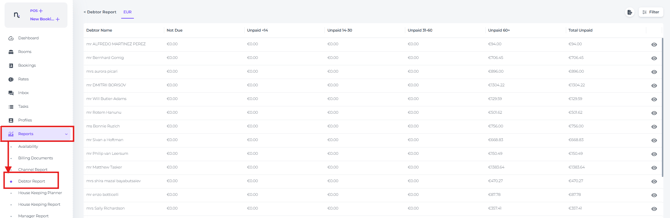
Follow the steps below to access, review, and export all relevant debtor information.
Fields Explained:
-
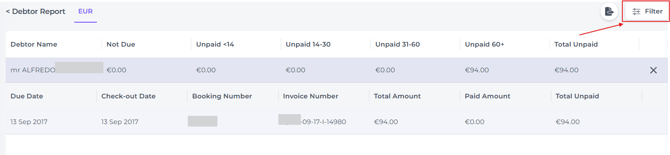
Debtor Name
Displays all customers or guests with outstanding balances. The tabs indicate how long each debt has been open for:
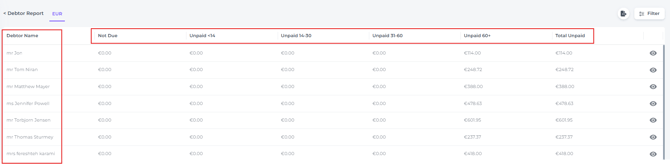
- Eye icon
View detailed information for a specific debtor: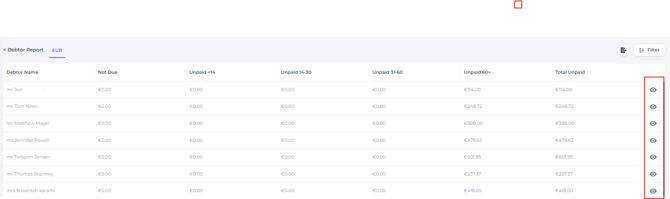
This will display the following details: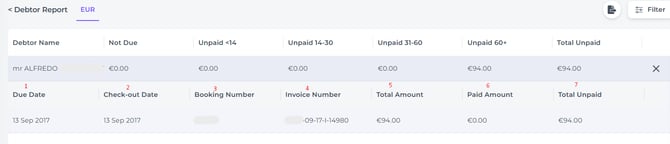
- Due date - The date by which the invoice should have been paid.
- Check-out date - The reservation's check out date.
- Booking number - The reservations check-in date.
- Invoice number - The invoice unique Id-number.
- Total amount - The total amount of the invoice.
- Paid amount - The portion of the invoice that has already been settled.
- Total unpaid amount - The portion of the invoice that still has to be settled.
-
Filter
Refine the search for specific criteri:
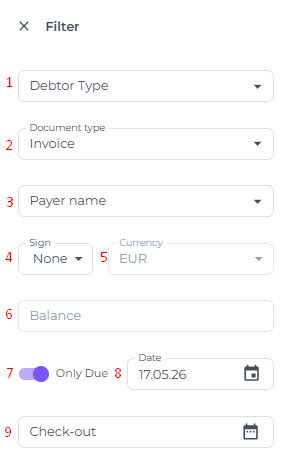
- Debtor type - Filter on one specific debtor type
- Document Type - Filter on Invoice, Proforma, or both
- Payer name - Filters the documents with an open balance by a single payer
- Sign - Choose the mathematical symbol to determine the amount to be filtered:
= Equal to the entered amount in criteria 4 (balance)
< Less than the entered amount in criteria 4 (balance)
> Greater than the entered amount in criteria 4 (balance)
≤ Equal to and less than the entered amount in criteria 4 (balance)
≥ Equal to and greater than the entered amount in criteria 4 (balance)
≠ Not equal to the entered amount in criteria 4 (balance) - Currency - If multiple currencies are available, select the desired one here
- Balance - The sign and amount you enter set the filter criteria and will show you the outstanding balances.
- Only due toggle - Displays outstanding amounts due on the dates you select in criteria 7.
- Date - Enter the due date after toggling on the 'Only due' criteria in 6
- Check Out - Filters on the reservation check out date.
-
Export
Generate an Excel file containing the debtor list:
