What is the purpose of the Meals Report?
The Meals Report will help your Restaurant Staff to determine whether guests have booked a meal, whether it is included or not, and for how many people the breakfast was reserved. The report allows team members to change unused breakfasts to "used" for each guest, preventing guests from entering the breakfast room twice.
Use the report to optimise your staff rotas and streamline stock (produce, beverages and ingredients) purchases based on accurate guest numbers.
The Meals Report can be found in the main menu under Reports - Meals Report:
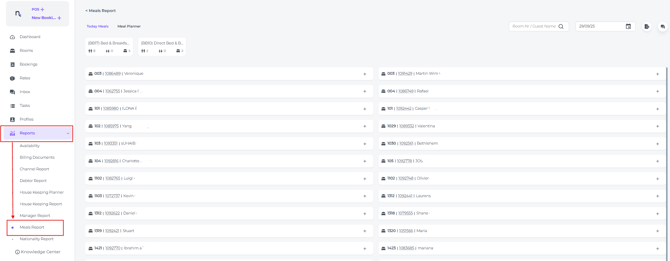
You can view the report in two modes: Today Meals and Meal Planner.
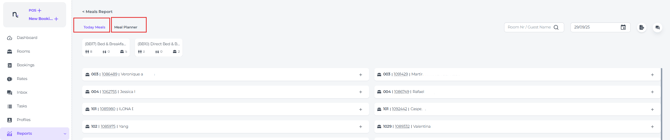
Tab Today Meals
-
Shows the meal plans for the date selected in the date bar:

-
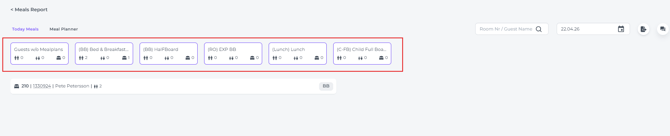
Based on the meal plans configured in your PMS, the Today Meals view will always display at least one tab: Guests w/o Meal plan, and additional tabs for each active meal plan.
In this test property, multiple meal plans are in use:
Filter
Makes it easy to distinguish individual meal plans and see which reservations belong to each one.
Filter by Meal plan Type:
A purple border indicates that a meal plan is selected and the list is filtered to show its reservations:
If you deselect the BB breakfast plan in this example, all reservations linked to it will be hidden from the list: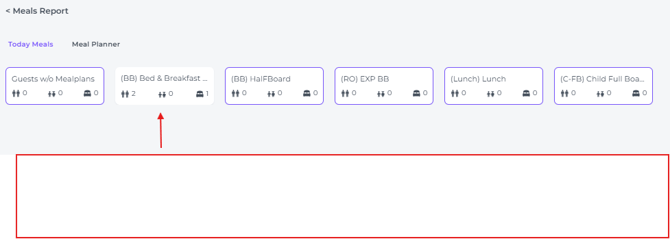
Filter by room number or Guest Name
If you deselect all meal plans but search by Room Number or Guest Name, the matching room will be displayed: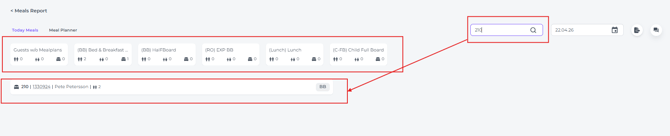
Adding meal plans to Guest w/o meal plans
- By selecting the **Guests w/o Meal plans** tab, you will see all reservations without a meal plan:
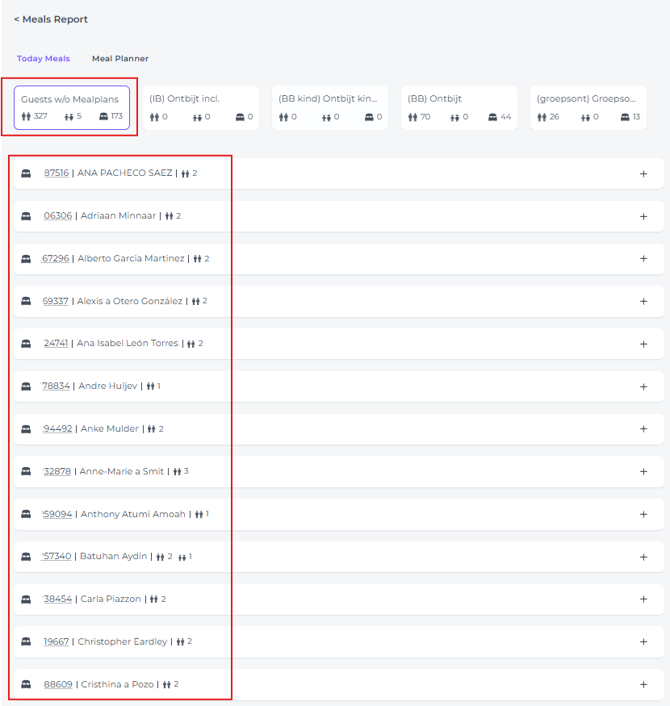
- Click on the + sign behind a reservation to add a meal plan, either per guest or per reservation for all guests:

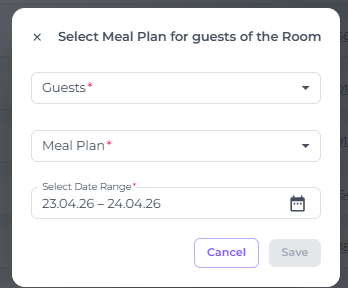
- A pop-up will open, allowing you to select the guests who need a meal plan, choose the meal plan, and specify on which date during their stay it should be served:
- Clicking the reservation number will open the detailed booking page for that specific reservation:
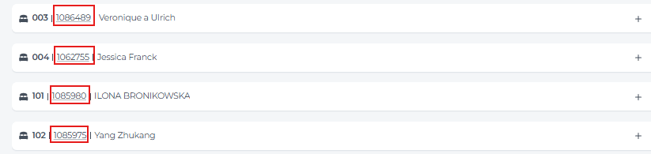
- Click the bed icon to expand the reservation, view all linked guests, and assign meal plans to one or more of them.

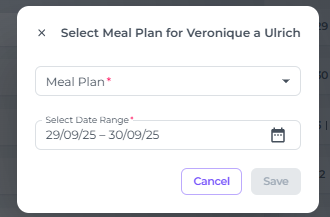
- Click Save after filling out the fields to add the meal plan.
Mark meal plan as 'Consumed'
By marking a meal plan as consumed, your restaurant team keeps full control over which meals have been used.
- The meal plan code shown next to the reservation indicates whether it has been consumed/used. Hover your cursor over it to see the status:
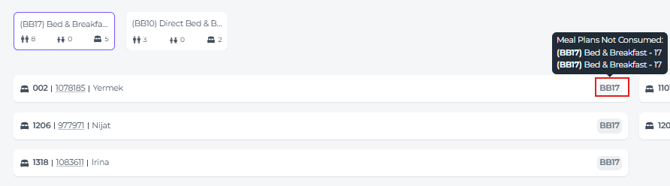
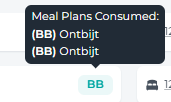
- When all guests of a specific booking arrive, staff can mark their meal plan as ‘Consumed’ by clicking on the Meal plan code. It will turn green:

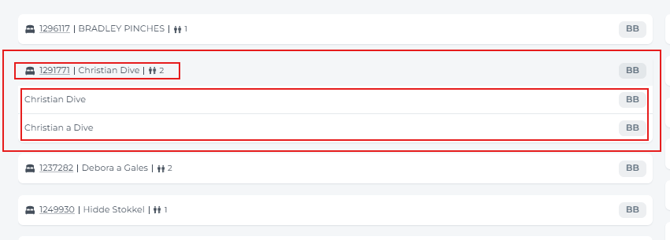
- If only one guest from the booking arrives, click the reservation name to open the full guest list and then click the meal plan code next to that specific guest to mark it as consumed:
Tab Meal Planner :
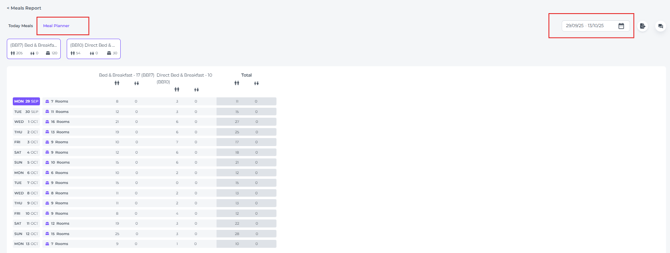
This tab shows all meal plans booked in the selected date range, helping you prepare for upcoming days and plan staffing and inventory efficiently.
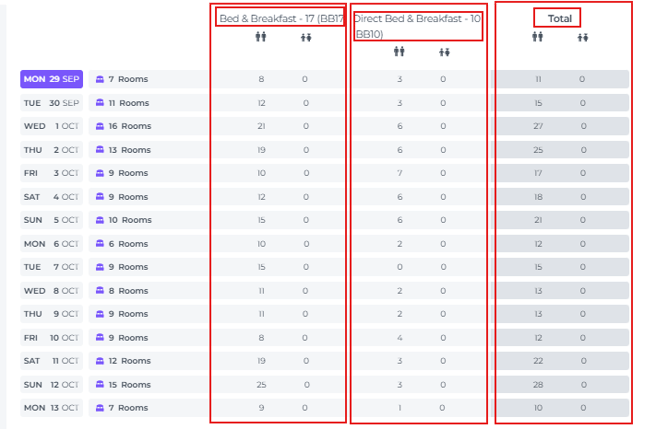
The columns show each meal plan per day, along with the total number of all meal plans booked for that date:
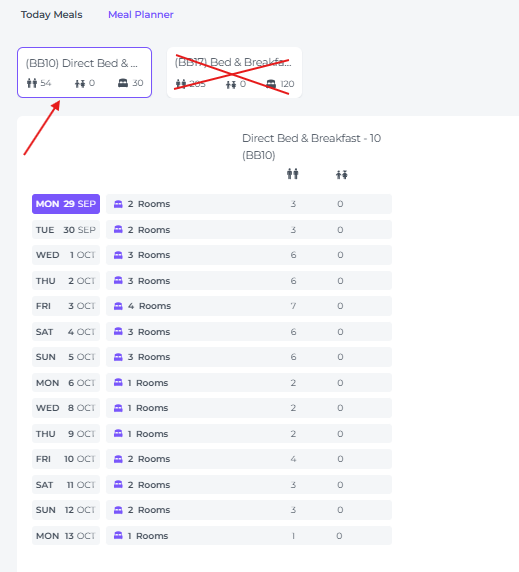
If you want to see details for a single meal plan, select that specific plan at the top of the screen:
🛠️Troubleshooting:
Missing Meal Information: If meal information is missing for a guest, ensure that the meals have been added to the reservation.
Incorrect Guest Information: If guest information is incorrect, update the guest profile in the concerning reservation.
Report Generation Issues: If you encounter issues generating the report, please contact our support team.
💡Tip:
You can export reports from either the Today Meals or Meal Planner tabs by clicking the Export button located at the top right corner of your screen, choosing between PDF or Excel formats:
