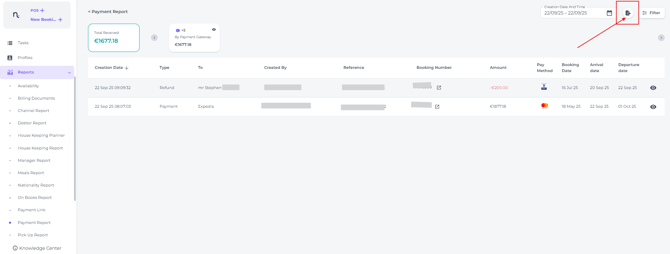
What is the Payment report?
End-of-shift reconciliation (e.g. by front desk staff)
Use the Payment report at the end of each shift to verify that recorded payments match the physical cash drawer, payment terminal totals, and card settlements. Front desk staff can quickly check payments by method and booking, making it easier to spot discrepancies, missed postings, or duplicate transactions before handover. This ensures accurate team handovers and reduces time spent investigating issues later.
General financial overviews
The report provides a clear overview of all payments received over a selected period, giving management immediate insight into daily, weekly, or monthly cash flow. You can easily identify preferred payment methods, track revenue patterns by date, and support forecasting. Because all payment data is centralised, tracking performance, comparing periods, and supporting operational decisions is much more straightforward.
Auditing and back-office reporting
Accounting or back-office teams can use the Payment report as a detailed audit trail of all financial transactions. Each payment, refund, or adjustment is logged with dates, amounts, users, and references, allowing for accurate reconciliation with accounting systems and bank statements. This supports internal controls, compliance, and smoother collaboration with external accountants or auditors.
The Payment report can be found from the main menu > Reports :
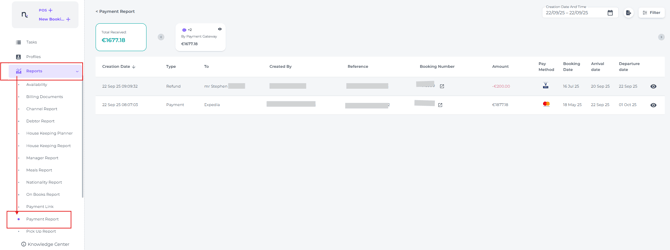
Sensitive details in the images are hidden for privacy reasons. This ensures that guest information, payment card data, and other confidential details remain protected while you review or share report examples.
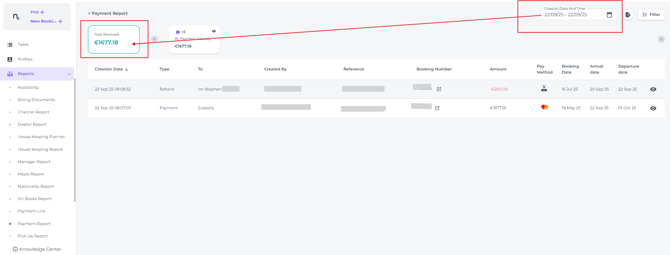
Choose the period for which you want to display payments
- At the top left, you’ll see the total payments for your selected date range. This total is broken down by payment method, including credit card, payment terminal (gateway), cash, and more:
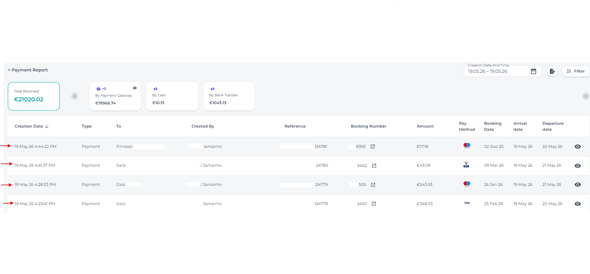
Columns explained:
-
Each row in the report represents a single payment, refund, or other financial transaction.
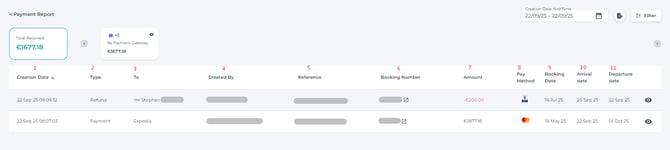
-
Creation Date – The date the payment or refund was recorded.
-
Type – Indicates the type of financial action (e.g. Payment, Refund).
-
To – The account or party the transaction was applied to (e.g. Guest, Company, Channel).
-
Created By – The user who processed or recorded the transaction.
-
Reference – The invoice reference number for the transaction.
-
Booking Number – The unique booking number assigned by the system.
-
Amount – The payment or refund amount.
-
Payment Method – Shows which payment method was used to complete the transaction (for example, cash, credit card, or bank transfer).
-
Booking Date – The date on which the booking was first created.
-
Arrival Date –The guest’s check-in date for the booking.
-
Departure Date – The guest’s check-out date for the booking.
💡Tip:
You can change the sort order of the creation date within the period you have selected in the date range of the payment report.
Simply click on the arrow behind the creation date header to change it: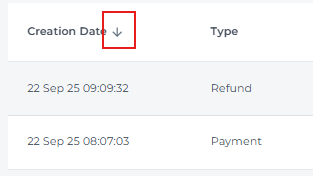
-
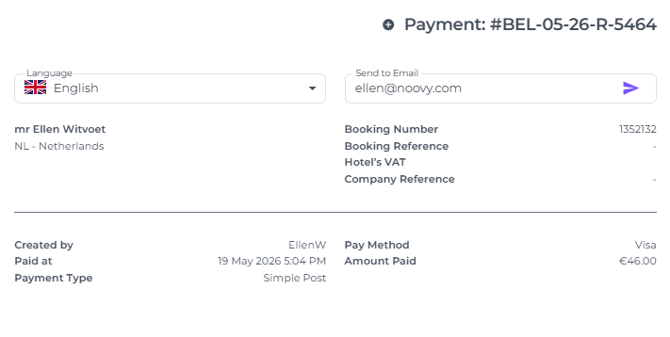
Click the eye icon behind the transaction to view, send by email, or print the official payment receipt:
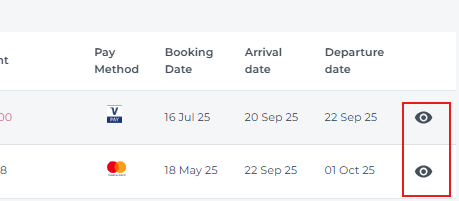
- Enter the recipient’s email address and click the purple arrow to send the receipt, or select the Print button to generate a physical copy of the receipt:
-
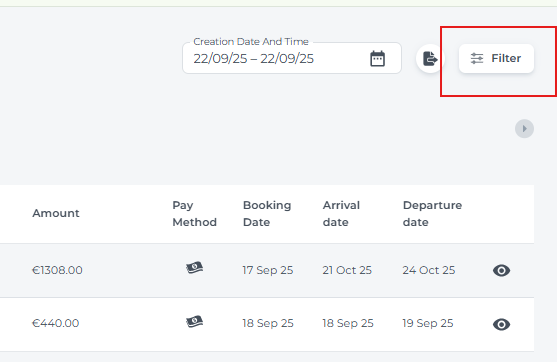
Use the Filter button (top-right corner) to refine your results by date, user, or other criteria.
*Especially useful for checking the ledgers at the end of the shift by selecting per payment method:
-
Export - click on the export button to generate a PDF and/or Exel document: