Using the Recalculate button resets all proformas associated with the booking so they reflect the booking’s current data.
The Recalculate Button can be found in the 'See Billings' section of your booking. 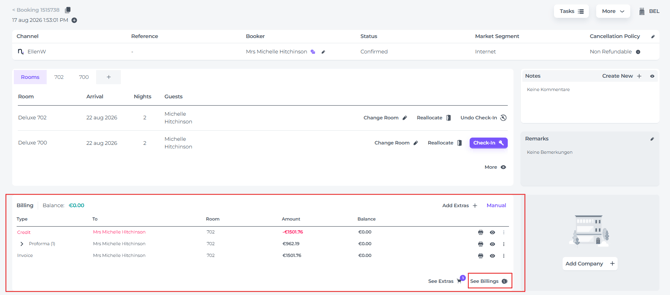
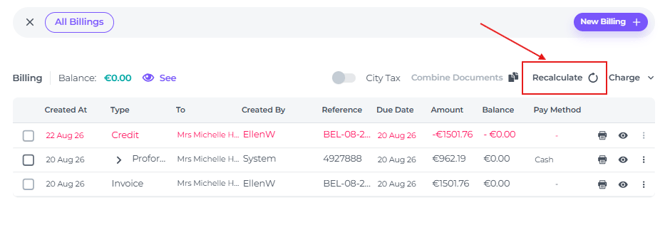
After a booking amendment or a system setting change the booking may be financially affected. Not always will this result in the correct amendment of the Proforma's present, for example when tax changes in the tax settings have been changed, or after multiple changes to a booking’s financial details, it can become difficult to keep track of everything, and the documents may no longer accurately reflect the reservation data.
In the example below, the balance may appear to be settled and everything may seem correct. However, multiple manual changes can cause the documents to no longer reflect the booking’s actual status. There is a credit of the existing invoice, and if not paying attention revenue loss will be significant:
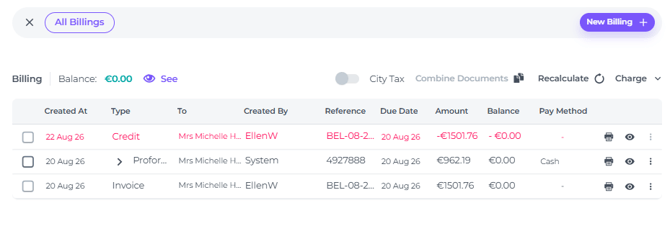
After clicking Recalculate, the documents are reset to match the booking data, revealing the correct current status. A new proforma is created for the previously credited invoice, showing that a significant amount is still outstanding:
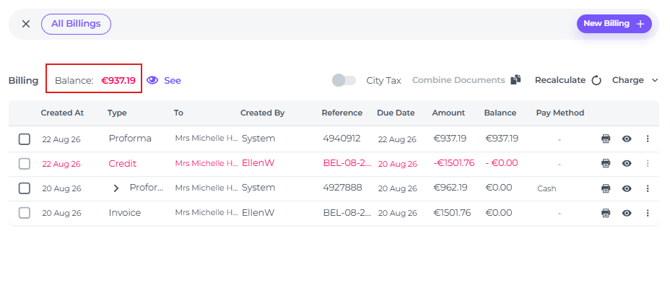
Before continuing, always review the recalculated proformas to confirm that the amounts and details are correct.
*If the documents already reflect the correct booking data, clicking Recalculate will not change them.