The guest profile contains all information on the guest. This includes their first and last name, phone number, address etcetera. This is important for reservations, as the system will recognise guests based on their guest profiles.
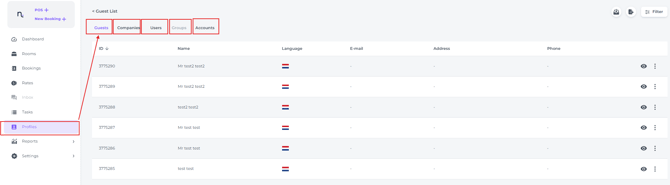
A guest profile is set up automatically when creating a reservation. The more information filled in during the reservation process, the more information the guest profile will have. If you would like to view a guest's profile without using a current reservation, you go to the left bar and click on "profiles". Here, there is an overview of all types of profiles in Noovy: guests, companies, users, groups and accounts:
Finding a specific Profile
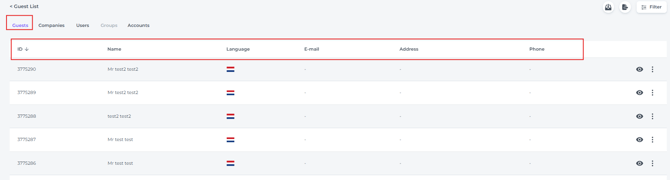
When you open the guest tab, you will see a list of all guest profiles. You can sort this list by clicking on the column headers, such as Name or Language; the profiles will then be ordered according to the selected column:
If you are looking for a specific guest, click on “Filter” in the top right corner and search by name: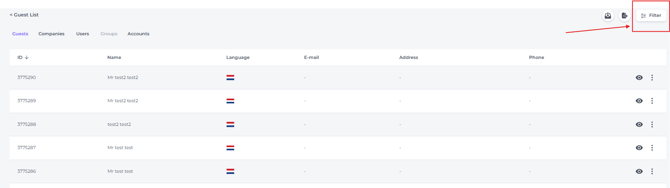
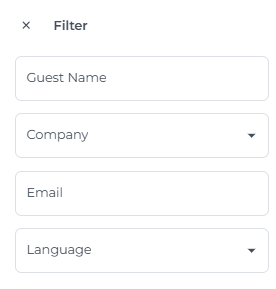
In this section, you can also filter by company, email address, or language:
Billing-, and reservation information
- Click on the eye icon on the far right behind the guest profile you wish to view:
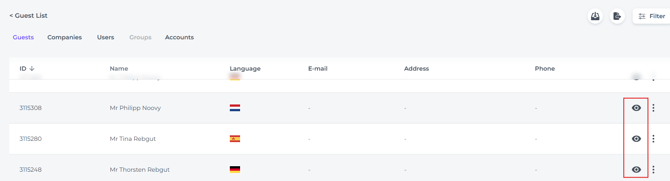
- In the pop-up that appears, you will see three tabs, Profile, Bookings and Billings.
In the Profile tab, you can store all available guest information and attach a file if desired: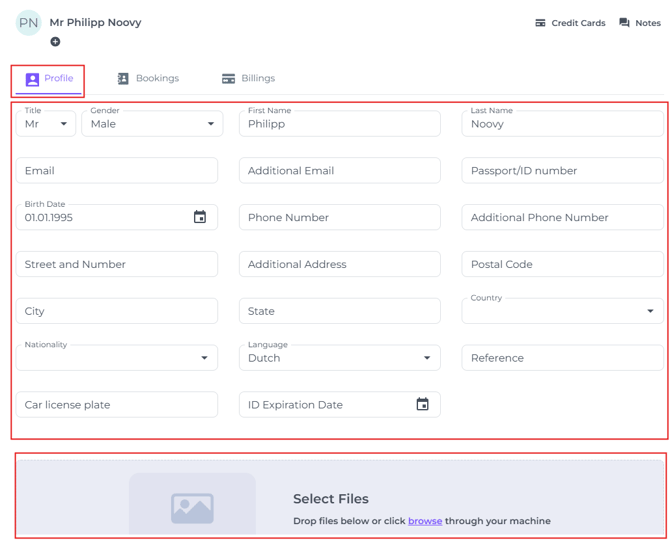
- In the tab Bookings you will find all previous bookings made by this guest:
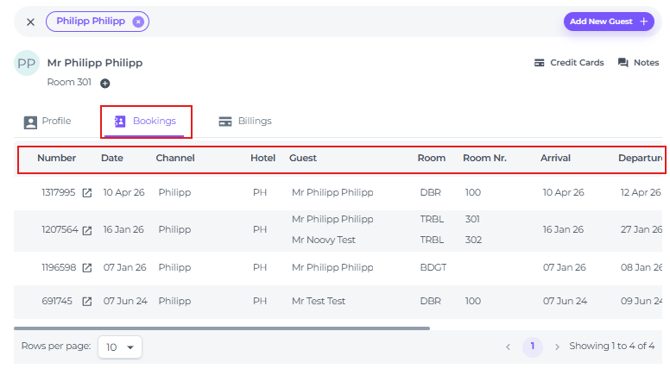
- In the Billings tab, you can view all billing documents from all past reservations:
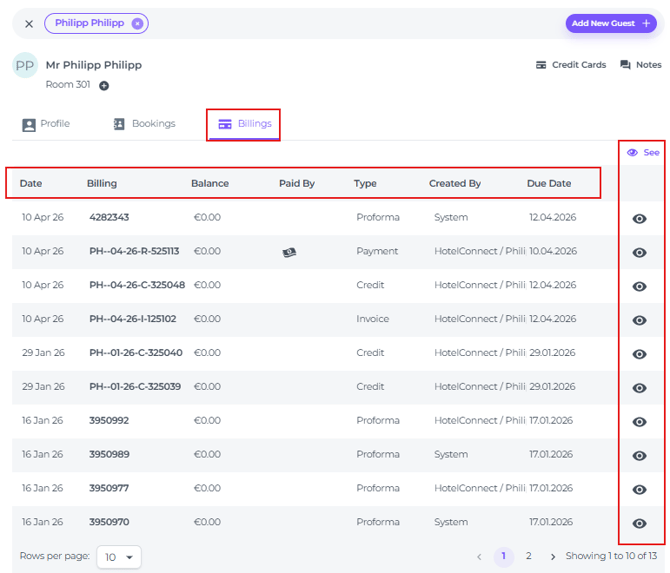
- In the Cards option at the top right of the profile pop-up, you can store the default credit card the guest wishes to use for future reservations.
In Notes, you can add specific information at profile level such as preferences (notes added at reservation level will not be retained):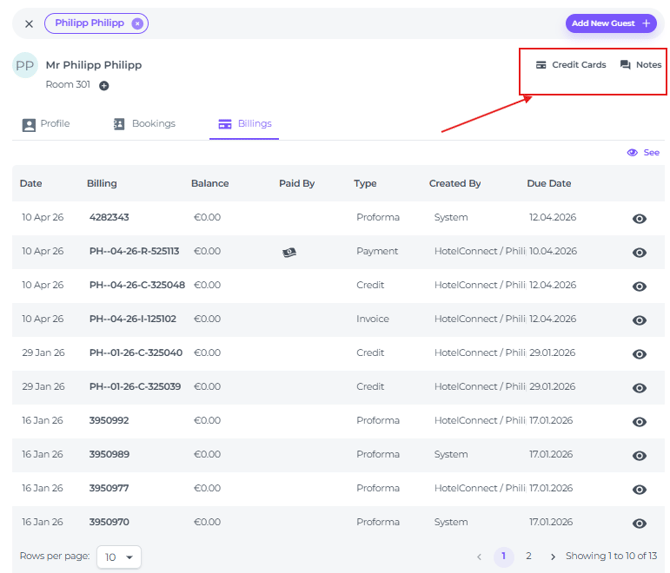
Merging Profiles
If a guest books under a slightly different name, a new profile will be created. To avoid multiple profiles for the same guest, you should merge these profiles.
-
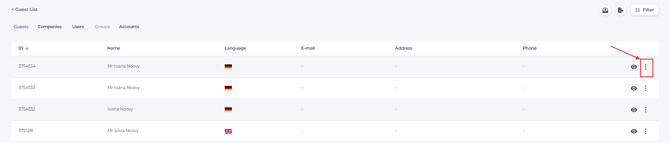
Open the guest profile list, click the three dots next to a profile:
-
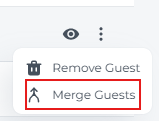
Choose Merge guests:
- Search for the profile that needs to be merged in Guest B:
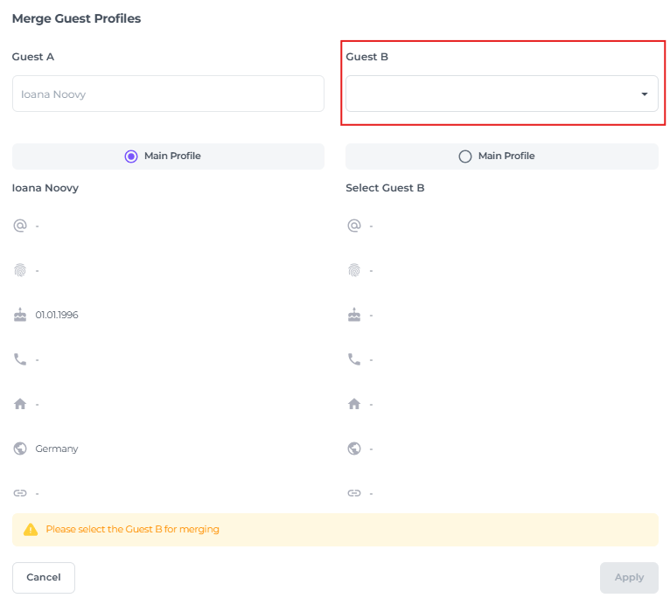
- If you see several profiles with the same name, carefully check that you are merging the correct guests, as different people can share the same name:
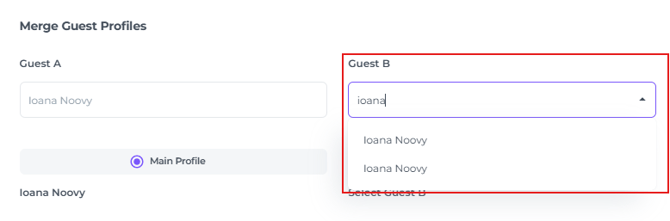
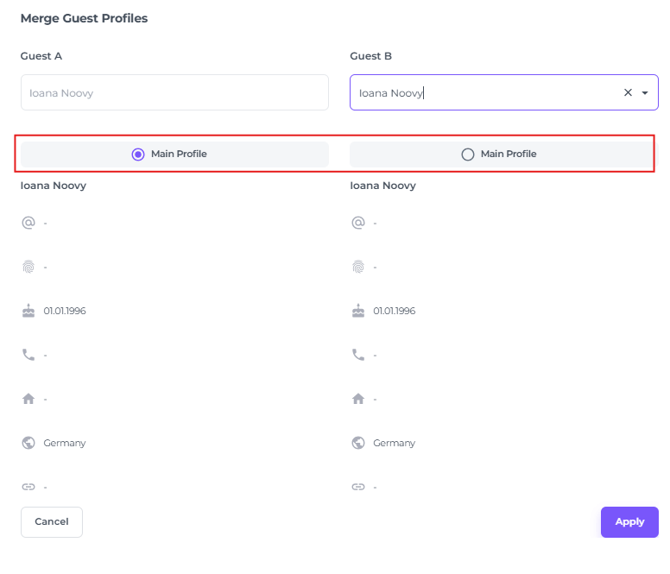
- After choosing the correct guest in Guest B you can now determine which profile will be the Main Profile and click on Apply:
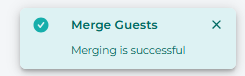
- A pop-up will appear if the merge has been succesful:
- The main profile’s data is kept. Missing fields from the other profile are copied over, but if both contain a value, the main profile’s value is retained.