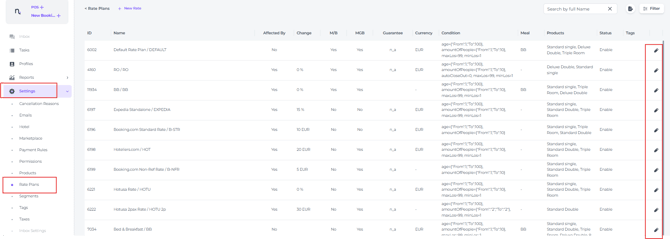
Minimum lenghth of stay (MLOS) and maximum length of stay (MaxLOS) booking restrictions are a common tool to optimise your booking strategy and revenue. Restrictions are set in the Bulk Update feature, and the task is both simple and quick.
MLOS: Ensures higher occupancy during peak periods (e.g. weekends and bank holidays) and prevents leaving unbookable single-night gaps.
MaxLOS: Used to prevent guests from overstaying, to comply with local regulations, or to maintain availability for other potential guests.
Take the below steps to set these restrictions
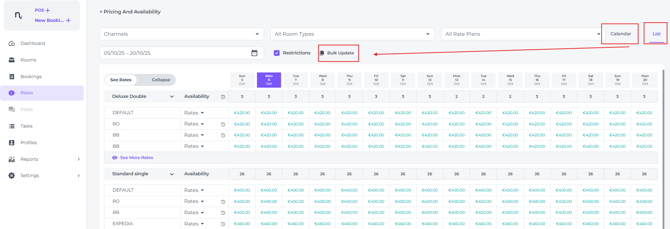
Firstly locate the Bulk Update Feature which is found on the Rates Calendar:
- On the main menu select Rates:
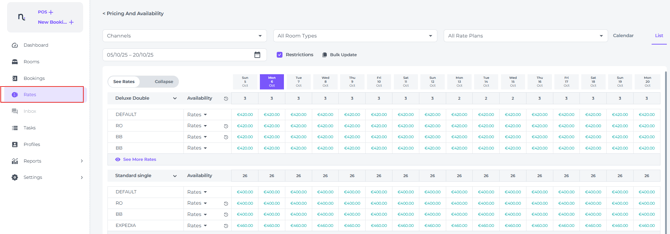
- On the Calendar or List page, click on Bulk Update.
Simultaneously the Bulk Update is found in the Calendar View of the Rates Calendar: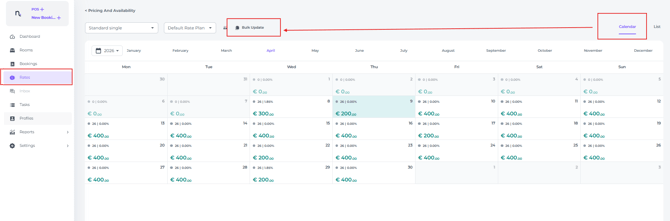
Enter the details to which the MLOS or MaxLOS should apply:
- A pop-up window will appear:
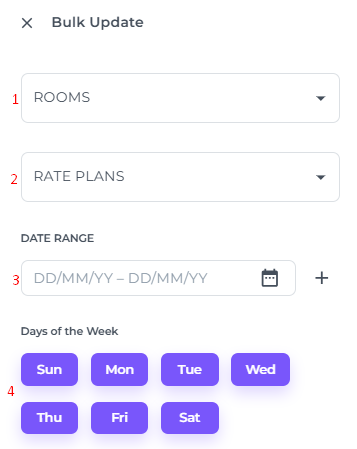
- Rooms - Select the room type for which you want to set the MLOS/MaxLOS.
- Rate Plans - Select the rate plan for which you want to set the MLOS/MaxLOS.
Note: If you wish to set restrictions, never use the Default Rate Plan. Unlike price or availability updates, adjusting restrictions within the Default plan does not automatically update your other rate plans. Consequently, please ensure you manually select all the rate plans you intend to restrict. - Date Range - Select the period(s) for which you want to set the MLOS/MaxLos
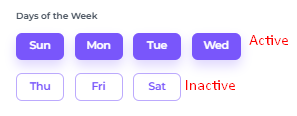
- Days of the Week – If the restriction only applies to specific days of the week, you can deselect the days to deactivate the minimum or maximum length of stay. The purple fields will turn white to indicate that the restrictions for those days have been disabled.
Set the desired restrictions:
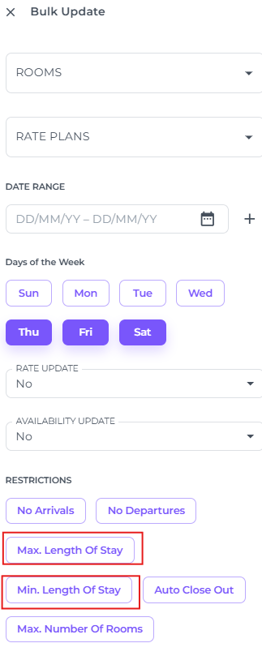
- To set the minimum or maximum length of stay, scroll down to 'Restrictions' and click 'Min. Length of Stay' or 'Max. Length of Stay'.
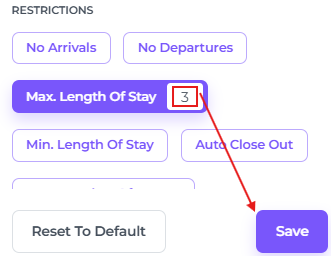
- Enter the desired minimum and/or maximum number of days and click 'Save':
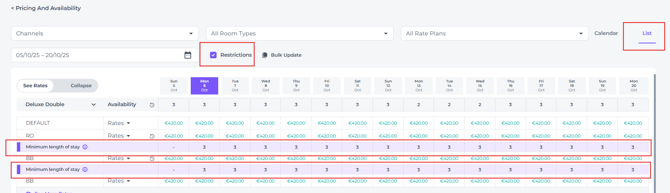
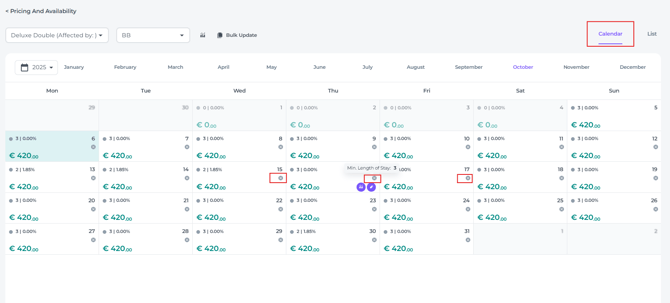
The restrictions you set will be visible in the Rates calendar
As shown in the following image for the List View:
For the Calendar tab, the restrictions will appear as follows::
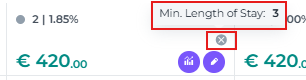
Hovering your cursor over the cross will display information regarding the restrictions:
⚠️Important to know:
Restrictions cannot be removed in the same way they are set. However, you can amend the values by following the same steps and simply updating the number.
To remove restrictions:
Within the bulk update tool, select the rooms, rate plans and the period you wish to update, then select 'Reset to Default'. ⚠️Please bear in mind that any other manual amendments (such as Rates or Availability) will also be reset.