Adding a Room to an Existing Booking - Key Considerations
Guests commonly request to add a room to an existing reservation due to extra travellers joining or extending a stay where a change of room is desired or required (either by guest's request, or simply because the original room type or room number is not available) . While this process is straightforward, it is important to consider the reservation source before making adjustments.
-
Direct Bookings (Recommended):
Adding a room keeps all guests linked under a single reservation, making it easier to manage and allowing the guest to receive one consolidated invoice and payment. ☝️ Note: Modifying booking details requires the reservation to be reconfirmed.
-
OTA Bookings (Not Recommended):
Avoid adding rooms directly to bookings originating from Online Travel Agencies (e.g., Booking.com, Expedia). Manual modifications in the PMS can cause confusion in regards to the cancellation policy and payment instructions, may cause sync discrepancies with the channel and may result in incorrect commission calculations.
⭐Best Practice for OTAs: Either create a separate new booking in the PMS for the extra room or instruct the guest to amend their original booking directly through the OTA platform.
The steps to add a room to a booking
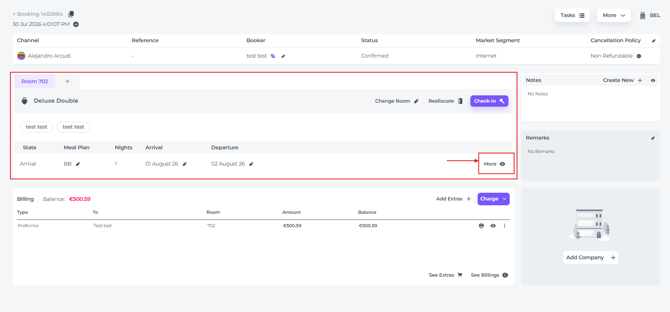
- On the related Booking Page go to the Rooms section and click on More:
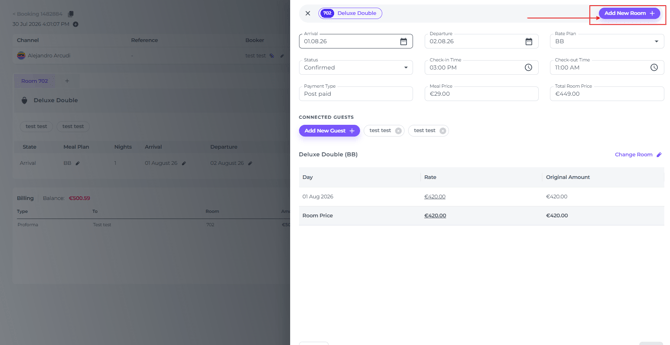
- Click on Add New Room in the pop up that appears:
- In the next pop up will out the required details:
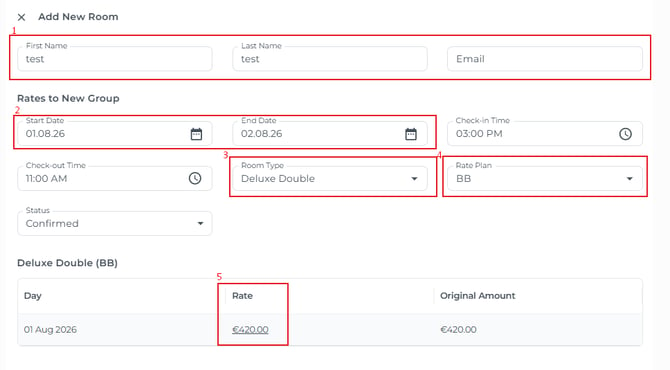
- Update the guest’s name and email address so they match the person staying in the room. We strongly recommend completing these fields, as leaving them blank will cause the booking to inherit the booker’s details by default. This is not recommended, as it may result in an inaccurate guest profile and could also create safety and security concerns in case of emergency.
- Select the dates for the new room stay.
- Choose the Room Type
- Choose the Rate Plan
- The Room price can be changed to the negotiated rate when booking the extra room, or, if left unchanged, the original rate (Original amount) for those dates will be applied.
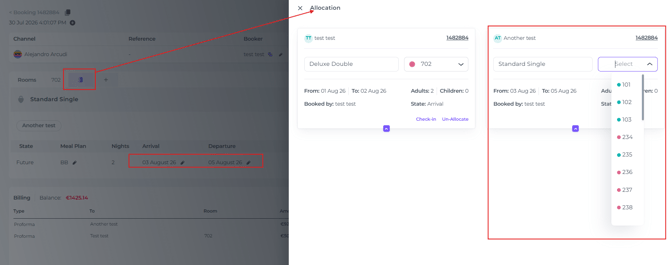
- Click Save once all fields have been reviewed and completed, then assign the booking to a room number: