There are 3 methods to add extra reservations to a group booking:
-
Create a New Group and add existing individual reservations
-
Add existing individual reservations to an existing Group booking
-
Add more reservations within the existing Group booking
Method 1:
Create a New Group and add existing individual reservation(s)
- Go to the Booking List via Main Menu > Booking List
- Locate the individual reservations you want to include in the new group you are about to create.
- Select them by checking the box in front of each reservation line.
- Once you have selected the reservations you want to add to the group, click the Group booking icon.
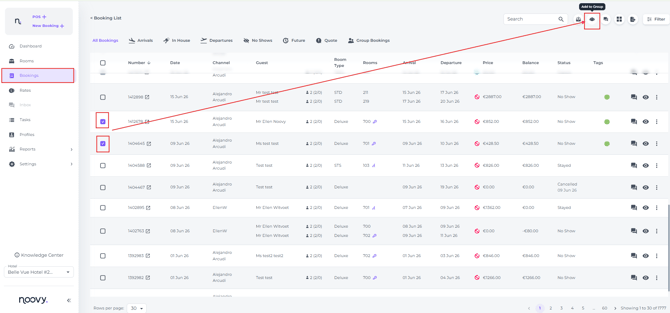
- A pop up will appear - click on Create Group and fill in the fields:
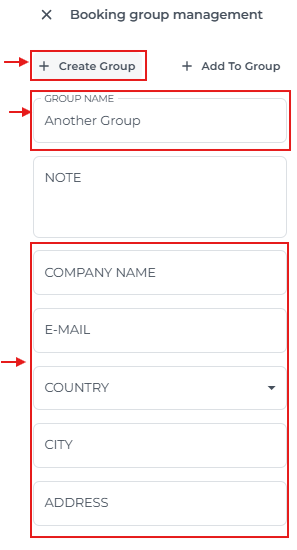
Whilst the Notes field is optional at this stage, you need to fill out all fields. - Hit Save
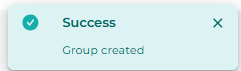
- The reservations you selected now form the new group booking. You can find this group in the Booking List under the Group Booking tab:
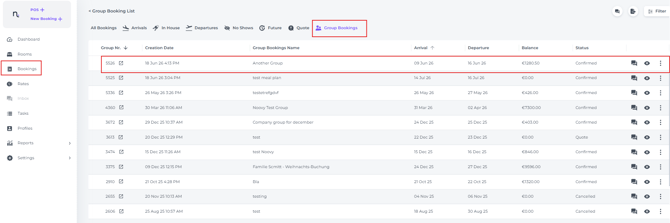
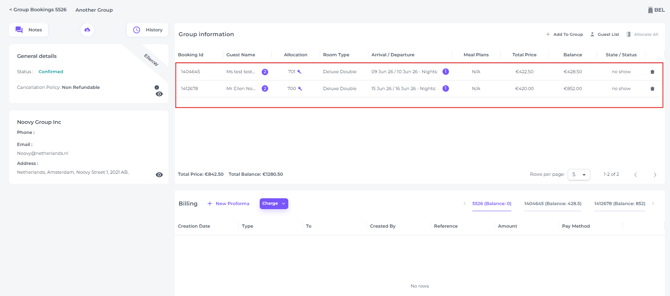
- When opening the booking (click on the eye icon behind it) you will see the related reservations:
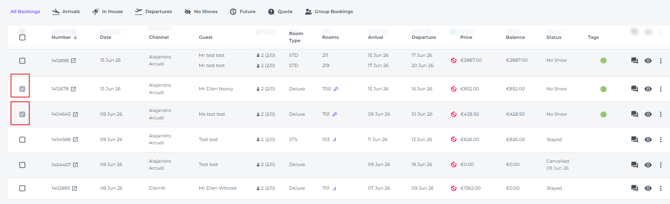
- In the Booking List, the reservations you selected are now marked with a grey checkbox:
Method 2:
Add Reservation(s) to an Existing Group
You can now add additional existing individual bookings to the group booking you just created.
- Navigate to Bookings All Bookings and Select one or multiple reservations you wish to add to the existing Group Bookings
- Click the Group icon on the top right hand corner:
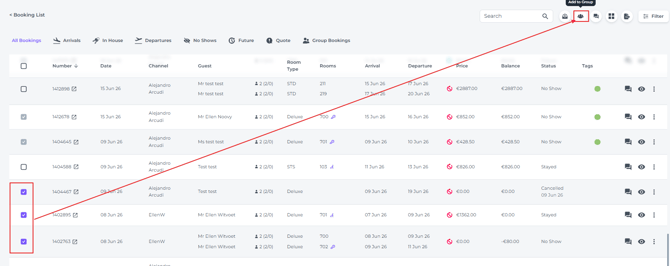
- Select Add to Group and find the group by entering the name or the Group ID
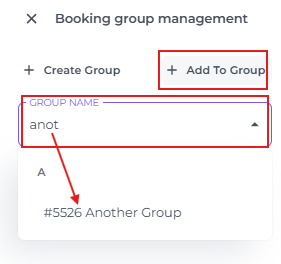
- Hit Save:
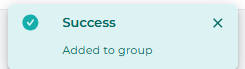
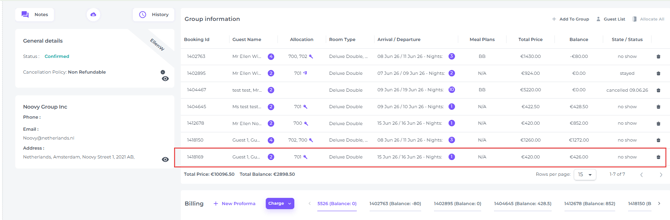
- The copied booking will now be added to the Group Booking. Update the guest name at this stage:
Method 3:
Add a Reservation Within an Existing Group Booking
Use this when the new reservation has the same room type and period as an existing group booking.
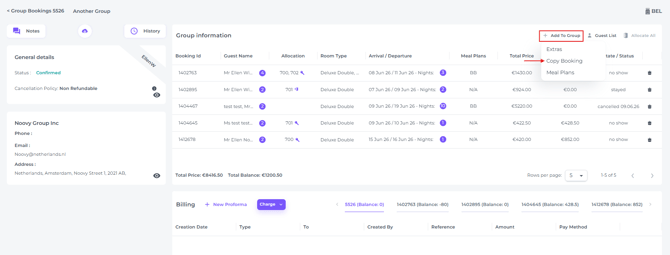
- Open the group booking, click + Add to Group > Copy Booking:
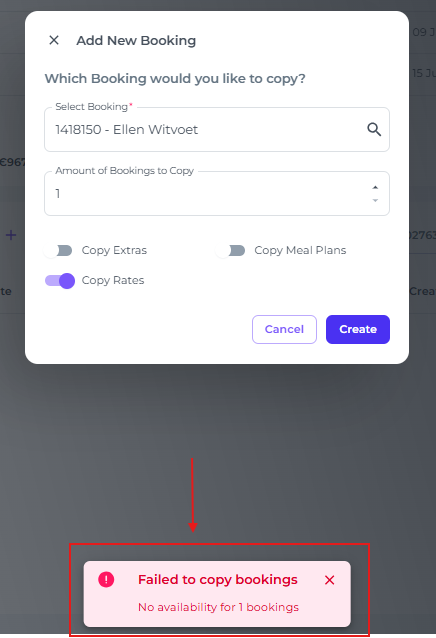
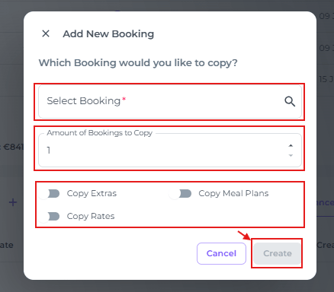
- A pop-up window appears where you can choose the reservation to copy, set the number of copies, and specify whether to include the same extras, rates, and meal plans and hit Create:
- The copied booking will now include two (or more is you added multiple copies) rooms:
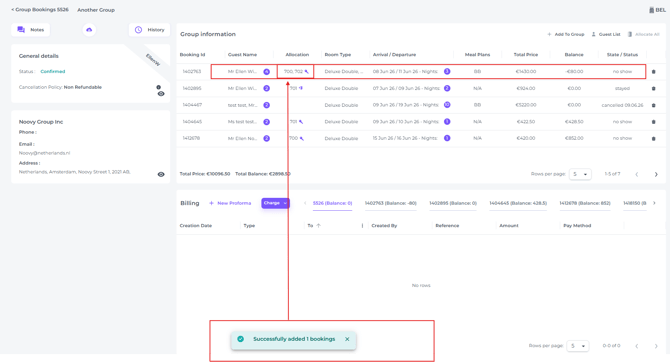
- Lasty update the guest names of the bookings just created
- If there is no availability the cpoied booking will obviously not be saved: