Where can I cancel bookings?
-
Via the Booking List
-
On the Booking page (within the Reservation itself)
-
Via Rooms (e.g. the Room Rack/ Room Calendar)
1 - Cancel via the Booking List:
- From the main menu, select "Bookings" and use the filter to search for the booking you wish to cancel:
💡Tip: Check the article: How to find a booking - Check the cancellation policy to determine whether the booking requires payment, or if a (partial) refund still needs to be processed.
- Click on the ‘more action button ‘ (3 dots behind the booking) and choose Cancel Booking:
- When prompted to provide a cancellation reason, click the dropdown menu and select the option that best applies.
*Please note: This step is only required if your hotel has enabled cancellation reasons; it may not appear for all clients.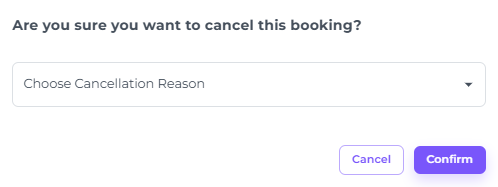


💡Tip:
If you wish to enable the use of cancellation reasons, please refer to the article:
- A pop-up at the bottom of your screen will confirm if the cancellation has been successfully executed:
- A cancellation confirmation can be sent by clicking the 'More Actions' button next to the booking and selecting 'Send Email:


💡Tip:
The article 'How to send an E-mail confirmation to a guest' will give you the steps to follow if you are in doubt.
2 - Cancel via Booking page/ reservation itself
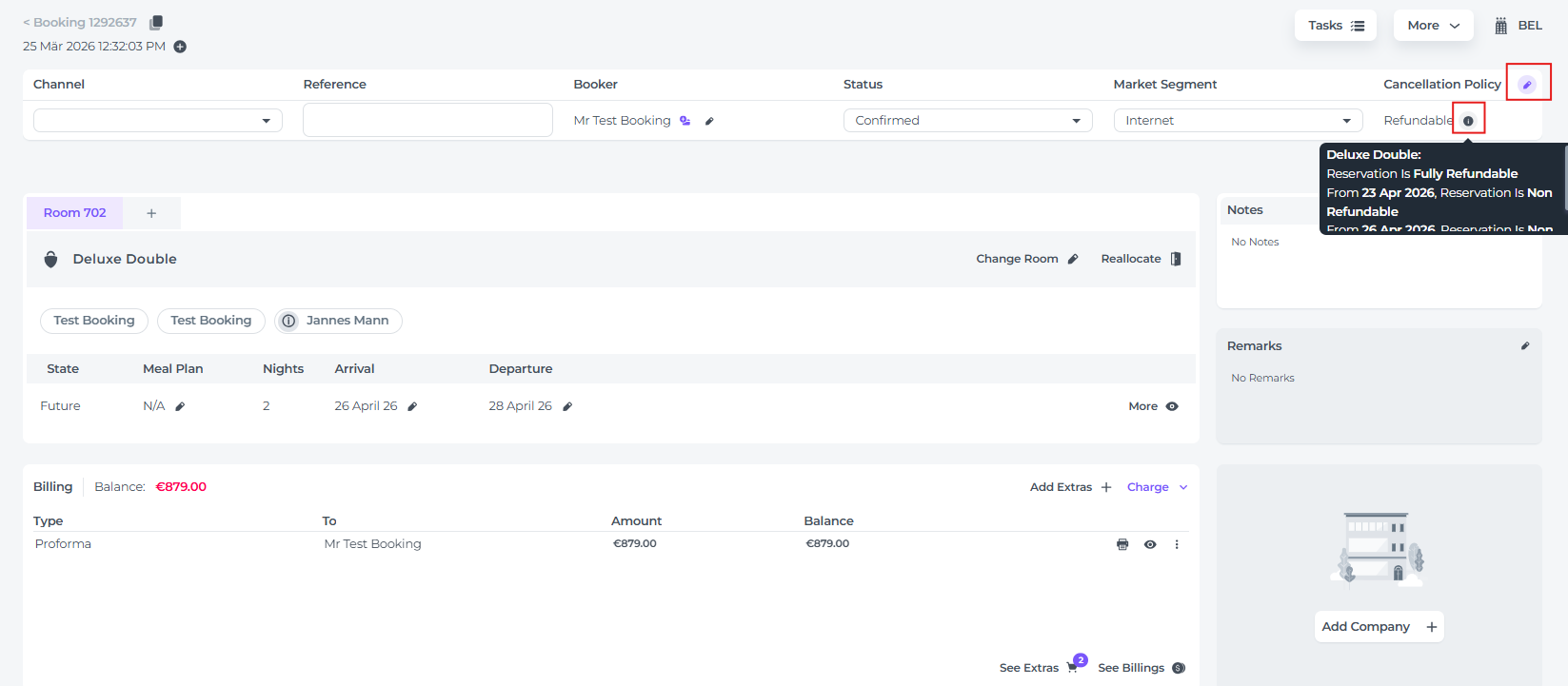
- On the booking page of the specific reservation you wish to cancel, go to General Details at the top of the page and click the pen icon (amend button):
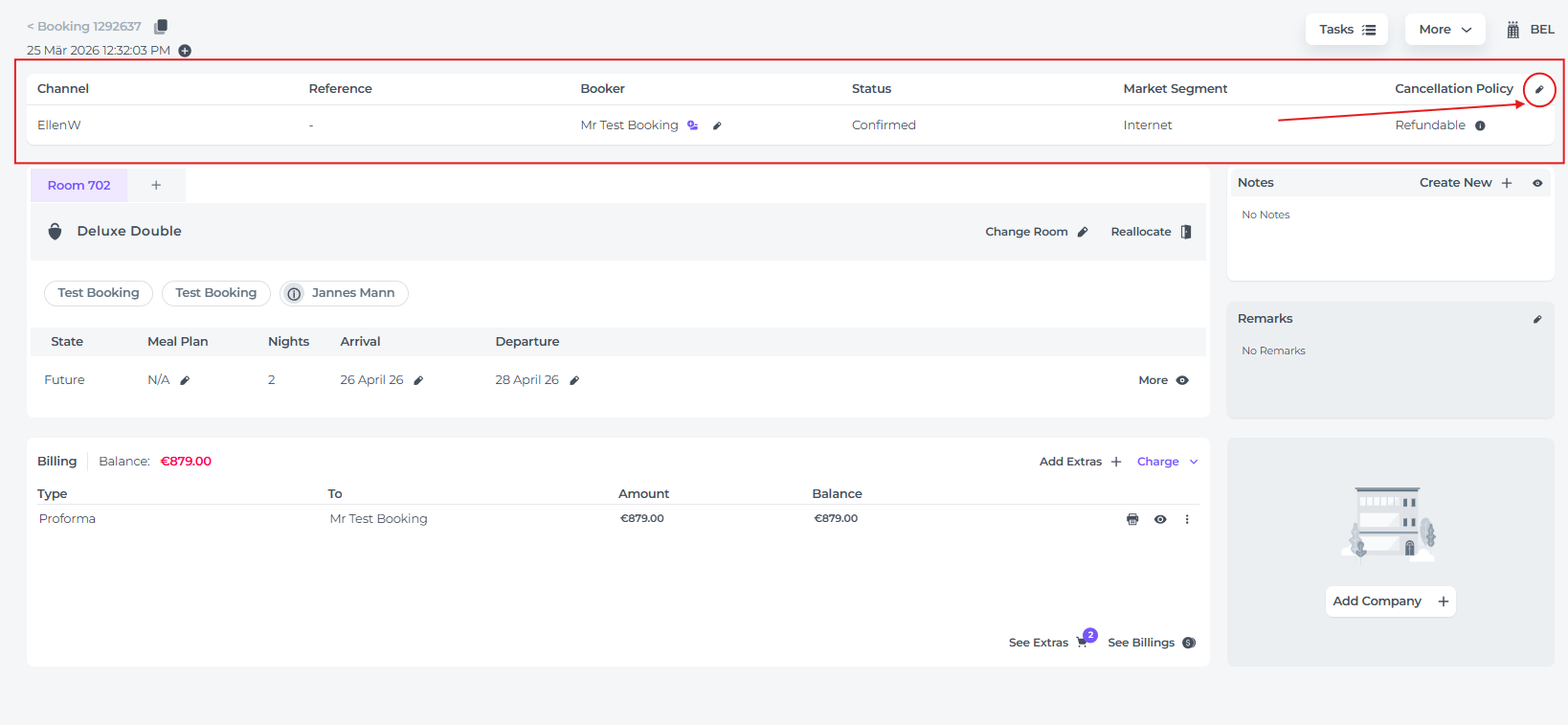
- In the field Status choose Cancelled:

- With this option as well: When prompted to provide a cancellation reason, click the dropdown menu and select the option that best applies.
- Hit Save after you have chosen the cancellation reason:

- The booking will be cancelled shortly after, as confirmed by a temporary notification:

3 - Cancel via the Rooms (Room Rack/Room Calendar)
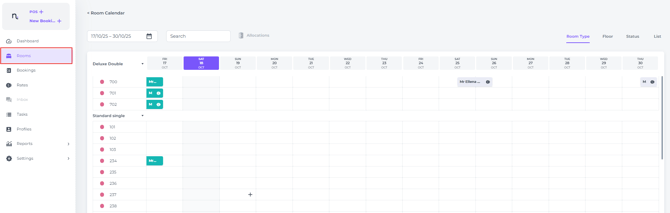
- In the main menu choose Rooms:
☝️ Please Note:
Cancelling bookings via the Room Calendar is most effective for reservations scheduled in the near future, as these are typically visible by default. Keeping the current date and upcoming days visible also allows you to manage check-ins and check-outs more efficiently.
If you need to locate bookings further in the future, you can adjust the date range. However, for larger date ranges, using "Option 1: Cancel via the Booking List" may provide a more efficient workflow.
- Click once on the booking you would like to cancel. A pop-up screen will appear; click the pencil icon (edit button) to proceed:

- In the field Status choose Cancelled:
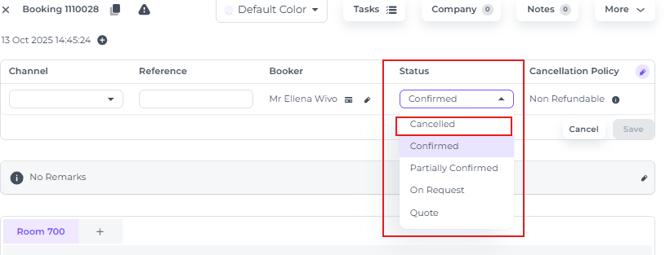
- With this option as well: When prompted to provide a cancellation reason, click the dropdown menu and select the option that best applies.
- Hit Save after you have chosen the appropriate cancellation reason:
- The booking will be cancelled afterwards, as a temporary notification will attest:
💡Tip regarding the cancellation policy:
To verify that cancelled bookings have been managed in line with the applicable cancellation policies, we recommend downloading a report of all cancellations for your chosen period. This allows you to review each booking’s policy and confirm that any applicable charges have been correctly applied.
To create a report of cancellations for a specific period:
In the Booking List filter, choose 'Cancel date range' and select the desired period for which cancellations were made: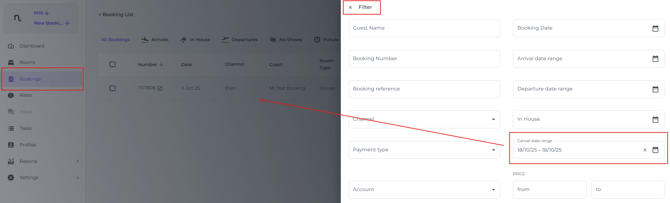
👉For best operational results, make this a daily routine—review the day’s cancelled bookings (where the start and end dates in the cancel date range will be identical) and take the necessary action to process any required payments or refunds.