Why cancel a Proforma?
There are situations where you may need to cancel a Proforma, such as:
-
When a guest’s reservation details change
-
No Shows need to be processed
-
Compensation is negotiated
-
Re-organise the financial part of the booking
-
This can include adjustments to room types or dates
-
removing or adding extras
-
correcting user errors
-
aligning the folio with updated payment terms agreed with the guest or an OTA
-
Cancelling the existing Proforma ensures that outdated or incorrect documents do not remain in your Billing overview and that your reports, outstanding balances, and guest communication reflect the correct financial situation.
⚠️ Please Note:
Before you cancel, always verify:
-
That the Proforma has not yet been converted into a final Invoice
-
Once a Proforma is finalised and an Invoice has been generated, you cannot modify that Invoice—any changes would require issuing a credit. For further guidance, refer to the following article:
'How to Credit an Invoice'
-
-
That no internal approval or audit requirements at your property are being overlooked.
Once you have confirmed that cancellation is appropriate, follow these simple steps to remove the Proforma from your Billing section in a controlled and traceable way.
Steps top take to Cancel a Proforma:
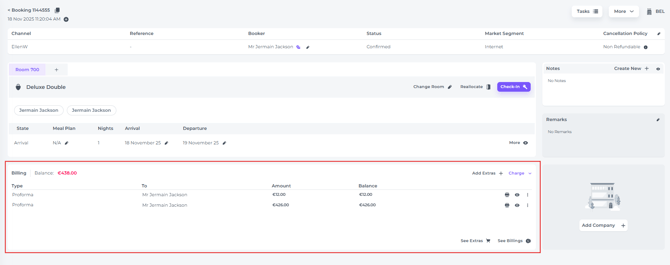
- Go to the Booking's Billing section on the Booking Page:
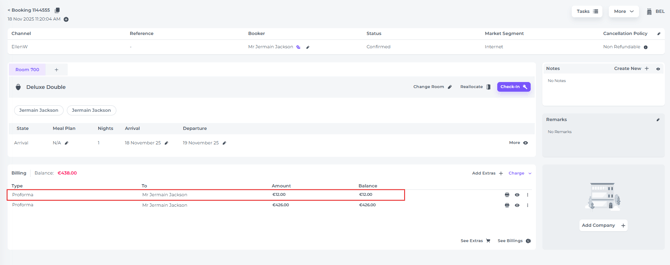
- Locate the Proforma you wish to cancel:
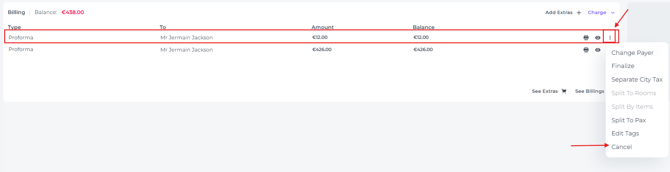
- Click on the More Action Button (three dots) behind the concerning Proforma and hit Cancel from the drop down menu:
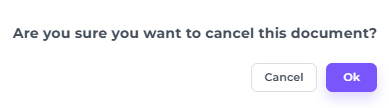
- Ensure yourself if you really wish to Cancel the Proforma and click OK:
- That's it! You have removed the Proforma from the Billing section:
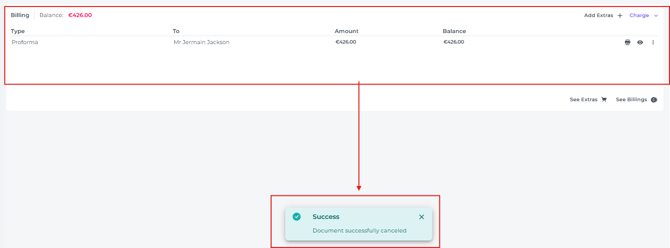
💡Tip:
If you need to create a new Proforma, please check out the following article:
'How to Manually Create a Proforma'