There are three ways to check out a room in your PMS:
-
Via the Booking Page
-
Via via the Room Calendar
-
Via the Booking/ Departure List
Via the Booking Page:
- Make sure the booking is paid and the balance is on 0, then hit Check Out:
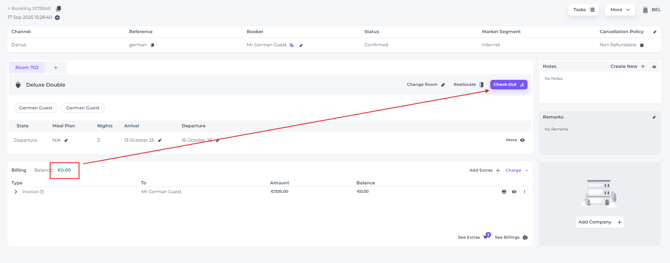
- The Booking is immediately checked out:
-
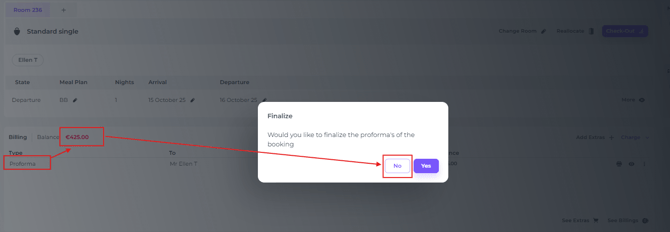
If any proformas remain unfinalised, the system will prompt you to confirm. This is a reminder to ensure the balance is zero.
Select 'NO' if a balance is outstanding and settle the amount.
Once the balance is zero and all invoice details are correct, select 'YES' to proceed:
Via the Room Calendar (room-rack):
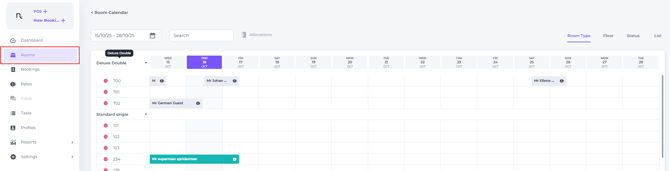
- In the Room Calendar click on the booking you would like to check out (default
colour of an in house reservation is Green)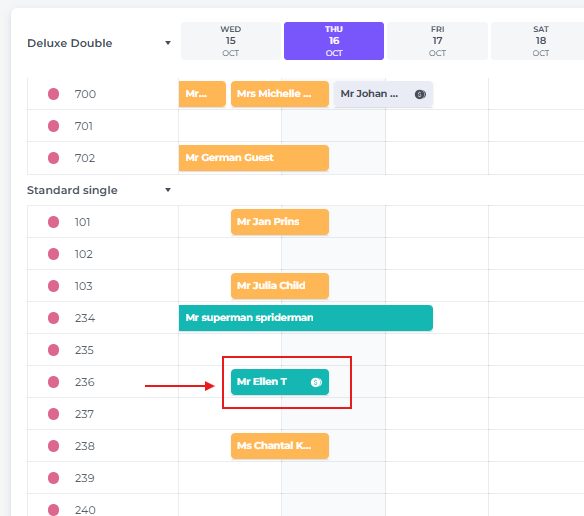
- In the pop up screen that appears, first make sure the balance is 0 (reservation is paid), if so, click on Check Out:
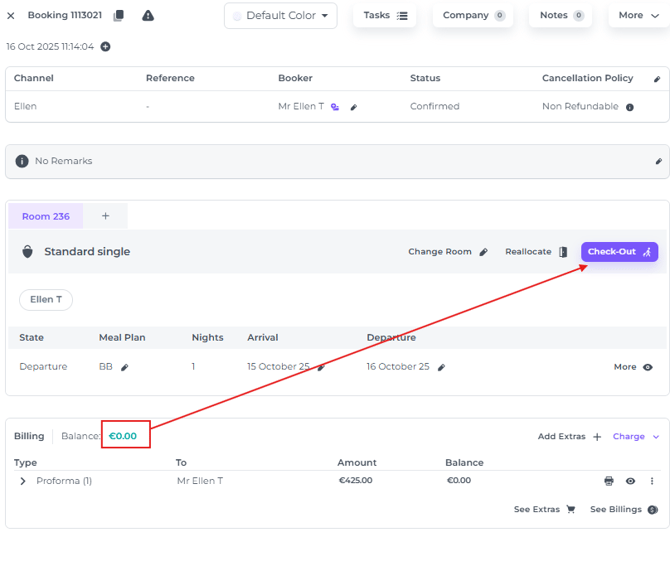
- The system may ask you if you would like to finalise the Proforma(s)
(Finalising will result in complete closure of the financial status: All documents will have to be closed in the end. After finalising you will no longer be able to amend the reservation):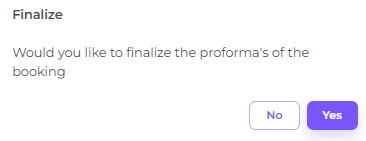
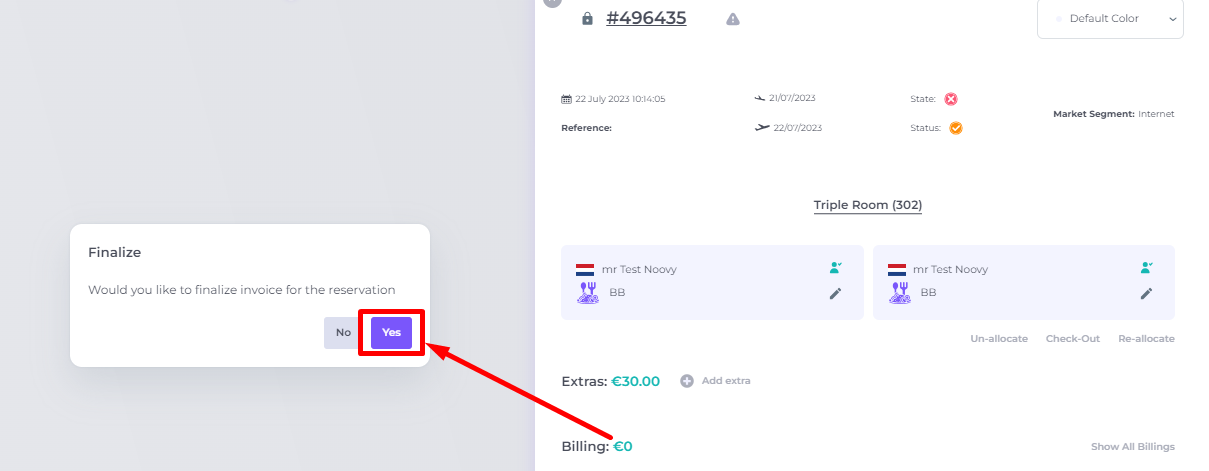
- Select YES (make sure the balance is on 0, if not pls make sure to take the correct actions by settling the payment):
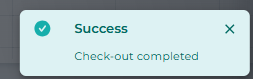
- This will result in Check Out:
Via the Booking List:
- On the side bar choose Bookings and click on the Departures tab :
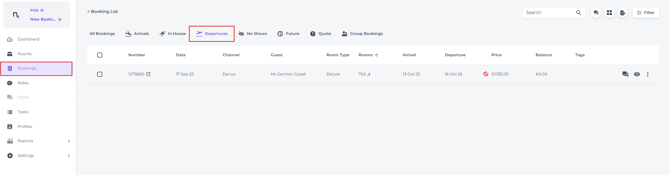
- Ensure the balance is zero (settle any outstanding payments if necessary), then click on the room number to check out.
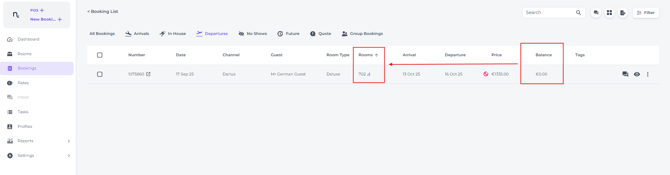
Or click on the More Action button (three dots behind the reservation) to select Check Out: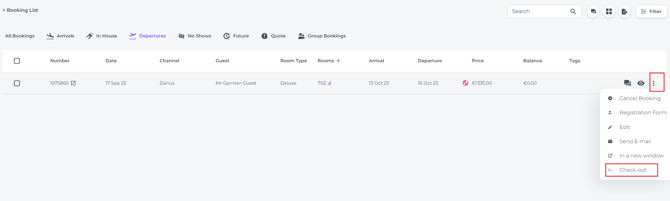
- Select 'YES' to finalise the proformas once the balance is zero.
Ensure all payer and address details are correct, as finalising closes the financial record.
Please note: once finalised, the document can no longer be amended easily.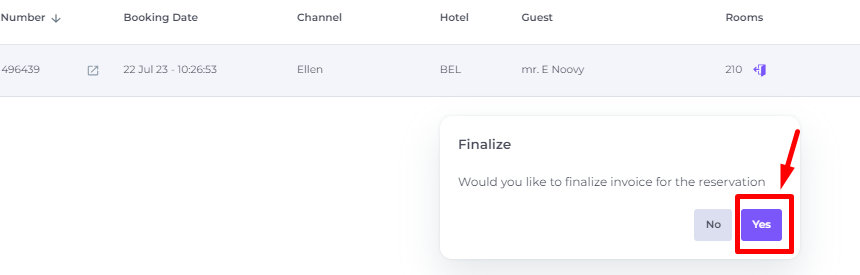
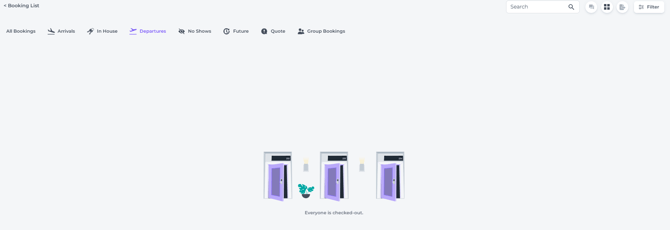
- A pop up will show you if the booking was successfully checked out and the booking will no longer be on the Departure List. (Refresh your page.)