Language Settings for your Items:
Our Onboarding Specialists configure the description of your Product Items based on the information and language provided during your initial PMS setup. While the creation language typically dictates how items appear on a Proforma or Invoice, Noovy offers the flexibility to override this, ensuring your international guests receive documentation in their preferred tongue.
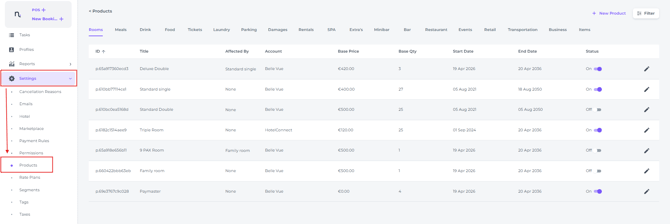
Product categories group together all related items established in the Noovy Product module. This is also where you can customise individual item descriptions:
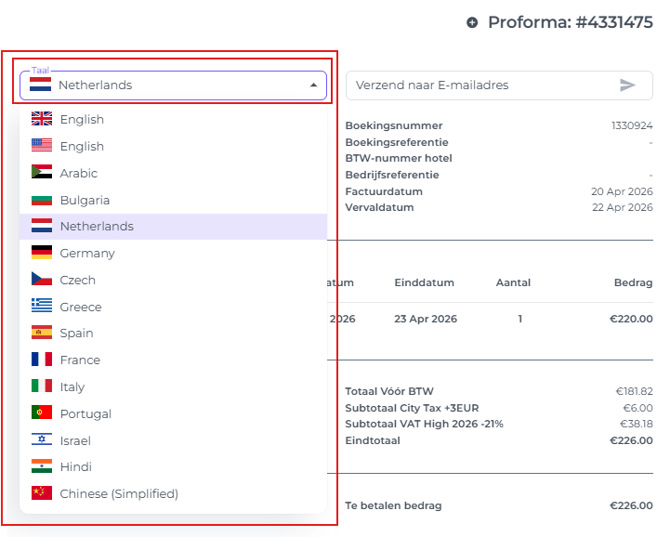
After configuring the descriptions in multiple languages, simply select your preferred language when generating the Proforma or Invoice; the line-items will then automatically update to reflect your choice:
⚠️ Please note
Changing default item names in the General tab is not advisable! 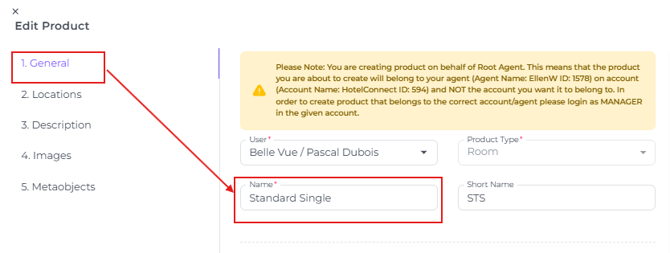
These names are registered with our Noovy Support team and are used to identify your room types across all online channels; modifying them independently can lead to miscommunication and worst case mapping errors.
Please consult our Support Team before making any primary name changes.
-
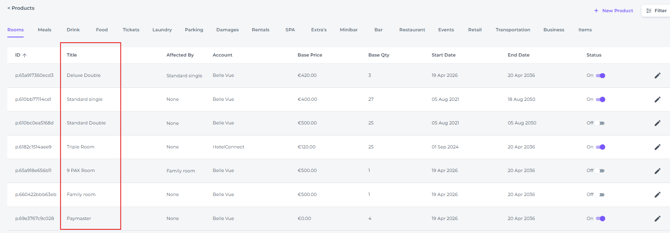
Within the Product module, navigate to the relevant Product Type for the item you want to update. Say you wish to update the description for one or multiple room types (items), click on the Product type ROOMS:
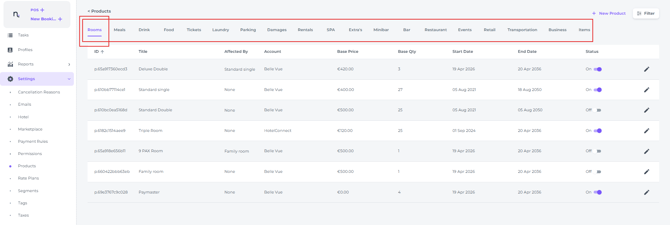
- Under Rooms you will find your configured Room Type Items
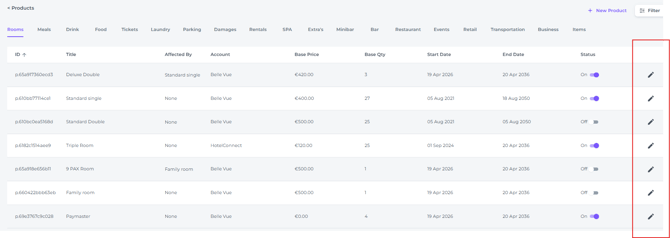
- In order to edit the room type description/languages click on the pen icon behind it:
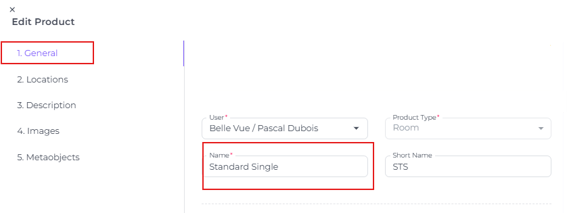
- In the General tab, the configured description shown will serve as the default. In this case the configured default description is Standard Single:
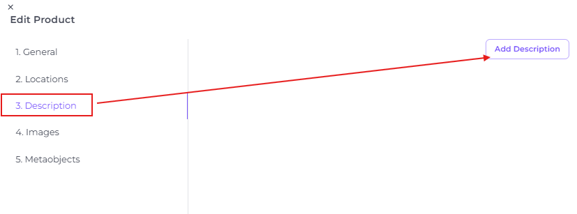
- To include an additional language, select the Descriptions tab and click on Add Description:
- Choose the desired language from the list:
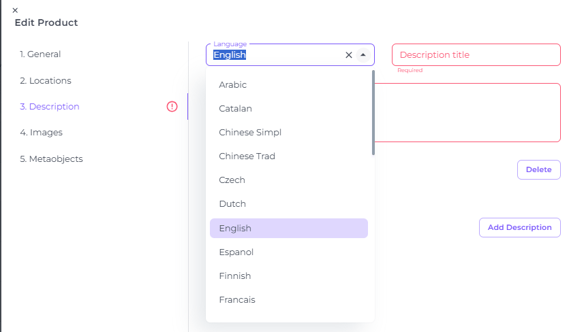
- Translate the original Item name in the applicable language:
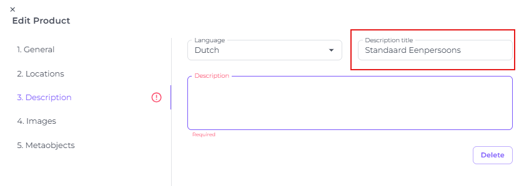
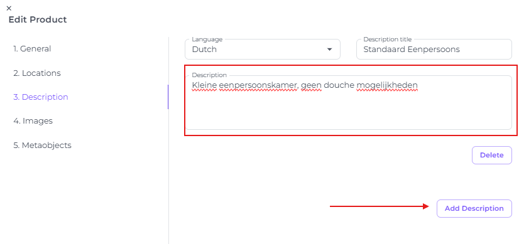
- Enter the relevant description for the item. If you require translations for additional languages, simply click Add Description again:
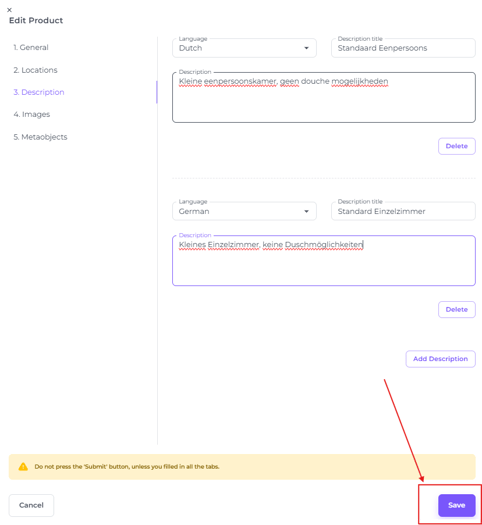
- Once you have added all the necessary languages, click Save to apply your changes.
 .
.
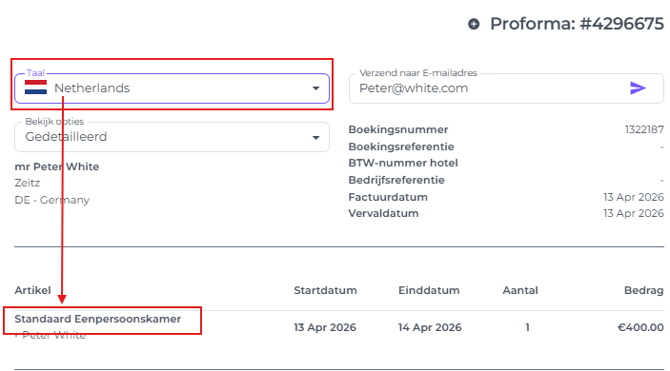
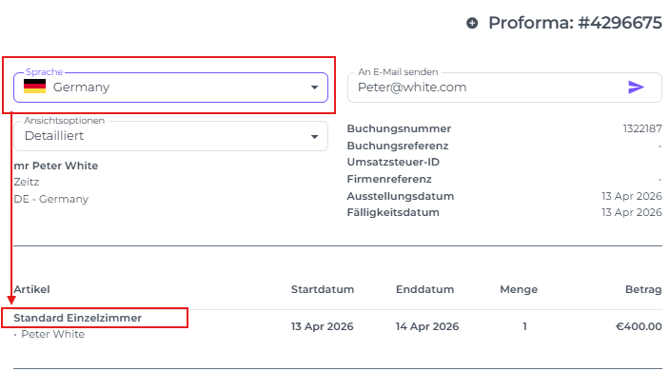
- When generating a Proforma or Invoice, choosing the relevant language will now display the items (such as room types) using your customised descriptions:
- In Dutch:
- In German:
- In Dutch: