Setting up taxes is a crucial part of configuring your PMS. Accurate tax details ensure your tax returns are correct, your rates are calculated properly, and your guests receive compliant, transparent invoices.
Well‑configured taxes ensure that:
-
Every rate and package includes the right tax logic (for example, different rules for VAT and city tax).
-
Invoices clearly show how much tax was charged, which builds trust with guests and business clients.
-
Your financial and accounting reports in Noovy match what your accountant and local authorities expect, reducing the risk of discrepancies, fines, or manual corrections.
Taking a bit of extra time to define your tax rules correctly at the start will save your team many hours later and help keep your hotel fully compliant with local regulations.
📝Note to the hotel manager:
During onboarding and account setup, your account manager will configure your taxes according to your requirements. Afterwards, you can add or adjust tax settings at any time. If you are unsure, our support team is always available to assist you.
-
The tax settings are found via the main menu in Settings - Taxes:
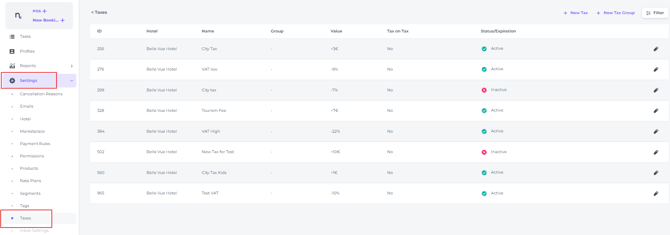
The Taxes table gives an overview of all taxes in your account, showing for each:

- ID: A distinct code used to identify each tax uniquely within your account.
- Hotel: The hotel associated with this tax, for when there are multiple venues under your account.
- Name: Tax name / description (e.g. VAT/ City Tax/ Tourist tax ).
- Group: A way to categorize or group associated taxes.
- Value: The percentage value of the tax.
- Tax on Tax: Indicates whether this tax is applied on top of other taxes.
- Status/Expiration: Indicates whether the tax is active or inactive, and lists any expiration dates.
The system offers several ways to manage your taxes:
- + New Tax: to add a tax to your system:

- + New Tax Group: This button allows you to create a new group for categorising your taxes:

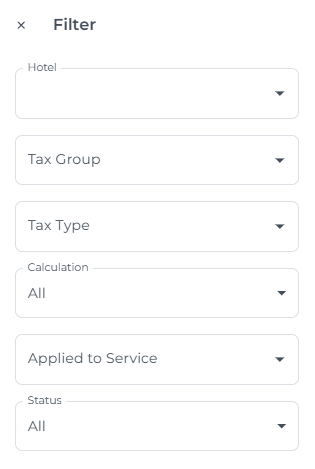
- Filter to quickly find specific taxes within your list. You can filter by various criteria such as Tax Group, Tax Type, Calculation (add or subtract taxes) , Applied to Service (Product types), and Status:

Adding a New Tax
Contact our support team if you are unsure how to proceed.
-
Click the "+ New Tax" button, this will open the "Create Tax" form:
Complete the required fields of this form:
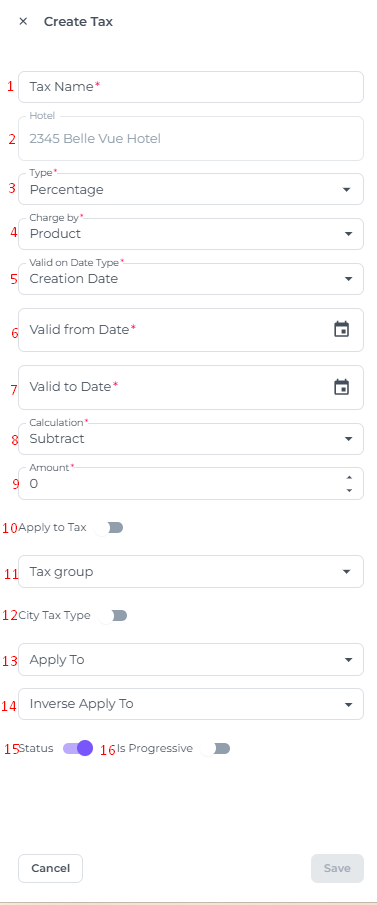
- Tax Name - Enter a descriptive name for the tax (e.g., "City Tax," "VAT").
- Hotel - Select the hotel this tax applies to. (This field may already be pre-filled based on your settings.)
- Type - Choose the type of tax from the dropdown menu (e.g., Percentage, Fixed Amount - "Euro").
- Charge by - Select how the tax should be charged (e.g., per product, per person, per night).
- Valid on Date Type: Determine how the validity of the tax is determined (e.g., creation date, service start date, service end date).
- Valid from Date - Specify the date when this tax becomes effective.
- Valid to Date - Set an expiration date for this tax.
- Calculation - Choose how the tax should be calculated (e.g., added to the price, subtracted from the price).
- Amount - Enter the tax amount (percentage or fixed value).
- Apply to Tax -Choose whether this tax should be applied on top of another existing tax.
- Tax Group - Assign the tax to a specific group for easier management.
- City Tax Type - If applicable, specify if the tax you create is the city tax type.
- Apply To - Select when this tax is applicable (e.g.: Service, Guest's Nationality, Age Range, Channel, Provider).
- Inverse apply to -Tax applies to all Channels except (Channels that are entered here). For example: If you enter B.com and AirBnB here, the tax you are creating applies to all channels except those.
- Status - enabled (active) or disabled (decativated).
- Is Progressive - (If applicable) Enable this option if the tax rate changes based on the price or quantity.
- Save your changes: Click the "Save" button to add the new tax to your system. Click "Cancel" to discard any changes.
Configuring Taxes by Service type category or Individual Products.
You can configure taxes to apply at either the service level or to individual product level. Use the "Apply to" option in your tax settings to determine how each tax is assigned.
-
Applying Taxes at the Service Level:
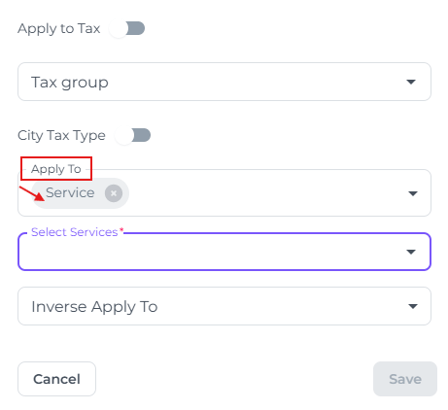
- The system will prompt you to choose the applicable service(s):
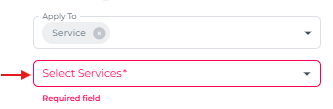
- Selecting products within the chosen service(s) is optional:
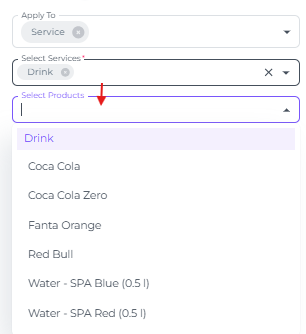
If you select Service types and do not specify individual product types within these services, the tax will be applied uniformly to the entire service type category.
For example, if "Drink" is chosen as the service but no specific products are listed, the tax rate will automatically apply to all items within the Drink category:
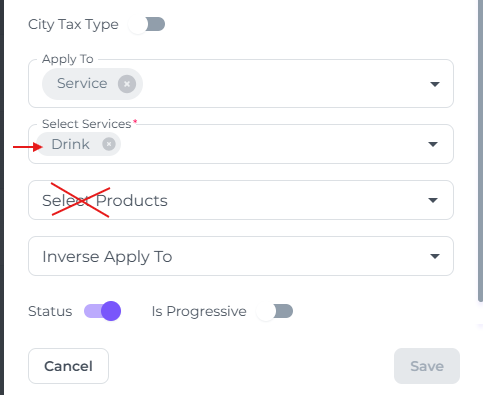
This is usually the most convenient option, as any new product added to that service will automatically inherit the tax configuration.
Applying Taxes at the Product Level:
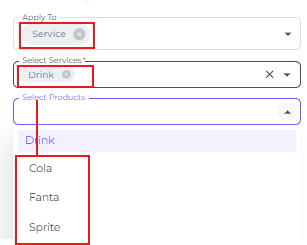
Alternatively, you can specify what product under the Service category will inherit the specific tax you are creating.
In "Select Products" choose the products that need to inherit the tax. you are creating:
⚠️Caution:
This approach lets you tailor tax rates for specific products within a sepcific service. However, keep in mind that when you add a new product to this service , it will not have a tax assigned by default!
To ensure the correct rtax is applied to the new product you will need to manually update the tax settings by adding the new product under "Apply to" : Service > Select Products > add the new product
In short:
When new products are created via menu Settings - Products one must afterwards place the product in the correct tax category.
👉Read the article How to create new products ?'
💡Tip:
Tips for Creating Taxes:
-
Be descriptive: Use clear and concise names for your taxes.
-
Group similar taxes: Utilize tax groups to organize your taxes effectively.
-
Double-check your calculations: Ensure the tax amount and calculation method are correct.
-
Review the validity dates: Confirm the tax is active for the intended period.
By carefully configuring your taxes in Noovy, you can ensure accurate pricing and streamline your financial management.