In most situations, City Tax is paid directly at the property and only rarely in advance, though it can occasionally be included in a prepaid booking. If such a prepaid booking is cancelled, the booker is entitled to a refund of the City Tax. Because the guest has not used any city facilities, the local authorities are not entitled to retain this tax. This article explains the steps required to process this type of refund.
-
If a booking , whether cancelled or not and already shows a finalised Proforma (Invoice). If a paymnet, inclusing city tax was done, the invoice should be amended and the city tax refunded
-
In this situation, you will need to credit the existing Invoice to issue a new one that excludes the City Tax.
💡Tip:👉 Check out our article: 'How to credit an Invoice?'
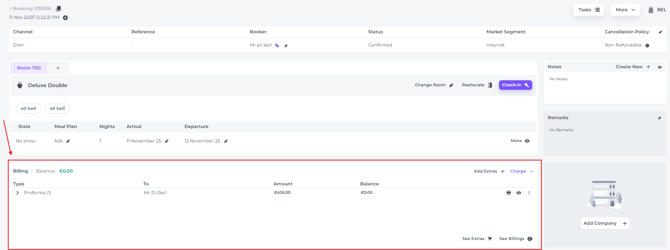
- Find the concerning booking and go to the Billing Section:
⚠️Please Note:
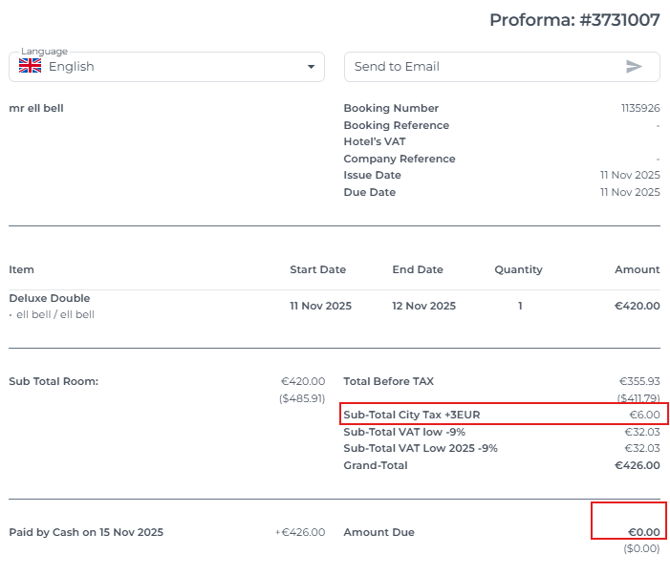
Before processing a refund, please confirm that the city tax was paid for by opening the Proforma using the eye icon next to it.

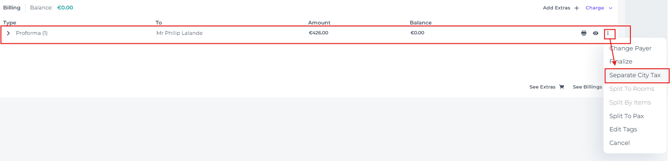
If this is the case, separate the city tax from the original Proforma. This will create a Proforma that lists only the city tax.
- Find the payment that includes the City Tax:
*This payment should be linked to the appropriate document such as a Proforma or Invoice, if it was processed correctly.
You will know a payment is linked when you see an arrow icon attached to it:
The number behind the document indicates the number of Payments and/or Refunds attached to the document:
- Click on the arrow to reveal the payment:

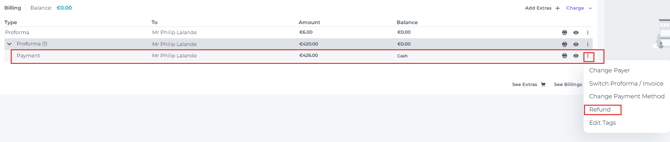
- Click on the 'More Action' button behind the payment, followed by clicking on Refund:
- In the refund modal, enter only the city tax amount to be refunded and proceed by clicking on Create New Refund:
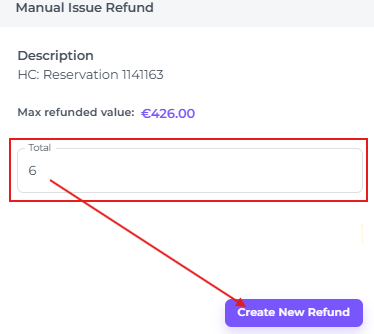
- The refund will leave an outstanding balance, due to the active City Tax Proforma:

- Before cancelling the City Tax Proforma make sure you finalise the active original Proforma first! (*If you do not do this, cancelling the City Tax Proforma will result in cancelling both Proforma's) :
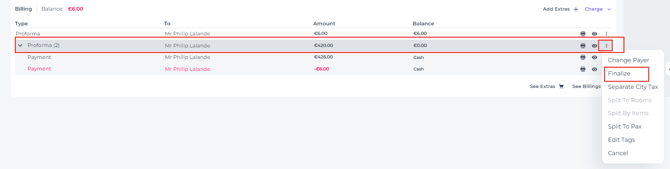
- Cancel City Tax Proforma which was separated from the original Proforma earlier:
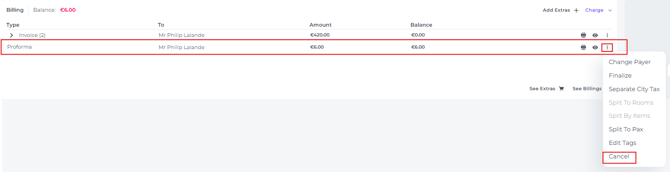
- As a precaution the system will ask you if you are sure to cancel the document:
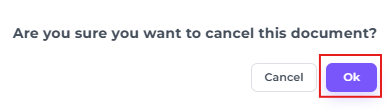
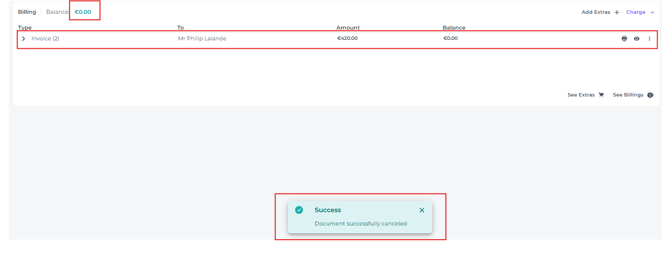
- The balance will be zero:
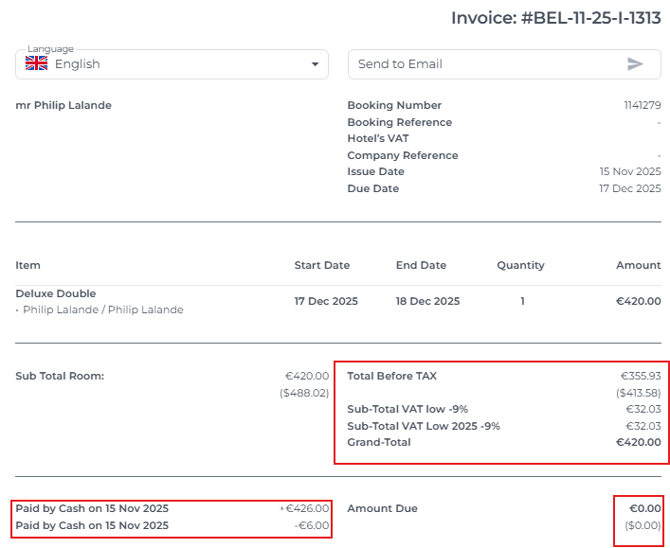
- The invoice will be correct and neat, ready to be send by email or printed to be handed out to the payer:

- The payment and refund will be shown, the city tax is no longer on the document and the balance is zero:
💡Tip: 👉Check out the article: 'How to email an Invoice?'
☝️Important reminders:
Check which scenario you need to act upon:
-
Is the booking still confirmed, and does it show the original Proforma including City Tax?
👉Follow the steps in this article to proceed.
-
Was the booking already cancelled?
👉 Create a refund and a new No Show Proforma.
-
Is there an invoice present that includes the City Tax?
👉 Create a credit and a new No Show Invoice that is excluding City Tax.
-
Always finalise the original 'room' Proforma before canceling the separated City tax Proforma
-
Ensure yourself you refund the correct amount of city tax.