Requesting Payments via Link
Sending payment links is a safe and efficient way to receive payments from guests without handling card data yourself. The guest pays through a secure online checkout page provided by your payment gateway, which reduces the risk of errors, fraud, and chargebacks compared to taking card details over the phone or by email.
As soon as the guest completes the payment, Noovy automatically records it against the relevant reservation: a receipt is created, the payment is logged in the billing section, and the outstanding balance is updated. This ensures your financial records stay accurate and up to date without manual entry, and your team can see straight away which bookings are fully or partially paid.
Follow the below steps to complete sending a payment link:
-
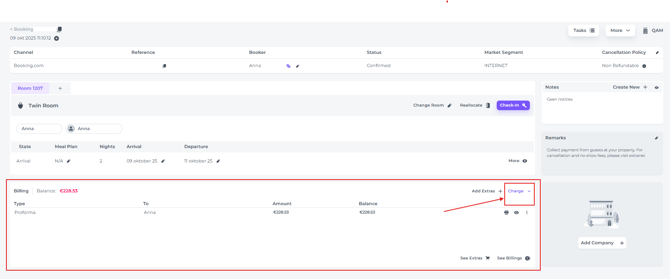
Open the booking page of the related booking and go to the Billing section. Click on Charge:
-
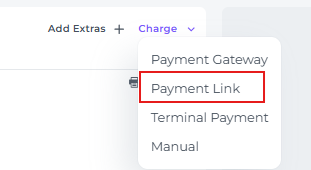
Click the Charge button and select Payment Link from the dropdown menu:
-
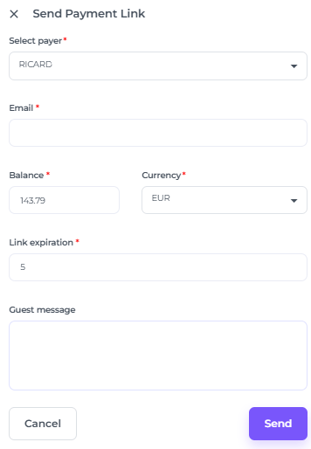
A pop-up window will open where you can configure the payment link. Fill in the required fields as follows:
-
-
Select payer:Select the guest who should be charged from the list of available payers
-
Email: Enter the payer’s valid email address
-
Balance:Amount to collect: This field defaults to the full booking amount, but you can adjust it if you want to request a different amount.
-
Currency: Choose the appropriate currency for the booking if multiple are available.
-
Link expiration: Specify how many days the payment link will remain active before it expires.
-
Guest Message (optional): Add a custom message to accompany the payment link.
-
-
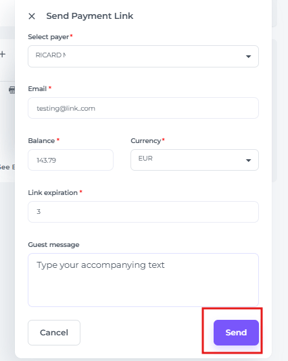
Review the entered details and click on Send
-
Click Send to dispatch the payment link to the selected payer, or click Cancel to abort the process.
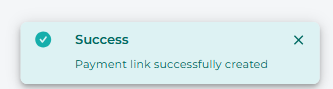
- When the link was successfully sent you will see a temporary confirmation pop-up:
💡Tip:
In the Payment Gateway Report you can view the details of the sent link such as which email address was used, the status of the payment etc.  Check the article The Payment Link Report explained to learn more.