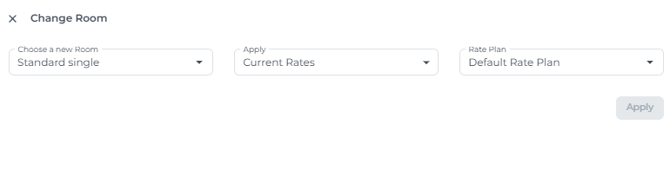
There are several reasons to change a room in a booking; Upselling to a higher category, the allocated room is not yet cleaned, or simply upon requests of the guest.
-
When:
-
before check-in
-
After check-in
*Please note that if the check-in has already been completed, you will need to check the guest in again after changing the room.
-
-
Where can I Change Rooms?:
-
from the relevant Booking Page
-
via the Room Calendar
-
from the Booking Pop-Up in the Booking List
-
Room Change from the Booking Page
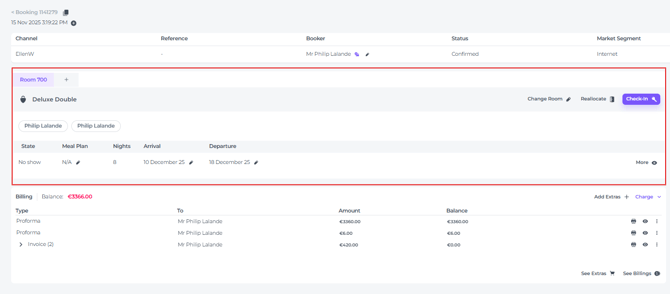
- Search for the booking you would like to change the room for (👉see article "How to find a booking")
- Go to the "allocation" section and click on Change Room:
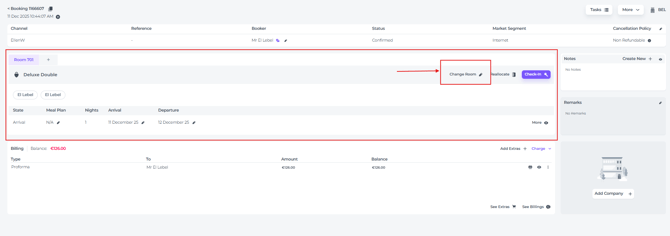
- Select the desired room type:
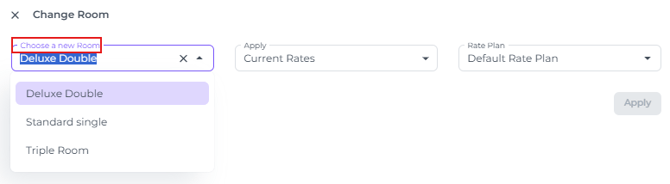
- In the field Apply, choose one of the options
- Current Rates - Keep the rates the same as the original Room type Rates
- New Rates - The rates are aligned with the current rates for the new room type
- Additional Fixed Amount - Set your own rate
- Choose the desired Rate Plan:
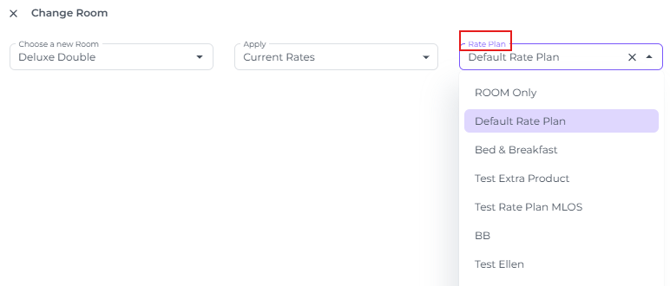
- Hit Apply and Save when you are done. The room will be changed.
Room Change via the Room Calendar
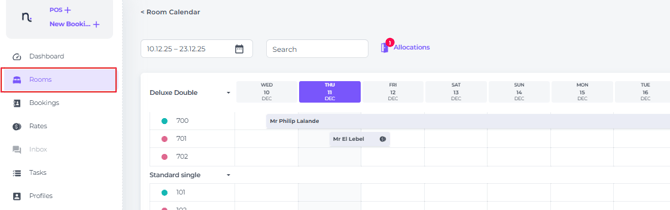
The Room Calendar offers a handy feature > Drag and Drop the reservation from one room type to another:
- Click & hold on the reservation you would like to change room type for.
- Drag the reservation to the desired room and release the mouse button.
- A pop-up screen will appear where you can choose the desired Room Type, Room Number and choose the Rate > Current-, New, - or Additional Fixed
Amount:- Current Rates - Keep the rates the same as the original Room type Rates
- New Rates - The rates are aligned with the current rates for the new room type
- Additional Fixed Amount - Set your own rate
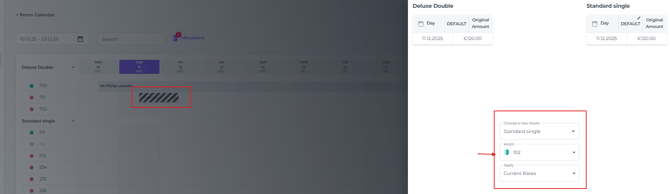
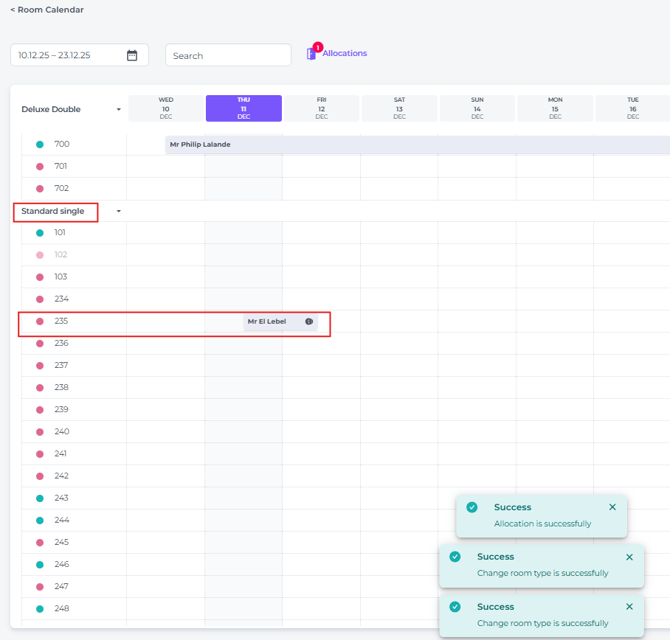
- Hit Save and the Room Type will have changed:
Room Change from the Booking Pop-Up:
The Booking Pop Up can be accessed from both Booking List and Room Calendar. Basically it is a quick overview of the booking which allows you to perform all key actions, such as Change Room.
- From the Booking List, click on the eye icon behind the regarding reservation you would like to change the room for:

- From the Room Calendar you can access the Booking Pop-up by clicking on the concerning reservation once:
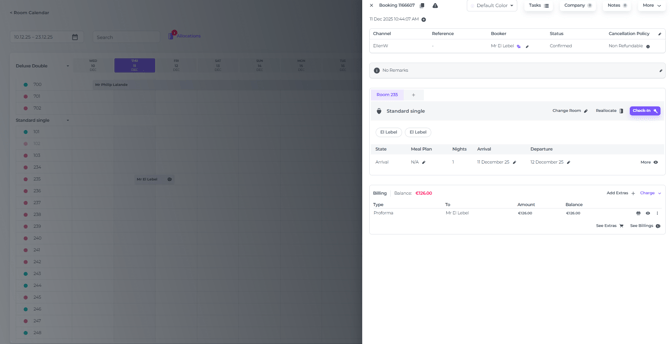
- To Change Room click on the pen icon at Change Room and change room the same way as described above: